


The Integrate/Merge functionality is available to propagate changes from a branched version or copy back into the main project, namely the target project. It is dedicated to support a team workflow described in Overview of teamwork.
After the comparison of source, target, and baseline project is finished, click the Merge All Changes button to open the Merge All Changes dialog.
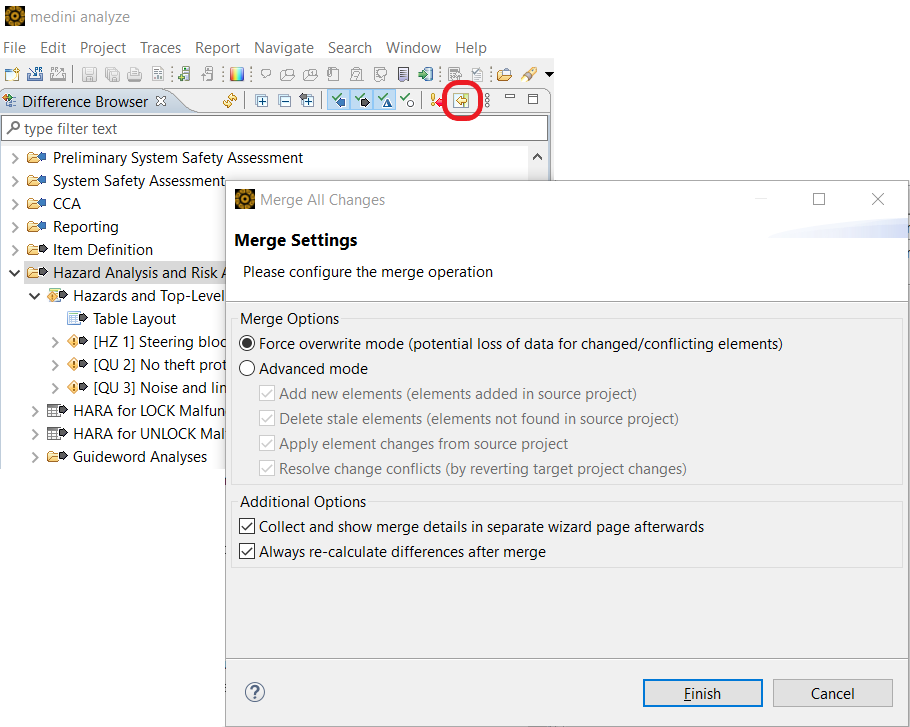
The Merge All Changes dialog supports several options for merging differences into the target model:
Force overwrite mode: This default mode merges all changes into the target, including conflicting elements. Since conflicts indicate changes on both sides, this means that changes to the source model "win" during merge. Local (target project) changes are overwritten.
Advanced mode: If the force mode does not fit your needs, this mode allows a more fine-grained selection of merges. The suboptions determine what type of incoming differences are merged from the source project, namely additions, deletions, changes, and conflicts. A frequent use is a combination of the first three options, namely not merging conflicts and keeping local project changes. If all suboptions are activated, the behavior is the same as with the force option.
When you click Finish, you see the Merge Result window, which lists each change that was made with this merge. Click the changes to see more details about each merged item. You can also log the changes to your clipboard, for pasting into a document such as a text document. After clicking the Finish button, if you close your project without saving it, none of the merged changes are saved.