


Since every safety domain defines a dedicated approach and terminology to the hazards analysis and risk assessment, medini provides tailored behaviour of the general hazard editor and related features. The following subsections describe the specifics for each domain.
The entries of the hazard table editor are considered to be hazardous events that are analyzed for an item. Each row represents one hazardous event.
By default, the table consists of the following columns:
ID: denotes the identifier of the event. The ID will automatically be assigned to a newly created hazardous event.
Location: denotes where the item is used
Road Conditions: denote any conditions on the state of the location
Environment: denote any additional external conditions on the item usage
Operation Mode of item: details on the current state of the item (e.g. on or off)
Traffic and People: reference to any other humans related to the hazard
Item usage: denotes how the driver/operator uses the item
Malfunctioning Behavior: failure or unintended behavior of an item. This column is a reference to a malfunction.
Hazard: the hazard which may occur as a result of the malfunctioning behavior. This column is a reference to a hazard.
Potential effect: description of the harm which may be caused by the hazard (depending on the safety process this might be merged with the hazard column)
Severity: the estimation of the extent of potential harm, ranging between S0 and S3.
Severity Comment: explanation of the chosen Severity
Exposure: the estimation of the probability of being in the operational situation that can be hazardous, ranging between E0 and E4
Exposure Comment: explanation of the chosen Exposure
Controllability: the estimation of the probability that the driver or persons involved in the situation cannot gain control of the hazardous event in order to avoid the harm or damage, ranging between C0 and C3
Controllability Comment: explanation of the chosen Controllability
ASIL: denotes the ASIL associated with the hazardous event, derived from S/E/C according to the definitions in ISO 26262-3.
Safety Goal: Denotes a safety goal which is defined for the hazardous event.
Safe State: denotes a potential safe state regarding to the safety goal/hazardous event (read only).
With the exception of the ASIL, and the safe state all other entries can be edited directly in the table. The ASIL is automatically computed out of S,C, E parameters and cannot be manually changed. The safe state belongs to the safety goal and can be edited at the safety goal (see Safety Requirements Model). Please note that a darker background color is used in general to indicate read-only cells.
The operational situation columns support drop down lists with all parameter values defined (see Definition of Operational Situation Parameters on details for the modification of the list of predefined values).
The cells "Malfunction Behavior", "Hazard", and "Safety Goal" contain references to corresponding elements in other models. Double clicking in the cell will open a selection dialog that allows to select or create an element. To navigate to the referenced element or to delete the reference, the context menu on the cell may be used. Alternatively, assignment is supported by drag and drop.
For more details on how the editor can be customized see General aspects for table editors and Profiling mechanism.
The ASIL value for a hazardous situation will be automatically computed and displayed if the values for Exposure, Severity and Controllability (S/E/C) are specified. In addition, the tool does also provide an ASIL Determination wizard, which can be used to specify the S, E & C values as well as the safety goals for each hazardous event.
The ASIL determination Wizard guides you through the risk estimation for an entry in the hazard list. The wizard comes up when double-clicking into the "ASIL" cell of a hazard table entry.
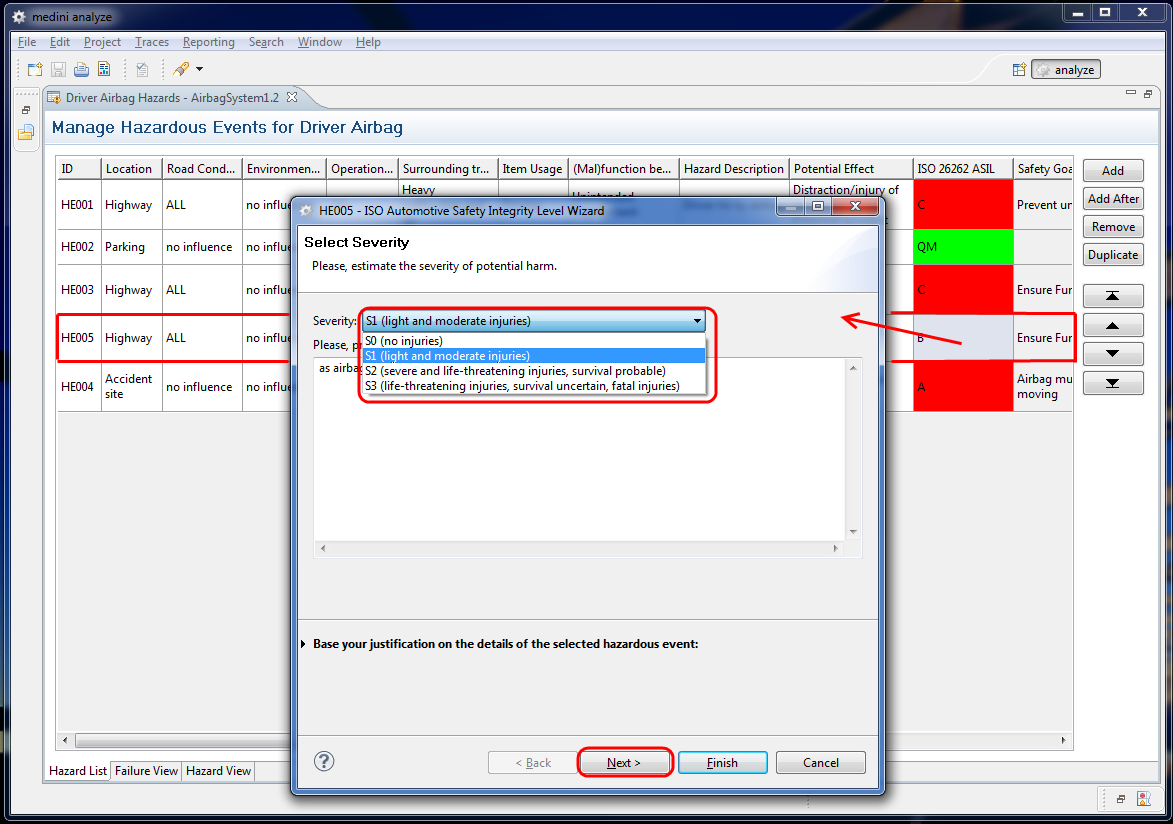
Step by step appropriate values have to be assigned to the parameters "Severity", "Exposure" and "Controllability". These values must be chosen from a drop-down list on top of the wizard and correspond to the classification of such values in ISO 26262. In the figure above the assignment is exemplified for the "Severity" parameter. In the text field below the selection, a verbal justification for the chosen value should be given. For your convenience and to ease the justification all hazard parameters of the current hazardous situation may be shown on request below the text field.
Using the "Back" and "Next" buttons you can navigate between the different pages of the wizard.
After determining values for all three parameters the resulting ASIL is computed and shown in the risk graph.
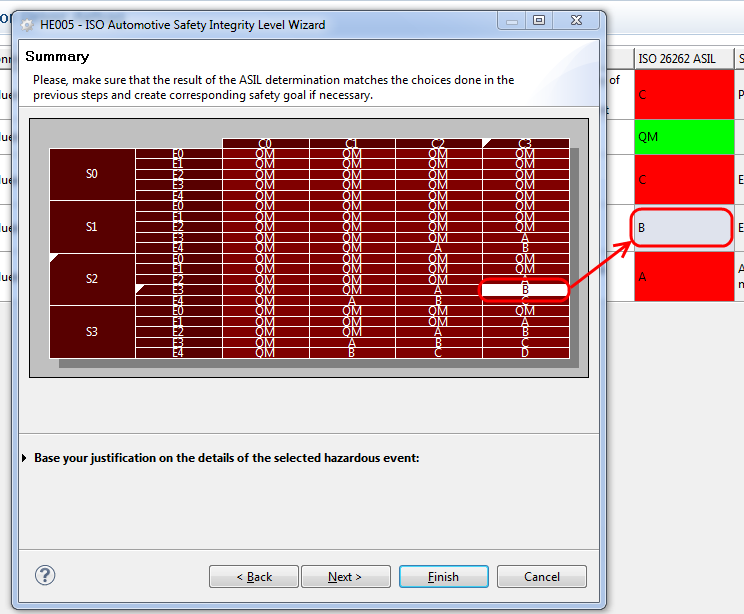
If the ASIL is of value QM, the wizard can be finished now. For all other values (A-D) you can now directly continue with the creation and assignment of a safety goal to the hazardous event by clicking on "Next".
Please note, you can also modify the Exposure, Severity and Controllability parameters as well as the related comments directly in the hazard table. The ASIL value will in this case be updated accordingly.
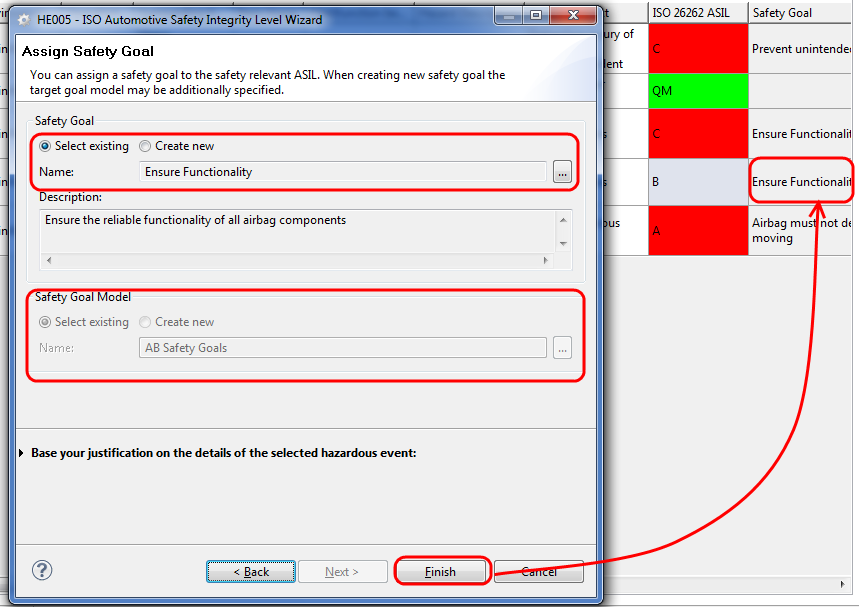
For ASIL levels higher than QM, the ISO 26262 requires to associate a safety goal to the hazardous event. As mentioned above, this can be done directly from the ASIL Determination Wizard after completing the ASIL determination.
The "Assign-Safety-Goal" page of the wizard enables the assignment of safety goals either by creating a new safety goal or by selecting an already existing safety goal.
In case the creation of a new safety goal is chosen, you have to provide a name as well as a verbal description for this safety goal. In addition he has also to decide where to store and manage the safety goal. Again, you can decide between either the creation of a new safety requirement model or the use of an existing model. Depending on the decision a name for the new safety requirement model has to be provided resp. an existing requirement model has to be selected (click on the "..." button to see the list of all available safety requirement models in the project and select from that list).
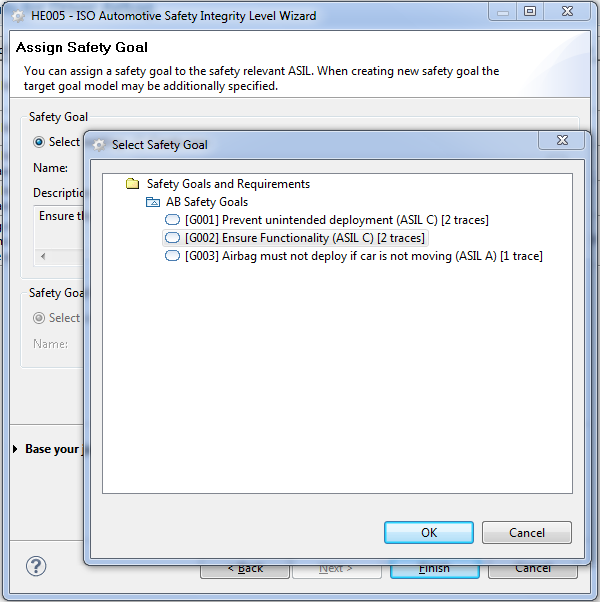
When on the other side an existing safety goal should be associated with the hazardous event, the button "..." on the right side of the name field brings up a selection dialog showing a list with all existing safety requirement models and their safety goals. Choose the appropriate goal from the list by either double-clicking on it or by selecting it and clicking on "OK".
After completing the definition or selection of the safety goal, the ASIL Determination Wizard can be closed by clicking on "Finish". The result of the ASIL determination is displayed in the hazard analysis table (red color highlights ASIL levels A-D) and in the tree-view for the hazardous events in the Model Browser.
The name of the chosen safety goal will appear in the read-only column "Safety Goal" of the hazard analysis table. The safety goals themselves will be managed in the "Safety Goals and Requirements" Package (cf. Safety Requirements Management) and a relation will be created automatically between the hazardous event and its associated safety goal.
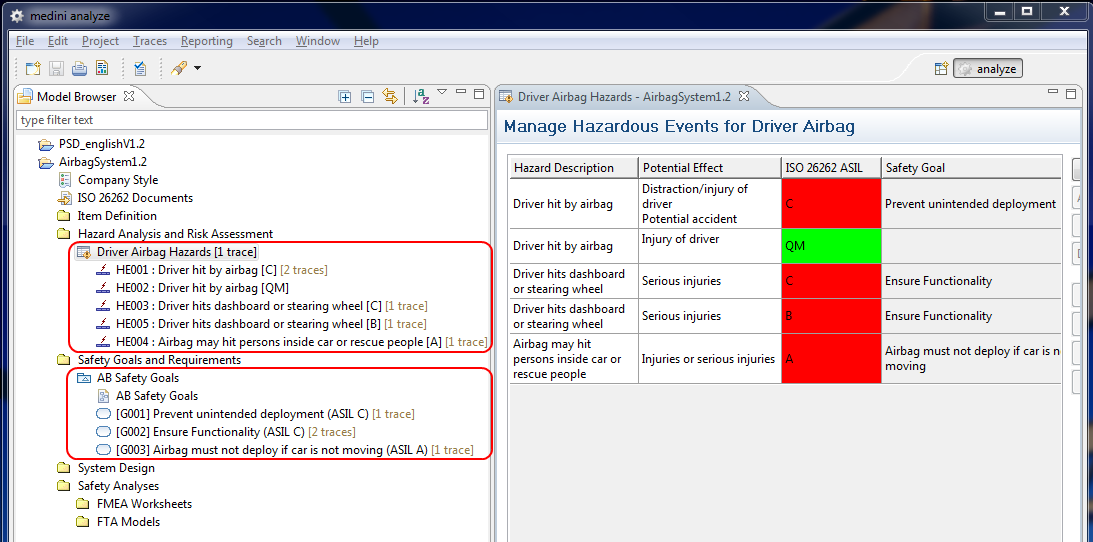
Please note, it is also possible to assign or re-assign a safety goal to a hazardous event using the entry "Assign Safety Goal ..." from the context menu of the event in the Model Browser or by double clicking the cell in the hazardous events table editor.
The FHA table editor displays a table with the scenarios that are assessed at Aircraft or System level. Each row is considered to be an analyzed scenario linking Function/Malfunction and Failure Conditions (FC).
The table consists by default of the following columns to specify parameters of a scenario:
ID: to denote an identifier of the scenario. The ID will automatically be assigned to a newly created entry.
Flight Phase: the flight phase(s) for the scenario.
Malfunctioning Behavior: functional failure of the system. This column is a reference to a malfunction.
Failure Condition (FC): the hazard which may occur as a result of the malfunctioning behavior. This column is a reference to a hazard.
Aircraft Effect: description of the effect of the failure condition on the Aircraft
Crew Effect: description of the effect of the failure condition on the crew
Occupants Effect: description of the effect of the failure condition on the occupants
Potential Effect: any further effect that is noteworthy for the given scenario
Failure Condition Classification: classification of the severity of the FC, i.e. No Safety Effect, Minor, Major, Hazardous, or Catastrophic.
FDAL: the resulting Functional Development Assurance Level, ranging from E to A.
With the exception of the FDAL, all entries can be edited directly in the table. The FDAL is automatically computed from the Failure Condition Classification and cannot be manually changed.
The cells "Malfunction Behavior" and "Failure Condition" contain references to corresponding elements in other models. Double clicking in the cell will open a selection dialog that allows to select or create an element. To navigate to the referenced element or to delete the reference, the context menu on the cell may be used.
For more details on how the editor can be customized see General aspects for table editors and Profiling mechanism.