


Ansys FreeFlow software is a powerful program with a flexible, hierarchical interface. One main screen gives you access to the most frequently used functions and features, and provides you with various views of the simulation.
Additional panels allow you to access properties and settings to fine-tune your simulation and view statistics based upon the results.
What would you like to learn about?
See Also:
Use this section to explore the five major parts of the FreeFlow user interface, and learn when and why you might access them.
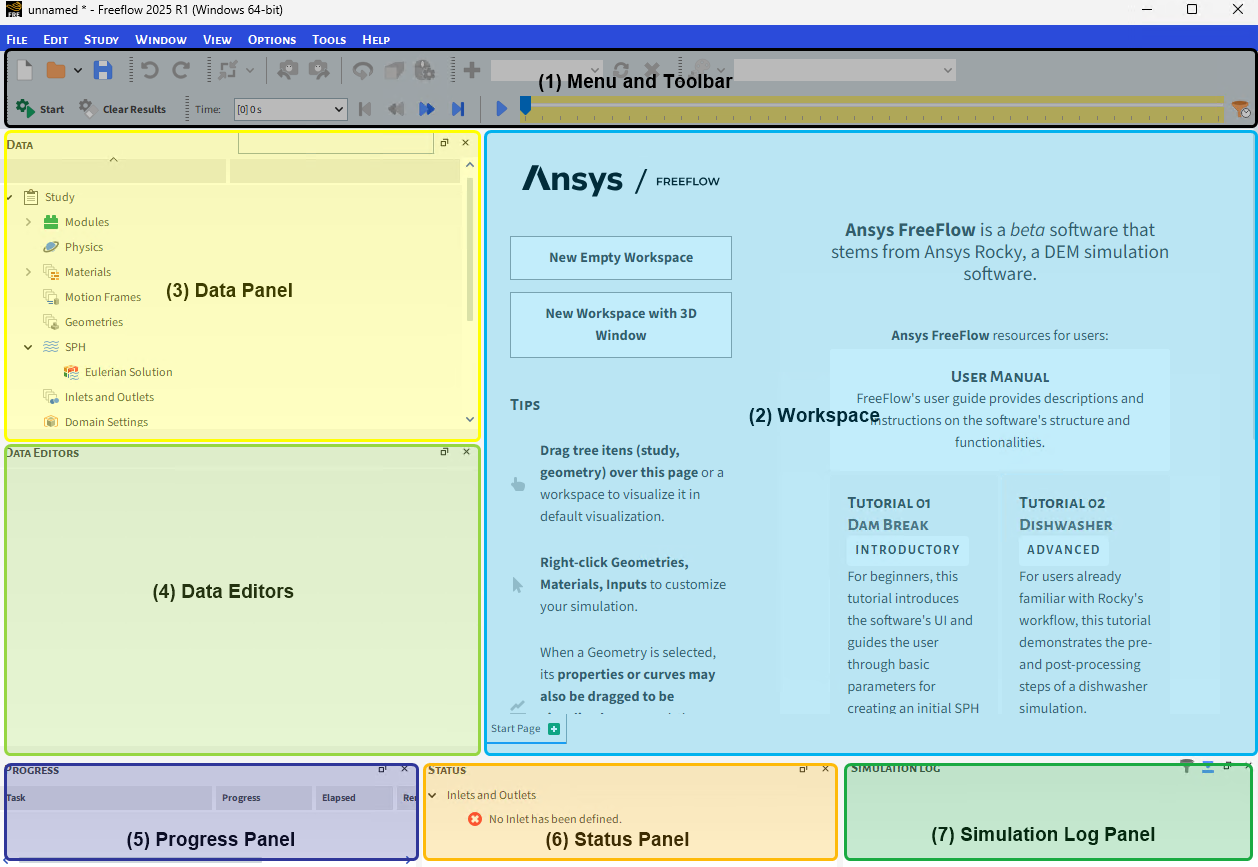
What would you like to do?
Learn more About the Menu
Learn more About the Toolbar
Learn more About Panels
Learn more About Workspaces
See Also:
The menu is always located at the very top of the FreeFlow main screen and is one of the few UI elements in FreeFlow that is static in its location. From the FreeFlow menu, you can do all of the following tasks:
From the File menu:
Begin a new simulation project.
Open an existing simulation project.
Save a new simulation project.
Archive a simulation project.
Restore an archived project.
Export or import project context.
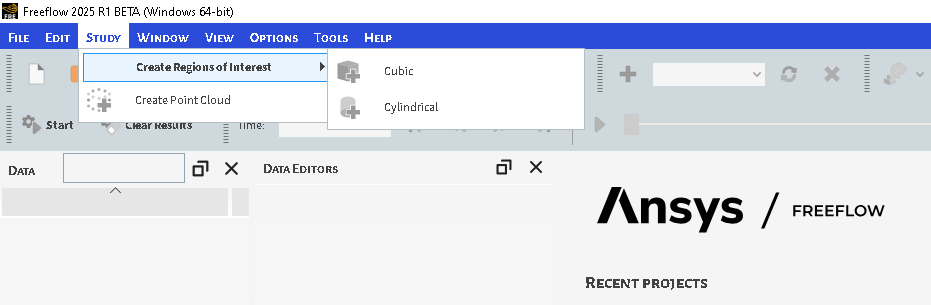
Study
Create Regions of Interest.
Create Point Cloud.
From the Edit menu:
Undo or Redo actions made in FreeFlow.
Copy an Image or Data Set to the clipboard.
From the Window menu, you can create, organize (see also Edit or Remove a Workspace), and save an image of various FreeFlow windows, including:
3D View windows (see also Create and Modify a 3D View).
Plot and Histogram windows (see also Graphing (Plot or Histogram) a Data Set Within FreeFlow).
Motion Preview windows (see also Preview a Motion in 3D).
From the View menu:
Show/hide various FreeFlow panels (see also About Panels).
Revert to the default FreeFlow user interface layout by clicking Reset layout.
Change the background color of the FreeFlow interface by selecting a Theme. In this version, there are two options:
Dark Theme(default), which has a mostly black background with light-colored text.
Light Theme, which has a mostly white background with dark-colored text.
From the Options menu:
Set global preferences for using FreeFlow .
Set the units used in FreeFlow.
From the Tools menu, you can show/hide all of the following panels:
The PrePost Script panel.
The Python Shell panel.
The Inspection panel (see also About the Cell Inspector).
The Animation panel (see also About Creating and Saving an Animation).
The Expressions/Variables panel.
From the Help menu, you can:
Access your FreeFlow License status and info by clicking License Info.
Review details about this FreeFlow release by clicking About. (See also About This Version of FreeFlow.)
Access the User Manual (this document), Tutorial Guide, and other resources by pointing to Manuals and then selecting which option you want.
Access the Tutorials, Community forum and other features by pointing to Customer Portal and then selecting which item you want.
Review the technical library, the latest FreeFlow applications and other resources by pointing to Website and then clicking the option you want to access.
Review what changed in this release of FreeFlow by clicking Release Notes.
Access the default Workspace that displays when you first open FreeFlow by clicking Start Page.
ADDITIONAL FEATURES
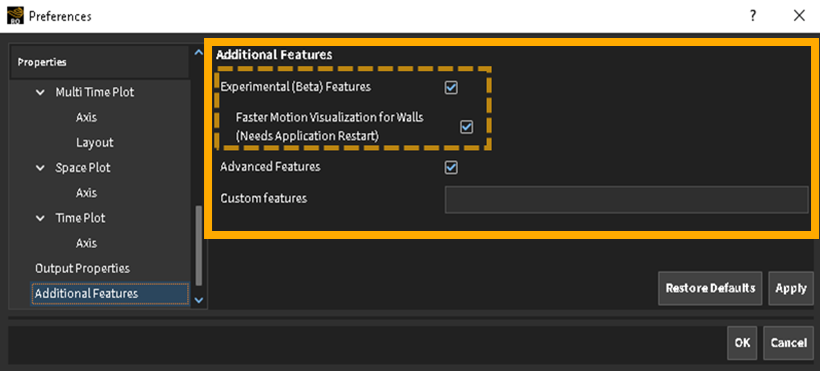
Experimental (Beta) Features
The Experimental (Beta) Features checkbox enable you to use FreeFlow beta features, these features are described in this document with the reference that they are still beta and will only appear in the UI if this check box is activated.
Important: Note that beta features have not been fully tested and validated. Ansys, Inc. makes no commitment to resolve defects reported against these prototype features. However, your feedback will help us improve the overall quality of the product. We will not guarantee that the projects using this beta feature will run successfully when the feature is finally released so you may, therefore, need to modify the projects.
Faster Motion Visualization for walls
Enable this beta feature to speed up the 3D post processing for cases containing geometries with huge triangle counts.
Limitations:
•Walls with wear model enabled will not benefit from the performance improvement
Advanced Features
The Advanced Features checkbox enable you to use FreeFlow Advanced features, these features are described in this document with the reference that they are advanced and will only appear in the UI if this check box is activated.
See Also:
The toolbar is, by default, located at the top of the FreeFlow main screen just below the menu. There are several individual toolbar components that can make up the main FreeFlow toolbar, including the following:
Camera visualization toolbar
Coloring toolbar
Custom Presets toolbar
File toolbar
Time toolbar
Undo Redo toolbar
These individual toolbar components can be moved or made to float independent of the screen by clicking a toolbar handle and then dragging it and dropping it with the mouse. You can also show/hide individual toolbars by right clicking a toolbar and selecting or clearing the options at the very bottom of the contextual menu.
See Also:
Below the toolbar and surrounding the Workspace are various floating panels that enable you to set parameters and choose options for your simulation and its resulting data. The primary panels for configuring your simulation are the Data and Data Editors panels that appear (by default) to the left of the Workspace; the primary panels for post-processing are the Windows and Windows Editors panels that appear (by default) to the right of the Workspace. Also showing (by default) to the right of the Workspace, you can display various tools panels such as Animations or PrePost Script. You can choose to show/hide multiple panels through both the View and Tools menus located at the top of the screen.
All panels in FreeFlow can be resized, moved, nested with other panels, and undocked to float independent of the FreeFlow main screen. Specifically:
To resize a panel, hover your mouse over a panel boundary until the resize icon appears. Then, click and drag the boundary to the desired width or height.
To move a panel to another docked location, click the panel title and drag to the desired area outside of the Workspace. While still dragging the panel, a preview of new docked locations will be displayed with a blue background. To select a new docked location, release the mouse over the preview of the location you want.
To make a nested panel, click the panel title and then drag it directly over another panel until the lower panel is blue, and then release the mouse. The second panel will appear as a tab at the bottom of the first panel. Select the tab you want to toggle between panels.
To make a docked panel float, click the panel title, drag it towards the center of the screen then release the mouse. Alternatively, you can also click the icon to the left of the panel's close button to make any docked panel float.
Show/hide multiple panels by right clicking a panel's title bar and selecting or clearing the options at the top and middle of the contextual menu.
What would you like to do?
Learn more About the Data Panel
Learn more About the Data Editors Panel
Learn more About the Windows Panel
Learn more About the Window Editors Panel
Learn more About the Undo/Redo History Panel
Learn more About the Log Panel
Learn more About the Simulation Log Panel
Learn more About the Cache Panel
Learn more About the Debug Info Panel
Learn more About the Progress Panel
Learn more About the Status Panel
Learn more About the Inspector Panel
Learn more About the Animations Panel
See Also:
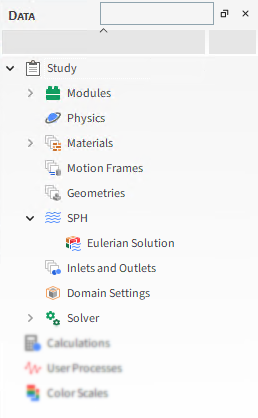
The Data panel is the area you use to select the entity with which you want to interact. The tree-like structure is hierarchical and is roughly organized by the steps required to setup, process, and analyze your project. (See Figure 1.)
By clicking Study on the menu, more parameters can be added to Data Panel, as shown in the image below:
The top-level items in the Data panel include the following entities:
Study, which organizes all the various setups and processing categories. (See also Set Simulation Parameters)
Calculations, which lists any SPH elements properties you have applied to User Processes for which you want to retain calculations after the SPH elements leaves the defined area.
User Processes, which lists the shapes, planes, and settings you have divided or filtered your simulation area into for more focused analysis. (See also Filter Views and Data with User Processes.)
Color Scales, which lists all the Properties you have shown in a 3D View for the purpose of changing the coloration of the legends. (See also Create and Modify a 3D View.)
Once selected in the Data panel, options for the item are generally shown in the Data Editors panel (see also About the Data Editors Panel), or through the item's right-click menu. Note: With the exception of the Study item, which has its own settings, top-level Data panel items are for categorization only and do not have settings associated with them. Only the sub-items listed beneath these categories will have settings upon which you can take action.
The Data panel also includes a search box to help you find items in the panel quickly. (See also Use the Data Panel Search Bar to Quickly Find Components.) You may also duplicate many of the items in the Data panel to save time on setup.
See Also:
The Data Editors panel shows the settings and parameters available for the item selected in the Data panel (see also About the Data Panel).
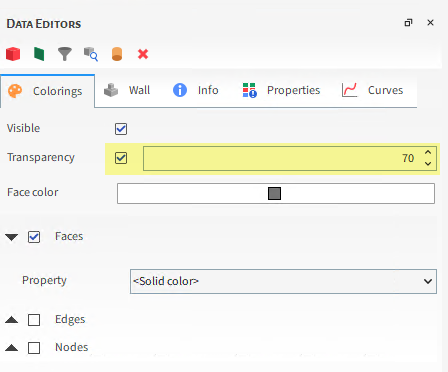
What is shown for an entity on the Data Editors panel can include action buttons, like those provided at the top of Figure 1, and settings and information organized into various tabs, such as the following:
Coloring tab (see also About the Coloring Tab)
Info tab (see also About the Info Tab)
Properties tab (see also About Properties)
Frames of Reference tab
Curves tab (see also About Curves)
Some entities in the Data panel, such as Calculations and Color Scales, are categories only and will have no information displayed in the Data Editors panel. However, sub-items within these categories will have information upon which you can take action.
See Also:
The Info tab is one of several tabs that appear on the Data Editors panel when a simulation entity is selected in the Data panel. Though purely informational, the Info tab does show some data about the selected entity that could be useful when setting up or analyzing your simulation.
ABOUT THE INFO TAB FOR MODULES
The Info tab on individual Modules (see also About Modules Parameters) describes the Author and Version details for the Module, and lists what other entities in the FreeFlow UI are affected by enabling that particular Module. For example, the Info tab for the SPH Density Monitor describes three places in the FreeFlow UI affected by that module.
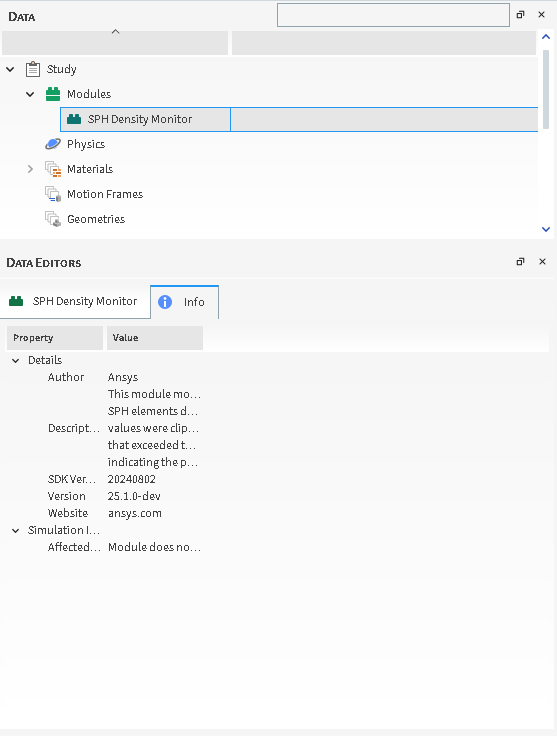
This information can help you verify that the parameters in those locations are set correctly for the feature enabled by the module.
See tables below to help you understand more about the Info tab.
Table 1: Info tab definitions for individual Geometry components
Property | Description | Values Displayed |
|---|---|---|
General | ||
Type | Indicates the type of grid the domain property is based upon. Specifically:
| Structured; |
Topology | ||
Dimension | Indicates whether the domain property has no dimension; or is one dimensional (node), two dimensional (triangle), or three dimensional (block or cell). | 0D; 1D; 2D; 3D |
Number of Cells | Lists the number of cell within the simulation bounds. | Positive whole numbers |
Number of Vertices | The number of cell intersections within the simulation bounds. For geometries, this is the points between triangle. For Eulerian Statistics, this is the corner points making up each block And so on. | Positive whole numbers |
Cells Point | Lists the number of points within the simulation bounds. | Positive whole numbers |
Cells Tri | For Geometry components, lists the number of triangles within the simulation bounds. | Positive whole numbers |
Shape | For Eulerian Statistics, indicates the number of divisions that were defined in the X, Y, and Z directions respectively. | Whole values greater than or equal to 1 |
Geometry | ||
Dimension | Indicates whether the geometry components within the simulation have no dimension; or are one dimensional (node), two dimensional (triangle), or three dimensional (block or cell). | 0D; 1D; 2D; 3D |
Bounds Min | The minimum coordinates of the simulation data. | X, Y, Z |
Bounds Max | The maximum coordinates of the simulation data. | X, Y, Z |
Bounds Size | The size dimensions of the current simulation bounds. | X, Y, Z |
Volume | For Eulerian Statistics, provides the total volume of all the Eulerian blocks added together. | Positive values |
Table 2: Info tab definitions for individual Modules (Figure 2 above) (See also About Modules Parameters.)
Property | Description | Values Displayed |
|---|---|---|
Details | ||
Author | If provided, lists the name of the developer or company that designed and built the Module. | Text |
Description | If provided, displays a short description of what the Module does. | Text |
Version | If provided, displays the Module version. For Modules created by Ansys, this will be equal to the version of FreeFlow for which the Module was designed. | Text |
Website | If provided, displays the URL of the website associated with the Author of the Module. | Text |
Simulation Information | ||
Affected Simulation Entities | Describes whether or not enabling the Module caused changes or additional settings to be made in other areas of the FreeFlow UI. Specifically:
| Text |
Tip: If you see <Not Loaded> listed for items under the Value column, right-click the item and then click Load… to have FreeFlow calculate and display the values.
See Also:
The Coloring tab, located on the Data Editors panel when a simulation entity is selected in the Data panel, helps you change the colors and data attributes of your selected entity.
The options displayed on the tab are dependent upon which type of window you select. If a 3D Plot window is selected, the Coloring tab shows options that enable you to change the appearance of the entity you have selected in the Data panel (Figure 1). Those changes will be visible in the 3D View.
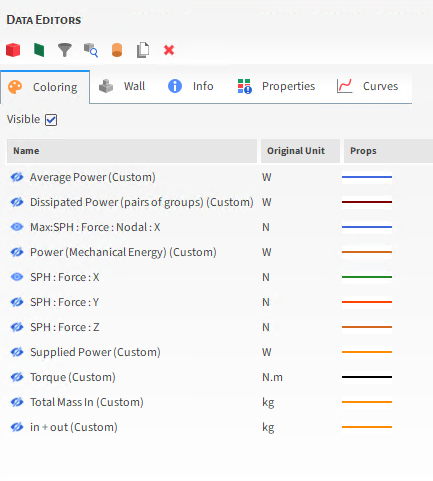
If a plot or histogram window is selected, the Coloring tab shows the data sets that are already calculated and ready to display in the window (Figure 2). The active data sets are indicated with an "open" eye icon. (See also Show/Hide Components by Using Eye Icons and Checkboxes.) Unlike when a 3D View window is selected, the data on the Coloring tab when a plot or histogram window is selected is not dependent upon what is selected in the Data panel.
If a Motion Preview window is selected, the Coloring tab shows options related to the axes of the Frame that is selected in the Data panel.
Figure 2.9: Coloring tab when a Motion Frame is selected in the Data panel AND a Motion Preview window is selected
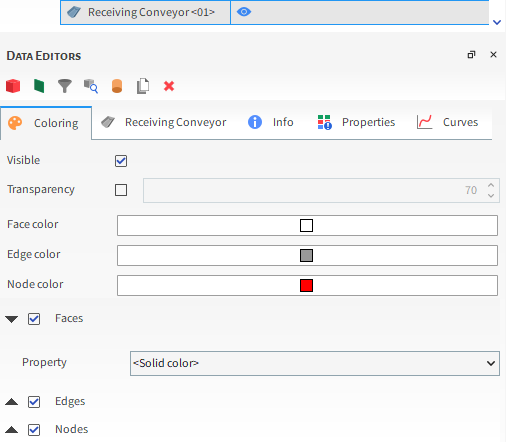
If the Details window is selected, the Coloring tab shows options that will enable you to change the appearance of the SPH elements you have selected to display. You can also adjust the transparency settings, allowing you to finely tune the opacity of the SPH elements and achive the desired level of transparency (Figure 4).
The Windows panel enables you to easily view, create, or remove the various FreeFlow windows-including 3D View windows, Motion Preview windows, and plots and histogram windows-all in one place (Figure 1).
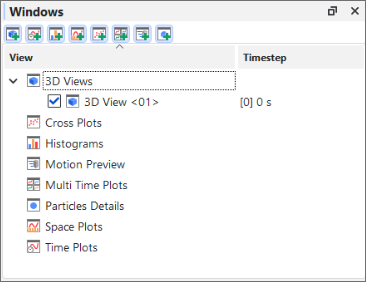
It is hidden by default when you first open FreeFlow, but can be shown by selecting Windows from the View menu.
On the Windows panel, existing windows are listed below their categories, and new windows can be created from the button bar at the top of the panel. And by using the checkboxes, windows can be shown or hidden from the workspace without actually removing them from the project. (See also Show/Hide Components by Using Eye icons and Checkboxes.)
Selecting a window from this panel will enable that window's editable properties in the Window Editors panel.
See Also:
The Window Editors panel (Figure 1) displays the editable settings and parameters for the FreeFlow window that is selected in the Windows panel (see also About the Windows Panel).
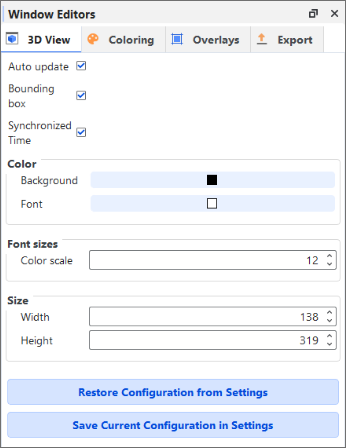
Depending upon the type of window that is selected, different options will be presented, such as the following:
Window-type-specific options, such as background color, and font sizes.
Coloring, which provides options for displaying the data (geometries, graph lines, etc.) shown in the selected window.
Overlays, which provides options for adding text or images to the 3D View window.
Export, which provides options for exporting and then viewing images or data from the window outside of FreeFlow.
See Also:
The Log panel is for more advanced users of FreeFlow. Its purpose is to display the actions you have taken in the program that FreeFlow records for bug reporting purposes (Figure 1). When an error is shown in the program, you are sometimes given the option of submitting a report with your feedback. That report would contain details regarding the actions displayed in this panel.
This kind of information can be useful when writing and testing scripts.
For example, the actions displayed on the Log panel can be referenced while playing a script (Figure 1), which can be useful for debugging purposes.
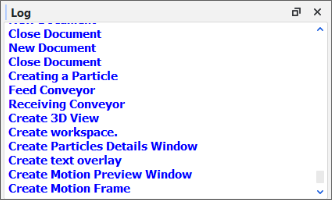 Figure 1: Log panel showing some actions that were recorded
In addition, if a print function is referenced when creating a script, it will appear in the Log panel when the script is played (Figure 3).
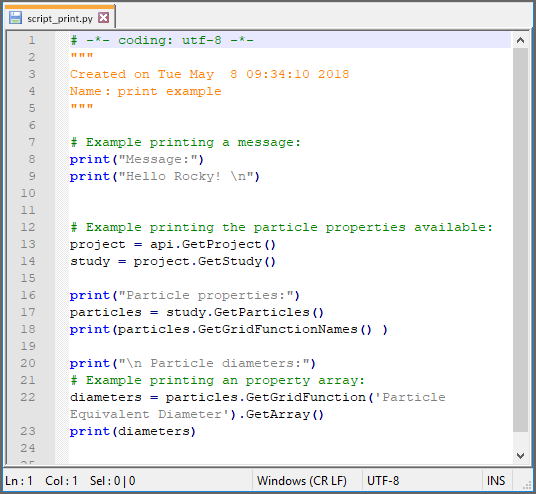 Figure 2: Example script making use of a print function
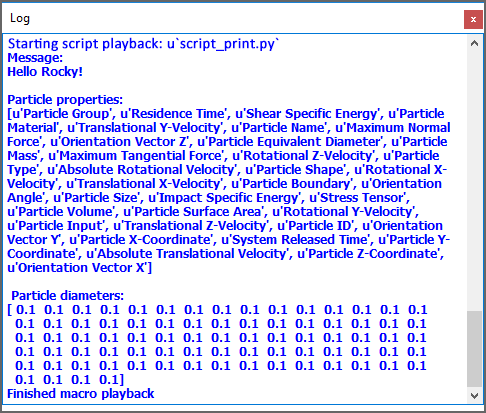 Figure 3: Log panel showing print function when example script is played
The Log is for display only and cannot be edited. Like the Undo/Redo history panel (see also About the Undo/Redo History Panel), the items displayed in this panel are cleared every time you close and open the project.
See Also:
The Simulation Log panel displays any solver-related warnings, errors, or other information that happen during processing (Figure 1), no matter whether you are running your simulations using CPU or GPU resources. This kind of information can be useful when troubleshooting issues that occur when you process your simulation project.
Figure 2.12: Simulation Log panel showing some warnings and information that was logged during processing
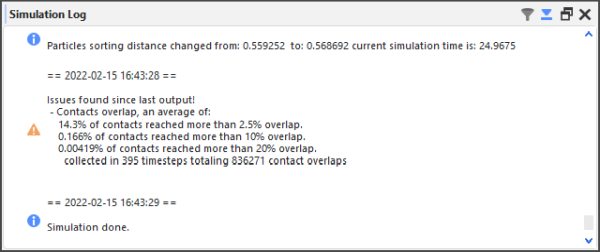
The Simulation Log is for display only and cannot be edited. But because it is possible to get many messages per simulation, you are able to filter the results and/or have FreeFlow automatically scroll to the bottom of the list by using the Filter and Auto Scroll buttons, respectively, at the top of the panel.
Unlike the other Log panels in FreeFlow, the items displayed in this panel are retained when the project is closed. This is to help you troubleshoot any issues with the Solver that might have caused FreeFlow to stop processing.
The Simulation Log is cleared whenever a new simulation or project is started.
Tip: For details about some of the more asked-about warnings and errors that can appear on your Simulation Log panel.
SIMULATION LOG PANEL FUNCTIONALITY
See the table below for information about the Simulation Log panel functionality.
Table 1: Simulation Log panel functionality
Button | Description | Range |
|---|---|---|
| Enables you to reduce the information shown to only messages of certain types. Messages are filtered by level of importance. Specifically:
Tip: To see all messages of any type, ensure that the Filter is set to Information. | Information; Warning; Error |
| Enables you to determine whether FreeFlow will automatically scroll the view area in the panel when new information is added, or will keep the view area stationary. Tip: To always see the latest messages without having to scroll down in the panel, ensure Auto Scroll is turned on. | Turns on or off |


See Also:
The Cache panel is for more advanced users of FreeFlow. It is designed to list the FreeFlow processes that take up memory (Figure 1), and also enables you to remove any unused processes that are no longer needed (Figure 2). This information can be used to optimize how FreeFlow uses the memory available.
Note: Memory allotment for FreeFlow is set from the Preferences dialog.
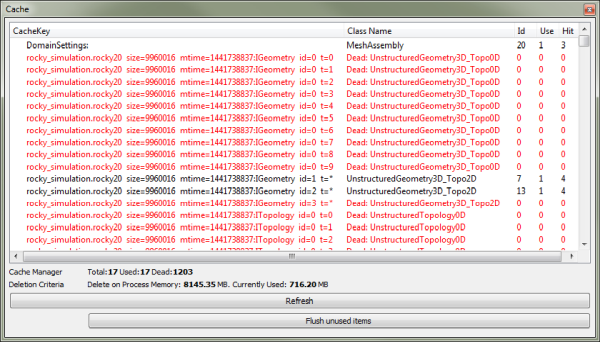
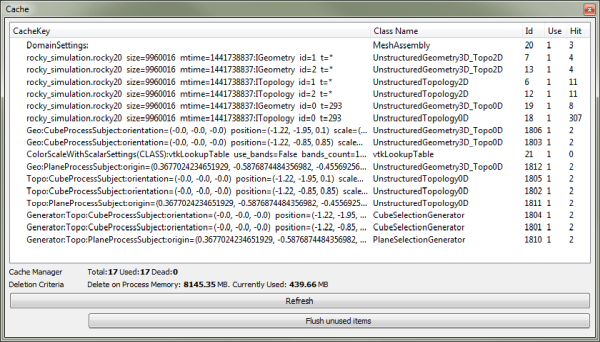
Use the table below and images above to help you understand more about the Cache panel.
Table 1: Cache panel settings
Setting | Description |
|---|---|
Cache list | Lists individual FreeFlow processes taking up memory. Tip: Click the Refresh button to view the current list. |
Cache Manager | Counts the processes in the Cache list and organizes them by the following criteria:
|
Deletion Criteria | Describes how processes will be deleted. Specifically:
|
See Also:
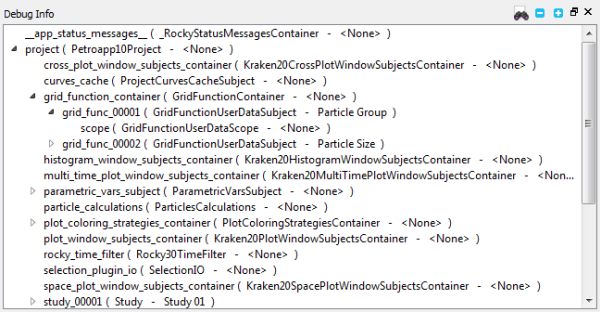
The Debug Info panel is for advanced users of FreeFlow. It is designed to list code-related items for the purpose of solving issues found within the program (Figure 1).
See Also:
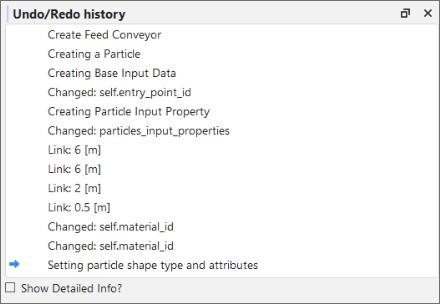
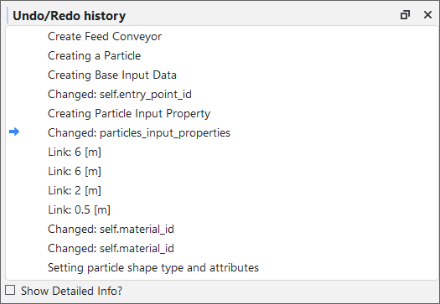
The Undo/Redo history panel Figure 2.16: Undo/Redo history panel showing some example actions is one way you can review and undo the actions you took on your project. Each separate step you take or setting you change is chronologically listed in this panel. When you Undo or Redo an action- either by using the panel, the toolbar, or keyboard - the choices you make are reflected here. The last action applied to the project is marked with a blue arrow; active actions are listed in black; inactive (or "undone") actions are listed in gray Figure 2.17: Undo/Redo history panel showing some example actions that have been undone.
You can use the toolbar or keyboard to undo or redo one action at a time. You can use the panel to undo or redo every action up to the action you select. In this way, you can "undo" or "redo" as many actions as you like with only a double-click.
The actions listed in the panel are cleared every time you close and open the project.
What do you want to do?
UNDO OR REDO SEVERAL ACTIONS AT ONCE
Ensure the Undo/Redo history panel is open. (From the View menu, click Undo/Redo history.)
Do one of the following:
To undo several actions at once, find the blue arrow marking the current action, scroll up the list and then double-click the black-colored action to which you want to revert. The blue arrow now marks the action you selected and all later actions are colored gray to indicate that they are now inactive.
To redo several actions at once, find the blue arrow marking the current action, scroll down the list and then double-click the gray-colored action to which you want to redo. The blue arrow now marks the action you selected and all previous actions are colored black to indicate that they are now active.
See Also:
UNDO OR REDO A SINGLE ACTION AT ONCE
Do one of the following:
Click the Undo or Redo buttons on the toolbar.
Press Ctrl+Z or Ctrl+Y on your keyboard.
See Also:
A Workspace is a collection of FreeFlow windows. Located in the center of the FreeFlow screen, the windows that make up a Workspace are where you choose to view the physical components of your simulation setup (3D View windows), and interact with the graphical results of your simulation.
You can have multiple Workspaces for different purposes, such as by analysis type. These are designated by Workspace tabs along the bottom of the Workspace area Figure 2.18: Example of the Workspace area, which can also be renamed to help you better categorize your data. You can also use the tiling options in the Windows menu to better organize your windows on the Workspace.
What would you like to do?
See Also:
From the bottom of the center Workspace area, on the Start Page tab, click the green "+" icon. A new tab appears at the bottom of the Workspace.
Tips:
To change the name of the Workspace, right-click the Workspace tab and then in the Renaming data dialog, enter a new name and then click OK.
To add windows to the Workspace, see the following topics:
See Also:
Do one or more of the following:
To remove an existing Workspace, right-click tab for the Workspace you want to remove, and click the red "X" icon. Note: Removing the Workspace also removes any windows that you had placed on the Workspace. This can be reversed with the Undo function. (See also Undo or Redo a Single Action at Once.)
To add another Workspace, on the Start Page Workspace tab, click the green "+" icon.
To change the name of the Workspace, do the following:
Right-click the Workspace tab, and click Rename.
From the Renaming data dialog, enter a new name for the Workspace, and then click OK.
To arrange the windows orderly on a Workspace, from the Windows menu, select the Tile Columns option you want.
To add windows to the Workspace, see the following topics:
See Also:
This section covers the not-so-obvious but useful features scattered throughout the FreeFlow UI and how it might benefit you to use them.
What would you like to do?
See Input/Output Relationships in the Data Panel When Component Names are Bold
Determine the Frequency of Calculations by Pinning/Unpinning Items
Double-Click the Status Panel to Jump to the Appropriate UI Location
Refer to the FreeFlow Title Bar for Simulation Progress Details
Lock a Curve Selection to a Plot to Quickly Change the Data Shown
Double-Click a Plot Line, Bar, or Point to Change Its Appearance
See Also:
NAME COMPONENTS TO AFFECT SORT ORDER
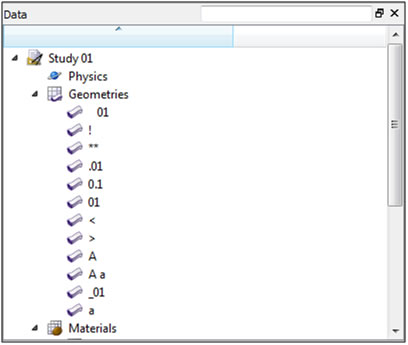
Sorting in FreeFlow follows the rules for Extended ASCII character codes. In general, Names beginning with spaces are sorted first, followed by most special characters, followed by numbers, followed by uppercase letters, and ending with lowercase letters.
For example, FreeFlow would sort the following 12 geometry components in the order shown in Figure 1.
See Also:
SHOW/HIDE COMPONENTS BY USING EYE INCONS AND CHECKBOXES
FreeFlow provides two complementary methods for determining whether a component or family of components will be shown or hidden in the Workspace: The eye icon (Figure 1), which affects the visibility of only that individual component, and the checkbox (Figure 2), which affects the visibility of all sub-components beneath the object.
An "open" eye icon (default setting) indicates that particular object is visible or shown in 3D View windows, plots, or histograms. A "closed" eye icon keeps that item in the simulation's calculations but makes the object appear invisible or hidden in the window. This is useful for seeing behind one object to another in an animation, for example, or for focusing on a particular curve in a plot.
Checkbox
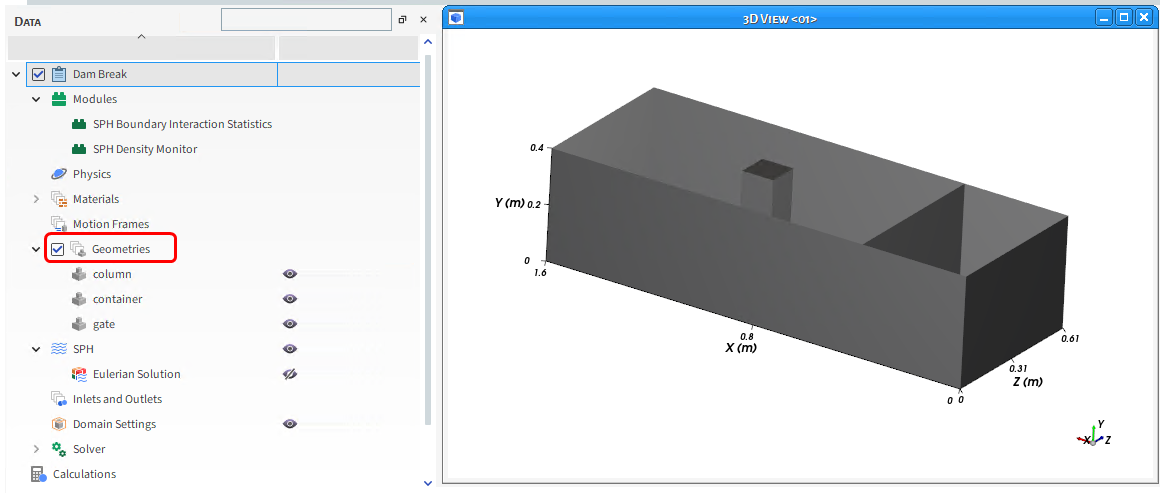
In the Data panel, the checkbox has the same visibility affect as the eye icon but is hierarchical, meaning it affects all children components directly beneath that item in the Data panel. For example, clearing the checkbox to the left of Geometries hides all individual geometry components listed beneath it.
In the Windows panel, the checkbox acts like the eye icon does in the Data panel: it shows/hides the individual object—in this case, various windows in the Workspace. Unlike in the Data panel, checkboxes in the Windows panel are not hierarchical.
See Also:
SEE INPUT/OUTPUT RELATIONSHIPS IN THE DATA PANEL WHEN COMPONENT NAMES ARE BOLD
Linked objects refer to the ability of a geometry component, to provide data to a particular User Process, thus establishing an input/output relationship between them. This linkage is illustrated in the Data panel by the name of the object providing the data (output) turning bold when the User Process that is accepting the data (input) is selected, as shown in Figure 1.
To create this kind of input/output relationship, the User Process must be created directly from the object providing the data. In the example above, the Cube <01> user process was created by selecting the dropweight geometry and then creating a Cube user process from either the Data Editor or right-click menu.
See Also:
DETERMINE THE FREQUENCY OF CALCULATIONS BY PINNING/UNPINNING ITEMS
After processing your simulation, you can view various types of data on the Properties and Curves tabs for your simulation settings like geometry components. Each of the items listed on these tabs has a pin icon to the left of it, as illustrated in Figure 1.
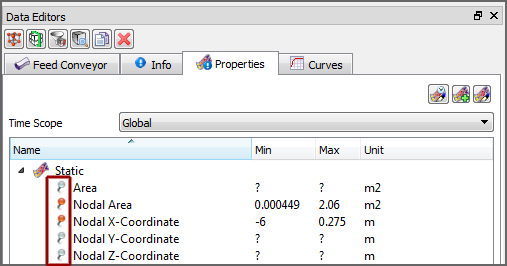 Figure 1 : Pin icons on the Properties tab of the Data Editors panel
The color of these pin icons indicates how often FreeFlow calculates the particular item, as follows
A gray-colored pin (default) indicates that the item will not be calculated for any output time. Choosing to avoid calculating data that you don't need saves processing time and power during your simulation
A red-colored pin indicates that the item will be calculated for each output time included in the simulation. And if settings affecting those values change, FreeFlow will recalculate to keep all the values current. Important: Choosing to have FreeFlow calculate the item at each output time is likely to take up a significant amount of processing time and power. Only choose to pin items for which having all output time calculations be kept up-to-date and available are truly necessary for your analysis.
Tip: To pin or unpin an item, just left-click the pin icon.
Alternately, you can choose to have FreeFlow calculate any values you are interested in once, by right-clicking the item and choosing Compute Statistics. (See also About Viewing an Individual Statistic.)
See Also:
FreeFlow uses several different characters and strings as placeholders for calculations or explanations that would take up too much room in the UI. Here is a quick list of some placeholders you might run across and what they mean.
Note: These placeholders might appear on the Info, Properties, or Curves tabs (Data Editors panel).
Placeholder | Description |
|---|---|
? | Information isn't calculated yet. Same as "Not loaded." |
Not loaded | Information isn't calculated yet. Same as "?". |
- | Item contains no unit for the value displayed. Generally indicates a ratio, such as a percentage. |
Unable to calculate | Not enough information available at this particular output time in order to calculate the values. |
Unknown | Not enough information is known to calculate the value. |
<ind> | Item contains no units for the value displayed. Generally indicates a index, such as a count or a coordinate position. |
-1.#IND | Calculation is invalid. |
N/A | Value is Not Applicable (N/A) to the selected item. |
See Also:
DOUBLE-CLICK THE STATUS PANEL TO JUMP TO THE APPROPRIATE UI LOCATION
If you have errors listed in the Status panel (Figure 1), you can double-click those errors to be taken to the location in the Data panel where you would address them.
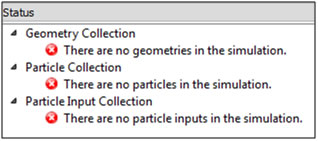
For example, if you double-click the "There are no geometries in the simulation" error, FreeFlow would enable the Geometries item in the Data panel.
See Also:
USE COLORED TEXT TO VALIDATE THE SYNTAX OF YOUR ENTRIES
FreeFlow provides instant feedback for entering functions and variables into a parameter text field by coloring the text as you type, as explained below:
Red text indicates that the syntax of the active entry is not yet valid. The syntax is based upon the rules of the Python programming language. It will tell you whether you have an open parenthesis that needs to be closed, for example.
Green text indicates that the syntax of the active entry is valid. Note: Green text does not indicate that the value, function, or variable of active entry has been formatted correctly or is itself a valid entry. Validation happens after either pressing Enter or clicking away from the text field.
Black text indicates a currently inactive entry.
See Also:
There are several tasks in FreeFlow that can be accomplished more easily by dragging items with your mouse and dropping them to another location, as described below:
Creating new views of individual geometry components: From the Data panel, select the component(s) you want to view and then drag and drop them to a window of your choice (3D View, Histogram, or Time Plot). Only the component(s) you selected will be added.
Creating new views of data sets: From the Data Editors panel, on the Curve or Properties tab, select the data item(s) you want to show and then drag and drop them into the window type you want (3D View, plots or histograms).
Creating multiple Multi-Time plots in a single window: After adding your first data set, hold the Ctrl key while selecting your next data set and then drag and drop it into the gray area of an existing Multi-Time plot window. Another plot appears in the same window.
Tip: You can also multi-select items to drag and drop. (For example, show multiple geometry components at once in a 3D View.) Just hold the Ctrl or Shift key while left clicking your selections with the mouse, and then drag and drop as usual.
See Also:
ACCESS THE RIGHT-CLICK MENU FOR ADDITIONAL FEATURES
There are a few things in FreeFlow that can only be accomplished by right-clicking the item, as described below:
Adding/Importing geometry components: From the Data panel, right-click Geometries to access the menu that enables you to add or import new geometry components.
Computing statistics for only the current output time: From the Data Editors panel, on the Curves or Properties tab, right-click the data item you want to view values for and then click Compute Statistics from the right-click menu.
Showing only a few components in a new window: From the Data panel, select the item(s) you want displayed in a new window, right-click your selection, and then from the right-click menu, point to Show in New and then click the window type you want. Only the items you selected appear in the new window.
See Also:
USE THE DATA PANEL SEARCH BAR TO QUICKLY FIND COMPONENTS
The search bar is located at the very top right of the Data panel, as shown in Figure 1.
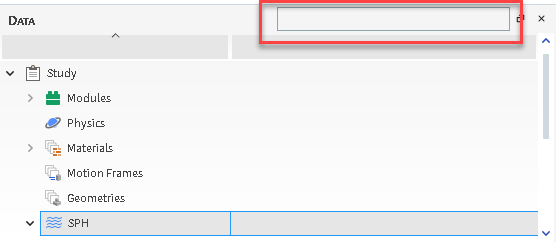 Figure 1 : Data panel search bar
When you start typing into it, FreeFlow immediately displays in the Data panel the entire hierarchy of the component(s) that best match what you typed. In a simulation setup with many different components, using the search bar can help you find what you need faster than scrolling.
See Also:
REFER TO THE FREEFLOW TITLE BAR FOR SIMULATION PROGRESS DETAILS
When you are actively processing a simulation, the Title bar for the FreeFlow program displays useful details about the simulation's progress. (Figure 1.)
 Figure 1 : Example of Title bar progress information shown while a
simulation is processing
Figure 1 : Example of Title bar progress information shown while a
simulation is processing
This progress information in the Title bar includes the following:
Output: The total number of output files that have been saved thus far. In the example in Figure 1, the total number of output files saved so far is 81.
Current progress: The particular second of the total Simulation Duration that FreeFlow is currently calculating. Note that FreeFlow calculates in finer detail than is typically determined by the Output Frequency in which it saves output files. In the example in Figure 1, although FreeFlow is currently calculating for second 4.050, because the simulation output frequency is set to 0.05 seconds, it won't actually save a 82nd output file representing 4.100 seconds until the current progress reaches that point.
Elapsed: Amount of real time since starting (or resuming) the simulation processing. In the example in Figure 1, 12 seconds have elapsed since the simulation was resumed.
ETA: FreeFlow's estimate of how much real time the simulation will take to complete. This is a rough approximation FreeFlow extrapolates based upon the amount of time the last several outputs took to calculate. In the example in Figure 1, FreeFlow estimates that it will take roughly 2 minutes and 49 seconds to complete. Once the simulation enters a steady state, this value will likely be a very good estimate of the remaining time.
See Also:
LOCK A CURVE SELECTION TO A PLOT TO QUICKLY CHANGE THE DATA SHOWN
If you want to see the same curve (for example, Particle Mass) in a plot (for example, Time Plot) across many similar Data panel elements, you can use the Replace Curves According to Data Tree Selection toggle button (Figure 1), which is available for any Time Plot, Multi Time Plot, or Cross Plot.
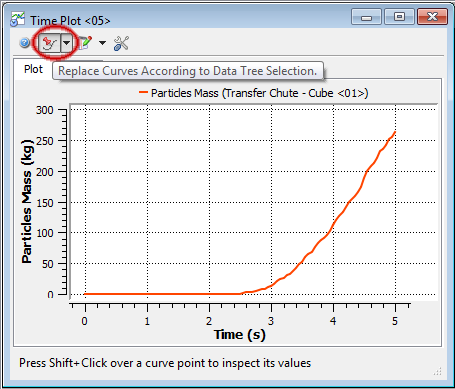
When you toggle (push in) this button on a plot you have created and then select another similar item on the Data panel, the curve you original selected stays the same but the data is replaced with the data corresponding to the item you just selected (Figure 2).
Figure 2.22: Original plot (top); second Data panel option selected with button toggled (middle); third Data panel option selected with button toggled (bottom)
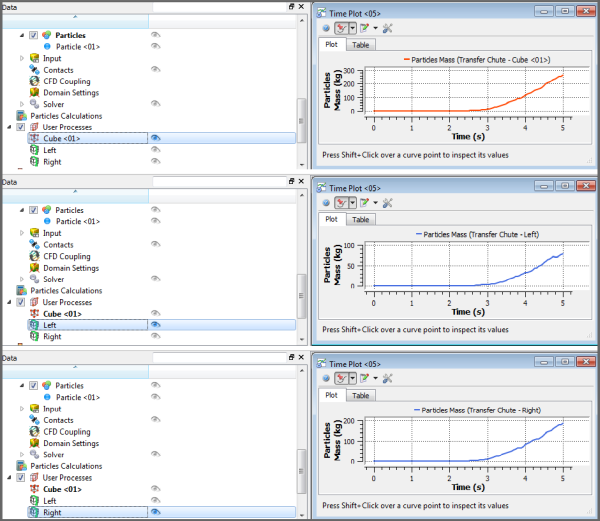
In this way, you can quickly compare the same curve across many similar Data panel items without having to create many separate plots. This button also works if you multi-select curves.
To turn off this feature, click the toggle button again to push it out.
See Also:
DOUBLE-CLICK A PLOT LINE, BAR, OR POINT TO CHANGE ITS APPEARANCE
Similar to the Edit Expression dialog that you get when you click the Edit Formula button on the Table tab of a Time Plot, you can also change the Pen style, color, and width as well as the data point appearance by double-clicking the line, bar, or point in the plot or histogram. This will bring up the Edit Curves dialog (Figure 1) and from there, you can change the settings as you like.
Tip: You can also right-click the line, bar, or point and then from the menu, select the Edit option pertaining to the curve you want to change. This will bring up the same Edit Curves dialog you get when you double-left-click (Figure 1).
See the image, table, and procedure below for information about the Edit Curves dialog.
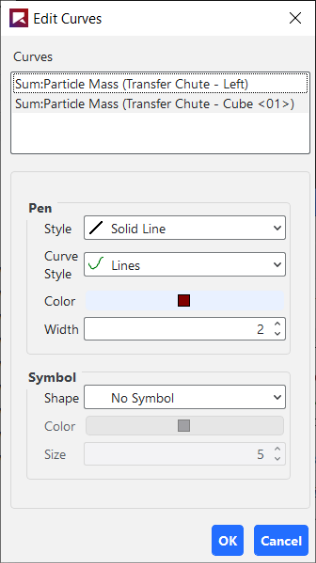
Table 1: Edit Curves dialog options
Setting | Description | Range |
|---|---|---|
Curves | Enables you to select which data set(s) you want to change. | Options limited by the plot or histogram selected |
Pen | ||
Style | For plots only (not histograms), this enables you to set what kind of line style you want represented for the selected data set. Tip: If you want the data set represented on the plot by symbols instead of lines, select No Line and then choose what you want under Symbol. | No Line; Solid Line; Dash Line; Dot Line; Dash Dot Line; Dash Dot Dot Line |
Curve Style | For plots only (not histograms), when you select a Style other than No Line, this enables you to set how the data set is represented in the plot. What you set here will be drawn in the Style indicated. | Lines; Sticks; Steps |
Color | For histograms, and also for plots with a Style other than No Line, this enables you to change the color of the bar or plot line for the selected data set. | Options limited by the Select Color dialog |
Width | For plots only (not histograms), when you select a Style other than No Line, this enables you to change the width of the plot line for the selected data set. | Whole numbers greater than or equal to one |
Symbol | ||
Shape | For plots only (not histograms), this enables you to add to the plot a symbol marking the curve's data point. For Time Plots and Multi Time Plots, a symbol will appear for each recorded output time. (For example, every 0.05s.) Tip: If you want the data set represented on the plot by lines instead of symbols, select No Symbol and then choose what you want under Pen. | Ellipse; Rectangle; Diamond; Triangle; Down Triangle; No Symbol |
Color | For plots only (not histograms), when you select a Shape other than No Symbol, this enables you to change the color of the symbol used to mark the data points of the curve. | Options limited by the Select Color dialog |
Size | For plots only (not histograms), when you select a Shape other than No Symbol, this enables you to change the size of the symbol used to mark the data points of the curve. | Whole, positive values |
TO CHANGE THE APPEARANCE OF A PLOT LINE, BAR, OR POINT:
Directly within the plot or histogram window, double-click the line, bar, or point that you want to change. The Edit Curves dialog appears.
From the Curves box, select the data set(s) you want to modify.
Under Pen and Symbol, select the options you want.
Click OK. The changes you made are reflected in the plot or histogram window.
See Also:
RECOGNIZE SHARED PARAMETERS WITH ASTERISKS (*)
Occasionally, module parameters in FreeFlow will be shared by parameters of other Modules. This means that a value entered in one location in the FreeFlow UI will be automatically duplicated in the other location.
To help you understand when this is happening, FreeFlow will place an asterisk (*) after the parameter name that is being shared. If you then hover your mouse cursor over the field for that asterisked parameter (Figure 1), the tooltip that appears will tell you what other Modules are sharing that same parameter.
If you change the value for this shared parameter, it will automatically be updated in the other location(s).
See Also:
USE COLORED DIRECTIONAL HANDLES
When viewed in a 3D View window, you can change the shape and location of some User Process, Volume Fill, and Region of Interest shapes by using the colored directional handles, as shown in Figures 1 and 2 below.
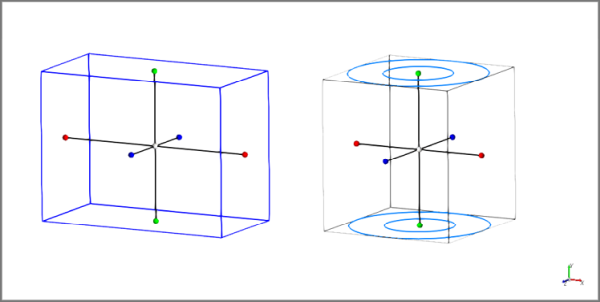
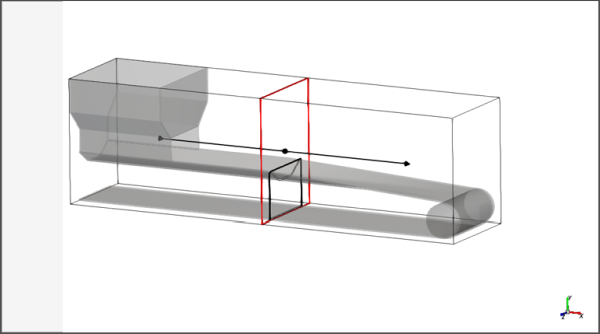
For shapes like Cubes and Cylinders (Figure 1), the colors of the handles are defined in Table 1.
Table 1: Handle color definitions for shapes
Handle (Dot) Color | Corresponds To |
|---|---|
Red | The local X axis. |
Green | The local Y axis. |
Blue | The local Z axis. |
White | The center of the shape. Note: For Volume Inlet shapes, the blue dot in the center is the Seed location but this can only be moved by defining the Seed Coordinates. |
For planes (Figure 2), the directional handles are colored according to the Font Color specified for the 3D View. The shapes of these colored handles are defined in Table 2.
Table 2: Handle shape definitions for planes
Handle Shape | Corresponds To |
|---|---|
Dot | The location of the plane's origin. |
Arrow | The direction of the plane's normal. |
Within the 3D View window, you can click and drag these handles to the new location you want.
Tip: To move the whole shape without deforming it, do one of the following:
Move only the center handle.
Hold either the Shift or Ctrl key while you click and drag any of the outer handles with your mouse.
Or, for more precise control, you can enter exact values in the Data Editors panel.
See Also:
KEYBOARD ACCESSIBILITY AND SHORTCUTS
While FreeFlow was not designed for full software accessibility, it does offer some limited features for keyboard control. For example:
TAB key: Press to move from option to option within a FreeFlow dialog or panel.
SPACEBAR: Press to select or clear a check box, or to select buttons in panels.
UP/DOWN ARROW keys: Press to select list items within a FreeFlow dialog, Panel, or menu.
LEFT/RIGHT ARROW keys: Press to view different menus or to move horizontally in FreeFlow dialogs.
ESC key: Press to close a dialog.
ENTER: Press to select a button within FreeFlow dialogs.
TO VIEW THE FULL KEYBOARD SHORTCUT LIST:
From the Options menu, click Preferences.
From the Preferences dialog, under Properties, click Shortcuts.
See Also:
FILE TYPES AND FOLDERS IN FREEFLOW FILE
There are several unique file types and folders used in FreeFlow, and several common ones. Use the tables below to identify when and why certain file types and/or folder locations are used.
Note: Only the simulation project file is saved to the directory location you choose. All other files created by FreeFlow (marked as "System" below) are saved to a project subfolder created automatically within the same directory as your project file. System files are critical for FreeFlow functioning and should not be edited, moved, or deleted.
Files you choose to export out of FreeFlow, including animation, image, and data files, are saved to the locations you specify. See the below tables for more detail.
Table 1: File Types Used in FreeFlow
Type | Description | Extension |
|---|---|---|
FreeFlow Simulation Files | ||
Simulation project file (FreeFlow currently release) | Contains all parameters set and analyses completed for a particular simulation created in FreeFlow software currently release, and is linked to the simulation output files (.rhm, .rhs,.sph,.igsph) that are created during processing.
| .rocky |
(System) Simulation output file for boundaries | The element- and boundary-related results of the simulation that are created during processing. One output file is saved per simulation output frequency; many output files make up a whole simulation.
| .rhs |
(System) Simulation output file for motions | The motion-related results of the simulation that are created during processing. One output file is saved per simulation output frequency; many output files make up a whole simulation.
| .rhm |
(System) Solver file | Used for storing information related only to the setup and calculated results of the simulation. Does not include post-processing information, such as views, graphs, or animations. | .rocky20 |
(System) Solver output files | System files containing runtime simulation information meant to be processed by the application. (See also About the Simulation Log File.) | .rocky |
FreeFlow lock file | System file used to prevent another instance of the currently active project from being modified elsewhere. This file is created automatically by FreeFlow every time you open a project and remains on your system until you close the project, essentially locking the project file from being changed by anyone but you as long as you have the project open. This feature is especially useful in shared computing and server environments where multiple users may be contributing to the same FreeFlow projects but using different computing resources. It is for this reason that modifying, moving, or deleting the lock file is not recommended unless you are certain no other copies of the project are being worked on. (See also FreeFlow says my project file is "locked".) | .lock |
(System) Current output file | This is where FreeFlow saves the initial and final output time value, which is used to determine the current output time. | _H.txt |
FreeFlow script file | File used to contain script information, the latter of which includes recorded steps of a repeatable UI task. (See Creating and Using Your Scripts for more information.) | .py |
FreeFlow archive file | File used to contain all simulation project and supporting folders necessary for sharing the simulation project and results with others, such as FreeFlow support. (See also Archive a Simulation Project.) | .rocky_archive |
FreeFlow project context file | File used to contain the setup criteria for the 3D View windows, Workspaces, and User Processes used in the project. (See also Reuse 3D View Window, Workspace, and User Process Setups in Other Projects. | .rocky_template |
Files Exported Out of FreeFlow | ||
Simulation statistics file | File created by exporting curves from a plot or histogram, thereby enabling the data to be viewed and/or edited in an external spreadsheet program, such as Microsoft Excel. | .csv |
Animation file | File created by exporting an animation, thereby enabling the simulation to be viewed outside of FreeFlow. (See About Creating and Saving an Animation for more information.) | .avi |
Image files | Used for saving or exporting a snapshot of what is currently being displayed in a window on the Workspace, or for importing into FreeFlow as a logo to be shown in the 3D View. | .png .jpg .bmp .pnp |
Files Imported Into FreeFlow | ||
3D CAD model files | Used for importing geometries into FreeFlow.
| .xgl .stl .dxf .msh |
Fluent Case file | Used for importing geometries from an Ansys Fluent case file into FreeFlow. Geometry component names will be retained in this scenario. | .cas |
Fluent Case file (compressed) | Compressed version of a Fluent Case file (CAS). Used both for importing geometries from an Ansys Fluent case file into FreeFlow. | .cas.gz |
Fluent Case file (HDF5) | Hierarchical Data Format (HDF) version of a Fluent Case file (CAS). In this version of FreeFlow, CAS.H5 files can be used only for importing geometries. | .cas.h5 |
Ansys Motion Functional Mock-Up Unit file | Bundled file containing all motion setup information required for a 2-Way Coupled simulation with Ansys Motion, including geometries. As such, can be used for geometry import into FreeFlow. Currently supports only rigid bodies (no flexible bodies) without beam elements. (For more information about beam elements, refer to your Ansys Motion documentation.) Geometry component names will be retained with this type of file import. Important: Only FMU files generated by Ansys Motion will support geometry import into FreeFlow. | .fmu |
Ansys Motion Geometry file | Used for importing geometries from an Ansys Motion file into FreeFlow. Currently supports only rigid bodies (no flexible bodies) without edge elements. Geometry component names will be retained with this type of file import. | .dfg |
Custom Fiber definition file | Text or spreadsheet file used to define the Segment details that make up a Custom Fiber shape. (See also About Defining and Importing Custom Particle Shapes.) | .txt .csv .xls .xlsx .xlsm .xlsb .odf |
Point Cloud definition file | Text file used to define the details that make up a Point Cloud. (See also About Point Clouds.) | .txt |
Table 2: Common Folder Locations Used in FreeFlow
Folder | Typical Windows Location | Typical Linux Location | Description |
|---|---|---|---|
FreeFlow Settings |
|
| Folder where FreeFlow stores settings that persist from project to project. These include license settings, a list a list of recently opened projects, and a separate "Settings" folder that contains your display and interaction preferences. (See below.) |
FreeFlow Preferences |
|
| Folder where FreeFlow saves user preferences for various display and interaction settings. These settings can be established by users in the Preferences dialog (see also About Setting Global Preferences), or in several other FreeFlow locations by clicking a Save Current Configuration in Settings button. Both the values displayed on the Preferences dialog and the ones displayed on the UI element after the Restore Configuration from Settings button is clicked reflects the values saved to this folder. |
User Manual Cache |
|
| Contains the cache for the user manual. |
Shared PrePost Scripts |
|
| Folder where FreeFlow saves scripts you recorded on the Scripts shared across projects tab of the PrePost Script panel. Also where you save PY script files that have been created outside of FreeFlow using the PrePost Scripting functionality. (See also Creating and Using Your Scripts.) |
Project-Only PrePost Scripts |
|
| Folder where FreeFlow saves scripts you recorded on the Project scripts tab of the PrePost Script panel. Also where you save PY script files that have been created outside of FreeFlow using the PrePost Scripting functionality. (See also Creating and Using Your Scripts.) |
External Modules |
|
| Folder where you save the compiled external Module that you either create yourself or download from the Customer Portal. (See also About FreeFlow Modules and |
Tip: Performing a clean install of FreeFlow may involve renaming and/or archiving these folders after uninstalling FreeFlow and prior to reinstalling it.
See Also:
The simulation log is one of the solver output files that FreeFlow provides while processing a project. (See also File Types and Folders in FreeFlow). It contains simple information, such as hardware details, to more complex data about the simulation, such as triangles, and contacts information; memory consumption and free memory; and other solver process information.
To access the simulation log file for a specific project, follow the steps below:
Navigate to the folder containing the project for which you want to see simulation details.
Open the project_name.rocky.files folder.
Open the simulation folder.
The simulation log file is located inside the simulation folder and is named FreeFlow_simulation.FreeFlow20.log (as shown in Figure 1). It is a Text Document, so you can open it with any text editor.
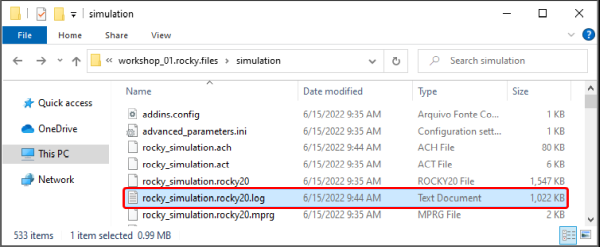
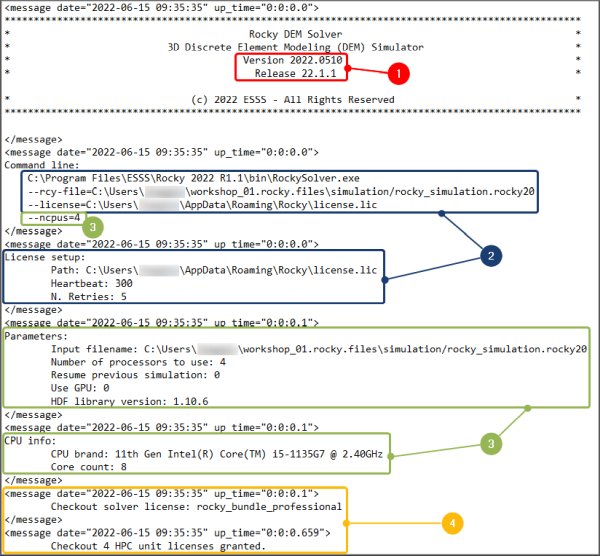
Inside the file, information is arranged similarly to the figures shown in this section. Some key areas are enumerated and explained below.
In Figure 2 (shown below), you can see the following:
Product release and version used to process the FreeFlow project. (See also About This Version of FreeFlow.)
License file information
Hardware details
Used licenses. (See also Verify Your FreeFlow License Status.)
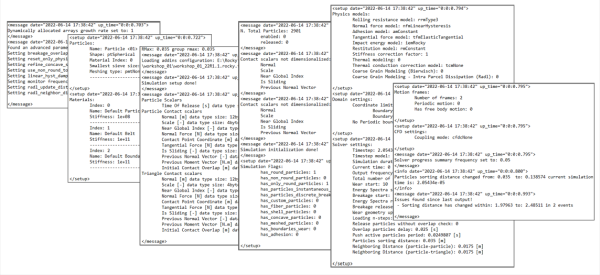
Next, you will see everything that is related to the project setup including the physical models enabled, particle groups defined, materials, boundary limits, solver options, coupling mode, motion frames, and more (Figure 3).
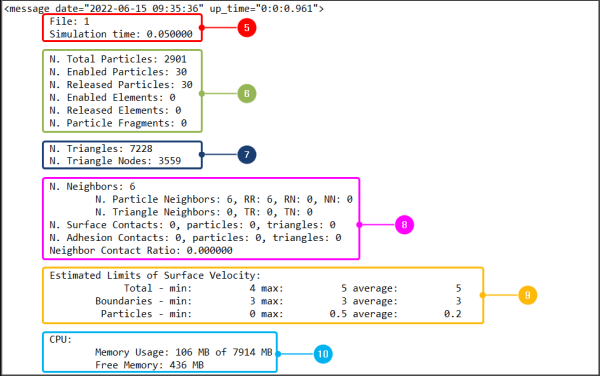
After that, the file shows a structure (Figures 4 and 5) that repeats for each output time and contains the following details:
File number (that refers to the output time) and simulation time
Triangle counts
Contact counts and ratios
Limits of surface velocity
Memory (consumption and availability). (See also About the Cache Panel.)
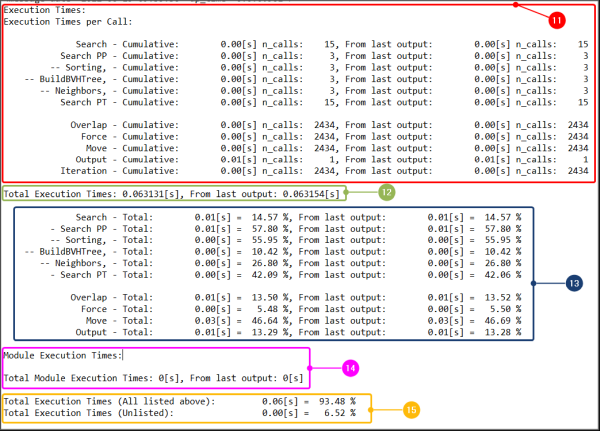
Average time per call and number of calls for each process. Note: Depending on the case, the processes will be different.
Execution times: both the total and since the last output
Total execution time, which is the average time per call multiplied by the number of calls
Execution times for the module: both the total and since the last output
Total execution times, which are the total measured and segregated times by the solver in the last output plus the fraction of time not measured by the solver
Execution times: both the total and since the last output
Total execution time, which is the average time per call multiplied by the number of calls
Execution times for the module: both the total and since the last output
Total execution times, which are the total measured and segregated times by the solver in the last output plus the fraction of time not measured by the solver
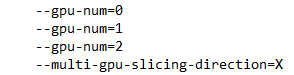
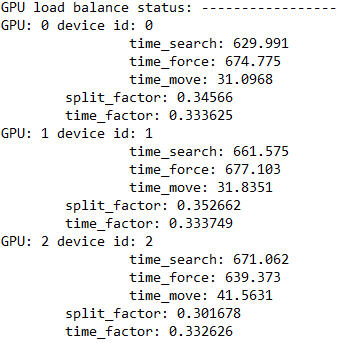
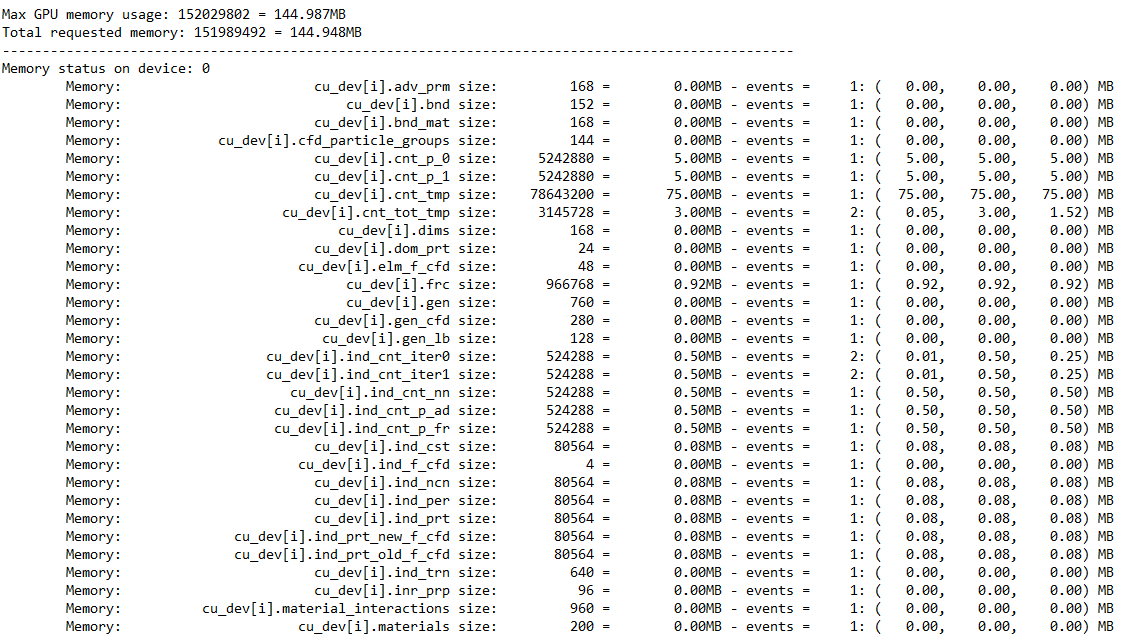
Finally, we have some additional information for simulations with GPU usage. Figures 6-8 show an example of a simulation log file for a project processed with 3 GPUs. The data shown includes the following:
GPUs IDs
GPU load balance with the time spent in each process and the split factor.
Tip: The slipt factor indicates the memory consumption of the GPU in relation to the total memory consumption (from all GPUs). In this example, as we have 3 GPUs, the ideal is to have a split factor close to 0.333.
Memory consumed in each device
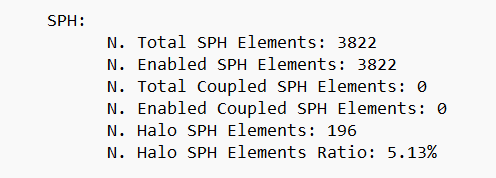
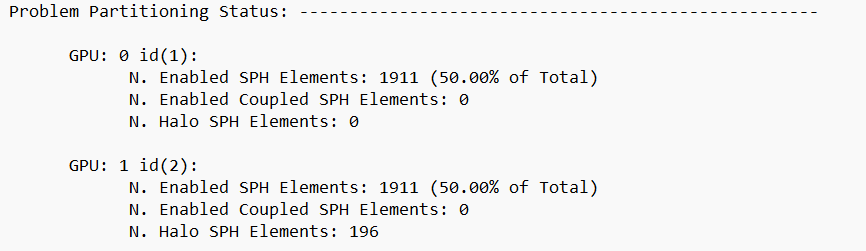
N. Halo SPH Elements: In multi-GPU runs, halo elements are those that are located in the overlapping devices domain regions and therefore are present simultaneously in two GPU devices. For the halo elements, both devices compute the collision forces, but only one of the devices accumulates these data in order to perform velocity and displacement calculations.
Problem Partitioning Status: This parameter represents the number of SPH Elements in the simulation.
N. Enabled Coupled SPH Elements: This parameter will always appear as zero, as it is not used in FreeFlow SPH-only simulations.
Note: If you processed your simulation without GPU usage, your simulation log file will not show this data. You can see how many GPUs were used by looking at the section marked "3" in Figure 1. (In that simulation example, "Use GPU: 0" means that the project was processed without GPU usage.)