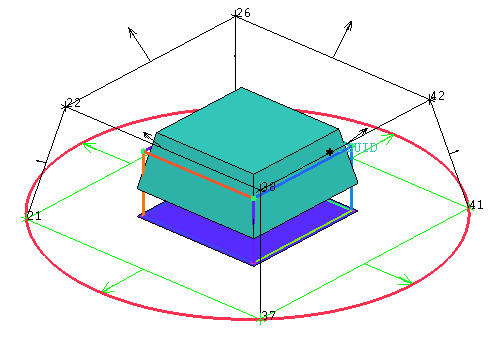
In this step, you will create an Ogrid to capture the cube as well as radially propagate the mesh onto the sphere.
Create the half Ogrid.
> Split Block
 > Ogrid Block
Click
 (Select face(s)) and select the bottom face
of the block. Click the middle-mouse button to accept the selection.
(Select face(s)) and select the bottom face
of the block. Click the middle-mouse button to accept the selection.The block will also be selected. When you select the face, both blocks on either side get selected. The VORFN block beneath the face is not active, so a flat icon is shown instead of the block underneath.
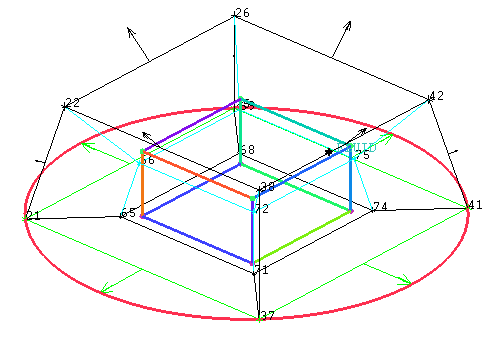
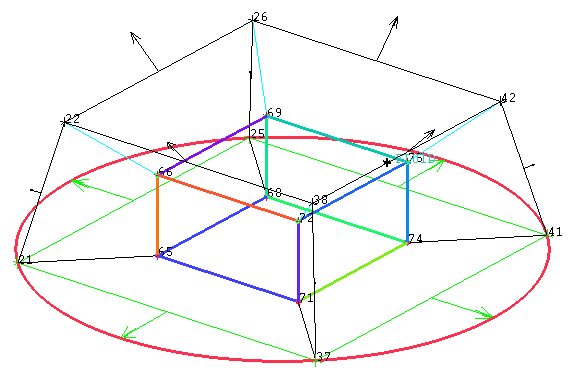
Click in the Ogrid Block DEZ (Figure 73: Ogrid Created).
Fit the Ogrid using prescribed points.
You will use the central block of the Ogrid to represent the cube.
Enable Points and Vertices.
 > >
> > Associate the vertices to the points.
> Associate
 > Associate Vertex
Ensure that Point is selected for Entity in the Blocking Associations DEZ.
Click
 (Select vert(s)) and select a corner vertex
of the central block.
(Select vert(s)) and select a corner vertex
of the central block.Click
 (Select point(s)) and select the corner point
closest to the selected vertex on the cube geometry.
(Select point(s)) and select the corner point
closest to the selected vertex on the cube geometry.Click .
The vertex will immediately snap to the selected point and the point will turn red. Red means a fixed vertex which can not be moved unless the association is changed.
Similarly, capture the seven remaining corner vertices making the block fit the cube (see Figure 74: Inner Block Fit to the Cube).
Associate the edges of the central block to the underlying curves of the cube geometry.
Note: Without this step, the sharp feature nodes will be simply surface projected. This will cause problems for the smoother and may also cause boundary condition issues with some solvers.
> Associate
> Associate Edge to Curve 
Click
 (Select edge(s)) and select an edge of the central
block. Click the middle-mouse button to accept the selection.
(Select edge(s)) and select an edge of the central
block. Click the middle-mouse button to accept the selection.Click
 (Select compcurve(s)) and select the underlying
curve on the cube geometry. Click the middle-mouse button to accept
the selection.
(Select compcurve(s)) and select the underlying
curve on the cube geometry. Click the middle-mouse button to accept
the selection.Click .
Similarly, associate the remaining edges to the curves of the cube (Figure 74: Inner Block Fit to the Cube).
Figure 74: Inner Block Fit to the Cube shows the inner Ogrid block fit to the cube geometry.
Delete the unnecessary central block.
You can remove the central block because the mesh will only be generated in the volume between the SPHERE and CUBE. Very often, when multiple blocks are displayed, it is difficult to select the icon representing the block(s). An alternative method is to select the block by selecting a pair of diagonally opposing corners.
> Delete Block

The Select Blocking-block toolbar will appear.
Select
 (Toggle select diagonal corner vertices) In
the Select Blocking-block toolbar.
(Toggle select diagonal corner vertices) In
the Select Blocking-block toolbar.Alternatively, you can type Shift-D on the keyboard.
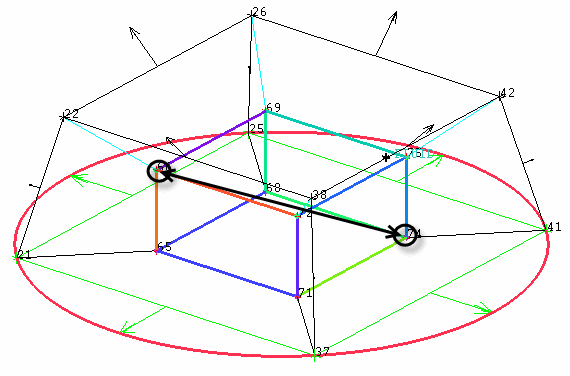
Select the two corner vertices as shown in Figure 75: Deleting the Block and click the middle-mouse button to accept the selection.
Note: You can also simply select the central block from the screen. This option is used here mainly for demonstration purposes as it may be useful in situations where many blocks exist and individual selection could be difficult.
Ensure that Delete permanently is disabled.
Click to delete the block.