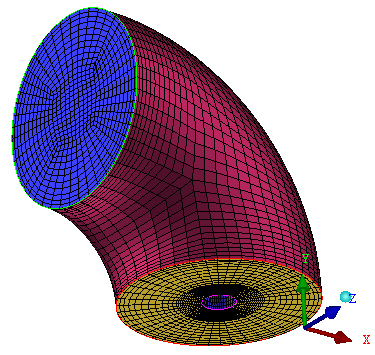
In this step, you will create a second Ogrid to improve the mesh quality within the main elbow pipe, and also provide a boundary layer.
> Split Block  > Ogrid Block
Ensure that both SOLID and FLUID are enabled in the display tree.
You enabled SOLID at the end of the previous step. Unless both SOLID and FLUID are enabled, the Ogrid will also wrap the valve stem (small cylinder), which is also valid, but may require additional mesh editing to get good quality.
Create the Ogrid.
Click
 (Select Block(s)) and select all the blocks
by box selecting over the entire model.
(Select Block(s)) and select all the blocks
by box selecting over the entire model.Add the faces on the inlet and outlet.
Click
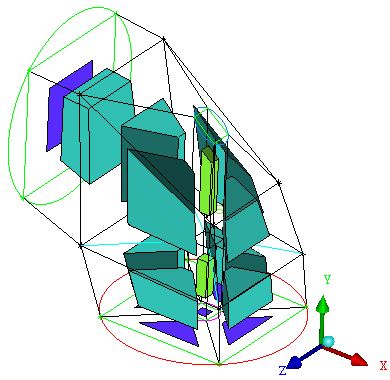
 (Select Faces) and select all the faces on the INLET and OUTLET as shown in Figure 126: Blocks and Faces Selected for the Ogrid.
There are five faces on the OUTLET part and one face on the INLET part. If you select the wrong face, deselect it by clicking again using the right–mouse button. You can also select the faces by clicking the
 icon in the Select Blockingface toolbar. This
toolbar appears when you click the (Select Faces) icon. Select INLET and OUTLET in the Select Blocking parts dialog box. In
addition select the center face on the OUTLET part.
icon in the Select Blockingface toolbar. This
toolbar appears when you click the (Select Faces) icon. Select INLET and OUTLET in the Select Blocking parts dialog box. In
addition select the center face on the OUTLET part.Click the middle-mouse button after selecting the faces.
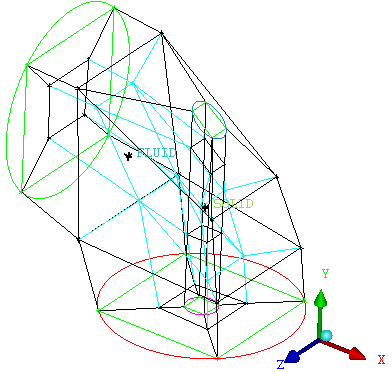
Click to create the Ogrid (Figure 127: The Second Ogrid).
Set the edge length to improve quality.
> Move Vertex
 > Set Edge Length
Click
 (Select edge(s)) and select one of the edges
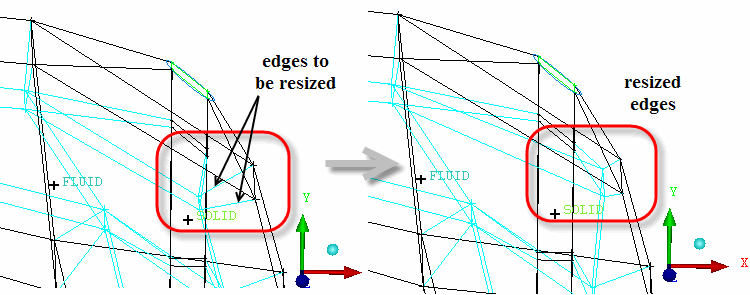
shown in Figure 128: Resizing Edges—First Pair. Click the middle
mouse button.
(Select edge(s)) and select one of the edges
shown in Figure 128: Resizing Edges—First Pair. Click the middle
mouse button.You can see that the length is approximately 15. You will reduce this to improve the quality.
Select the two edges shown in Figure 128: Resizing Edges—First Pair.
Enter
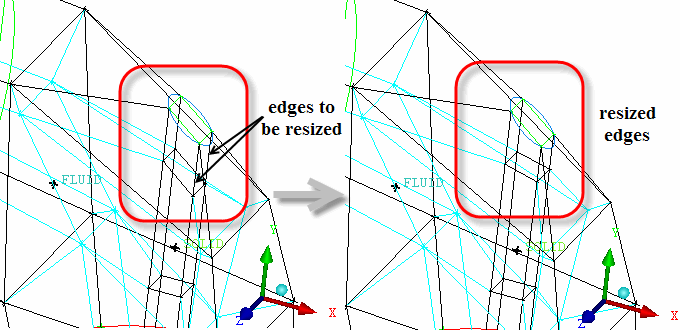
5for Length and click (Figure 128: Resizing Edges—First Pair).Similarly rescale the edges shown in Figure 129: Resizing Edges—Second Pair to a value of
8.
Recompute the pre-mesh.
Disable SOLID.
 >
> Enable Pre-Mesh and click to recompute.
> Update the pre-mesh parameters.
Since the edges were computed before, they did not have the sizes set.
> Pre-Mesh Params
 > Update Sizes
Ensure Update All is selected and click (Figure 130: Pre-Mesh for the Elbow).