The geometry used in this tutorial is contained in a single part. You will separate the geometry into different parts to define different boundary regions, and then create an interior material point.
Enable under in the display control tree.
Create a new part for the largest semi-cylinder.
 >
> 
Enter
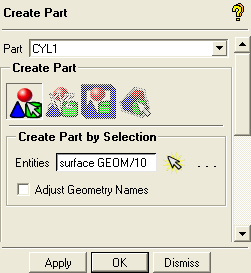
CYL1for Part in the Create Part DEZ.Retain the selection of
 (Create Part by
Selection) and click
(Create Part by
Selection) and click  (Select entities).
The Select geometry toolbar will appear.
Disable Toggle selection of points (
 ), Toggle selection
of curves (
), Toggle selection
of curves ( ), and Toggle selection
of bodies (
), and Toggle selection
of bodies ( ) to avoid the selection
of entities other than surfaces.
) to avoid the selection
of entities other than surfaces.Ensure that Toggle selection of surfaces is enabled (
 ).
).Note: Entity types can also be deactivated by disabling them in the display control tree.
Select the largest semi-cylinder and click the middle-mouse button to accept the selection.
Click in the Create Part DEZ.
The new part
CYL1will be added to the display control tree.
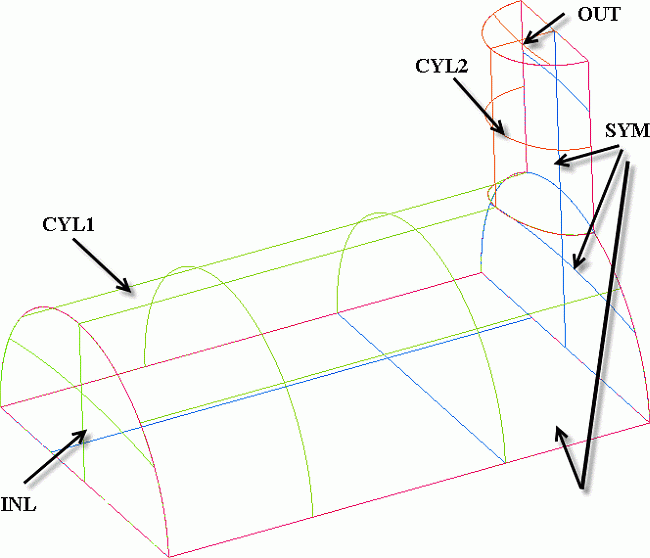
Similarly, create new parts for the smaller semi-cylinder (
CYL2), cylinder ends (INLandOUT), and symmetry planes (SYM) as shown in Figure 49: 3D Pipe Geometry—Surface Parts.Note: When in continuation mode (with Auto Pick Mode enabled) after pressing the middle-mouse button or , you can type in a new Part name and continue to select the surface(s) without re-invoking the function.
Create a new part comprising all the curves in the geometry.
Enter
CURVESfor Part in the Create Part DEZ.Retain the selection of
(Create Part by
Selection) and click (Select entities).Enable Toggle selection of curves (
 ) in the Select geometry toolbar.
Disable Toggle selection of surfaces (
 ) in the Select geometry toolbar.
Click
 (Select all appropriate objects) or type
 ato select all the curves.You need not click the middle-mouse button when using the Select all appropriate objects or the Select all appropriate visible objects option.
Click in the Create Part DEZ.
Create a new part comprising all the points in the geometry.
Enter
POINTSfor Part in the Create Part DEZ.Retain the selection of
(Create Part by
Selection) and click (Select entities).Enable Toggle selection of points (
 ) in the Select geometry toolbar.
Disable Toggle selection of curves (
) in the Select
geometry toolbar.Click
(Select all appropriate objects) or type ato select all the points.Click in the Create Part DEZ.
Note: The selection logic is flexible and there are many ways to select entities. This step illustrated an example of selection logic.
Create a Material Point.
> Create Body
 > Material Point
Enter
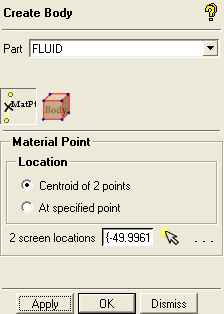
FLUIDfor Part.Ensure that Points is enabled in the display control tree.
Click
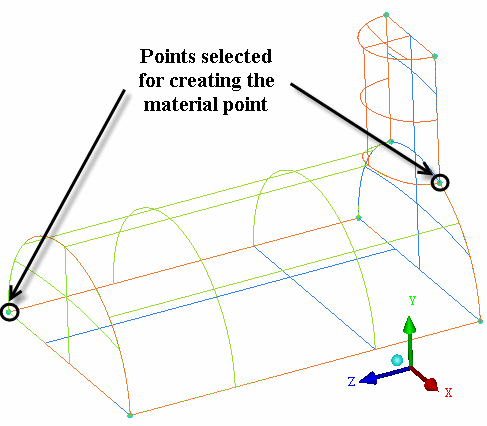
 (Select location(s)) and select two locations
such that the midpoint lies within the volume (Figure 50: Selection of Points for Creating Material Point). Click the middle-mouse
button to accept the selection of the points.
(Select location(s)) and select two locations
such that the midpoint lies within the volume (Figure 50: Selection of Points for Creating Material Point). Click the middle-mouse
button to accept the selection of the points.Click so that FLUID appears under Parts in the display control tree.
Rotate the model to confirm that the new material point is within the volume and does not just appear so from one perspective.
Note: Parts (such as GEOM) will be deleted when they no longer contain any entities.
Save the geometry file with a new filename, for example
3d-pipe-geometry.tin.> >