Check the quality of the mesh.
> Pre-Mesh Quality Histograms

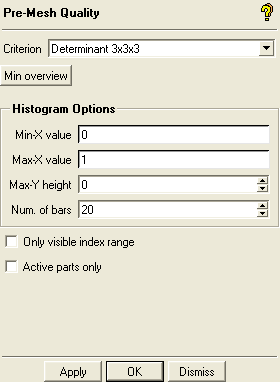
Retain the default settings and click .
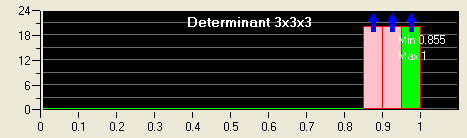
Select the worst two bars from the histogram.
The selected bars will be highlighted in pink (Figure 19: Pre-Mesh Quality Histogram).
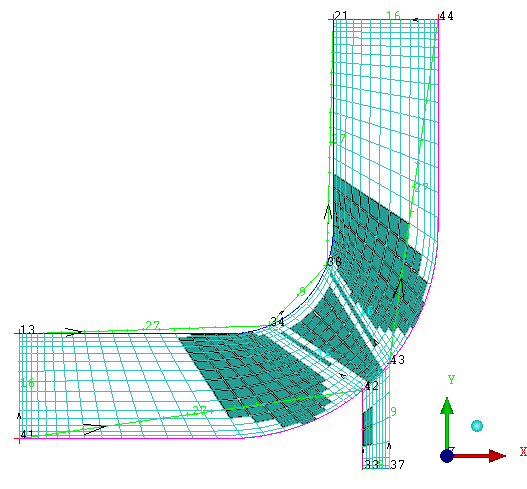
The worst quality elements in the mesh will be highlighted (Figure 20: Elements With Worst Quality).
Convert the mesh to unstructured format.
 > >
> > Save the blocking file (
2D-pipe-geometry-final.blk).> >
This block file can be loaded in a future session ( > > ) for additional modification or to mesh a similar geometry. Save each blocking to a separate file instead of overwriting a previous one. In more complex models, you may have to back track and load a previous blocking.
Save the project file (
2D-pipe-geometry-final.prj).>
This will save all the files – tetin, blocking, and unstructured mesh.
Exit the current session.
>