


Follow the steps below to submit a project update or design point update to an HPC resource via Remote Solve Manager.
For a project update, access project properties by right-clicking in the white space of the Project Schematic and selecting . Alternatively, you can select the > menu option when the Project Schematic is open.
For a design point update, right-click the Parameter Set and select to view the Design Point Update Process settings. If the Properties view is already visible, click the Parameter Set bar and the Properties view will refresh with the design point settings.
Set the Update Option property to .
From the RSM Queue drop box, select the queue that will be used for the job. If credentials have not yet been cached for the selected queue, you will be prompted to specify them, as described in Automatic Account Creation.
The RSM Queue Details section displays the HPC Configuration, HPC Queue, and HPC Type with which the RSM queue is associated.
By default, the Job Name is
Workbench, or whatever is set for the Default Job Name in your Workbench Options. The job name provides a traceable piece of data that administrators can use to track job submissions to a cluster (for billing purposes, for example). To edit the default job name, double-click it and type the desired name.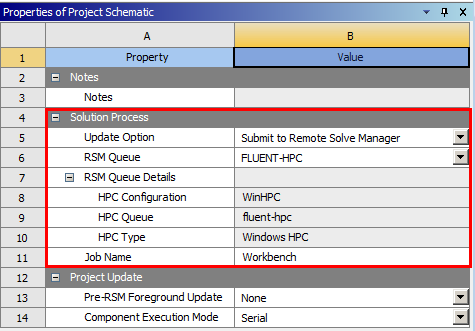
For Pre-RSM Foreground Update:
Select to update your geometry locally before submitting project updates to RSM. You would want to do this if the execution node does not have a license to perform geometry updates.
Select to submit project updates to RSM without first updating the geometry locally.
For Component Execution Mode, specify Serial or Parallel solver execution mode. The Parallel option is available only if the selected solver supports parallel execution mode. This option may not be available with all systems. When performing a design point update via RSM with component update in the foreground, the Parameter Set properties will override the parallel-process settings in individual components.
Note: The Project Update properties (Pre-RSM Foreground Update and Component Execution Mode) are shared with the Parameter Set as Design Point Update Process properties. Changes to the values of these properties here will be reflected in the Parameter Set properties, and vice versa.
Additional settings such as Job Submission are available for design point updates:
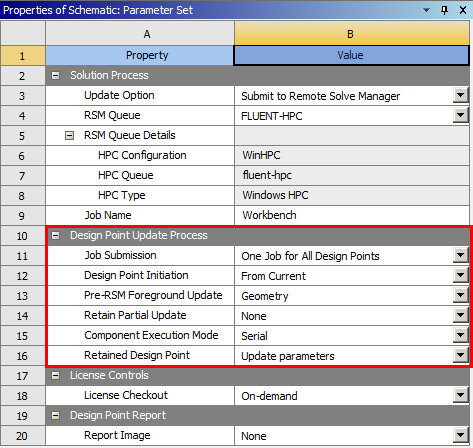
For more information about these settings, see Updating Design Points in Remote Solve Manager in the Workbench User's Guide.
Proceed with updating the project or design points. For example, to update a project, select Update Project on the toolbar.