Open Ansys Workbench ().
Add a Mechanical system and assign a geometry, establish all necessary loads, and so on.
On the analysis system on the Project Schematic, double-click either the Model or the Setup cell to launch Mechanical.
In the Mechanical application, on the Home tab, select Solve Process Settings.
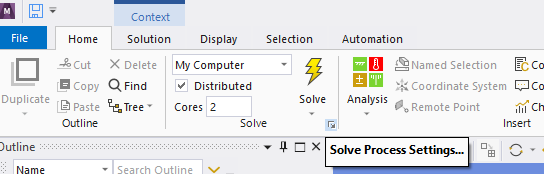
Alternatively, switch to the File tab and select Solve Process Settings.
In the Solve Process Settings dialog box, click .
In the Rename Solve Process Settings dialog box, enter a Solve Process Setting Name of your choosing, then click .
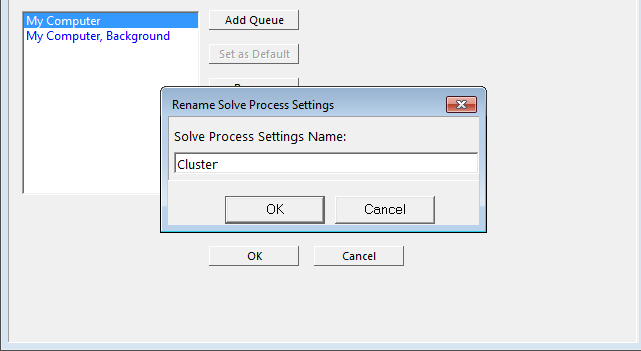
In the Solve Process Settings dialog box:
In the left pane, select the solve process setting whose name you just specified.
In the Settings pane, select the RSM Queue to which the Mechanical job will be submitted.
The HPC Configuration, HPC Queue, and HPC Type associated with the selected queue are displayed:
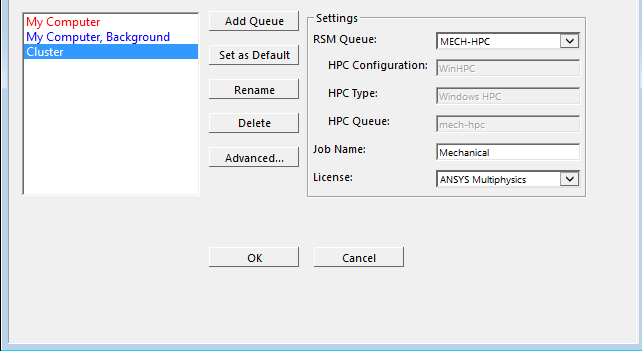
By default, the Job Name is
Mechanical. The job name provides a traceable piece of data that administrators can use to track job submissions to a cluster (for billing purposes, for example). You can edit the name if desired.From the License drop box, select the Ansys product license to be used for the solution.
Click .
In the Advanced Properties dialog box:
Select the Distribute Solution (if possible) option.
Specify the Max number of utilized cores.
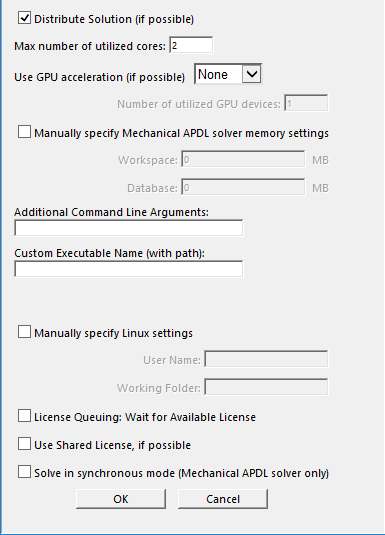
Click .
In the Solve Process Settings dialog box, click . The dialog box closes and the solve process setup is complete.
In Mechanical, finish setting up your analysis. When the model is set up and ready to solve, open/launch Mechanical and select the drop-down on the toolbar. You will see the solve process name you just defined (in this example, Cluster). Select that process.
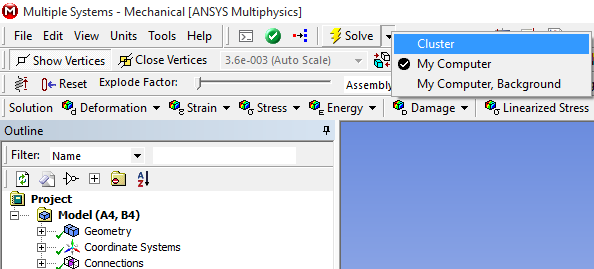
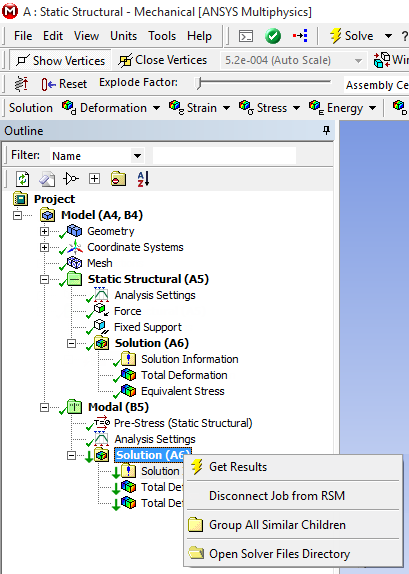
The solve commences. When the solution has completed, the Solution branch and the items underneath it in the project tree will each have a down arrow next to them.
Right-click Solution and select to bring the solution items to the local machine.