


Transferring CAD assignments from NX to ANSA
When you import a part geometry from NX to ANSA as a JT file, any Granta MI materials assigned in NX can be transferred to ANSA. This preserves the associations between the CAD assignments and the part geometry, and enables you to import additional data for simulation.
In NX, you can assign materials using either MI Materials Gateway for NX , or MI Materials Gateway for Teamcenter with NX, and then export the part model from NX as a JT file.
When you import the JT file to ANSA, opening MI Materials Gateway automatically creates material cards (containing Granta MI material references) in your analysis model, and assigns them to the relevant components of the part geometry.
You can then use MI Materials Gateway to import the additional data required for simulation in ANSA.
-
When exporting the JT file from NX, ensure that the configuration file that
controls how the JT file is exported sets
getAttributes = true.By default, NX uses a configuration file tessUG.config that is located in the NX installation folder. For example:
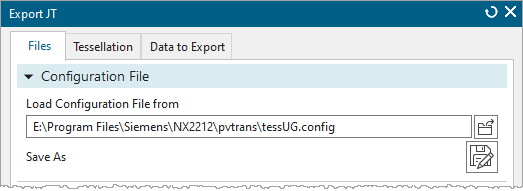
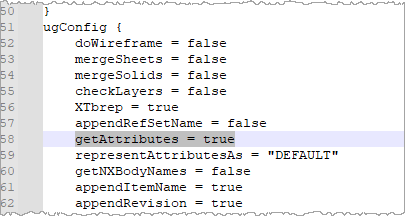
To enable Granta MI assignments to be included in the JT file, ensure that the configuration file used for the JT export contains the following setting in its
ugConfig{ }block:getAttributes = trueFor example:
-
To open MI Materials Gateway, select .
This creates the material cards in your analysis model and assigns them to the part geometry. The material cards appear in the Imported material cards list in MI Materials Gateway.Note: The grayed-out text and the icon
 'CAD reference only' indicate that the material card that must be updated
with data for simulation.
'CAD reference only' indicate that the material card that must be updated
with data for simulation. -
At the top right of the Imported material cards list,
click
 Update all material
cards with default simulation data.
Update all material
cards with default simulation data.
If your Granta MI system is configured to use Simulation records, each material card is updated using the default simulation record for the CAD material, and the default model type for the simulation record.
If the default simulation record or model type is not available, the default material model for the CAD material is imported.
- If your Granta MI system is not configured to use simulation records, the default material model for the CAD material is imported to each material card.
CAUTION: Clicking Update all material cards with default simulation data will import default data to every material card that has a Granta MI material reference, and will overwrite any existing data, regardless of which material cards are selected.Alternatively, right-click each material card individually to choose and import a material model (or choose a simulation record, if these are in use on your system).
Option Description To choose a material model Choose Select CAE material model, then double-click to import a material model for the CAD material.
To choose a simulation record and model Note: This option is available if your system is configured to use Simulation records.Choose View related Simulation Records, then right-click the simulation record and choose Replace data on selected card.
If prompted, double-click to select a material model.