
Submitting and Monitoring Jobs for Windows HPC
In order to submit jobs using Windows HPC, select Tools > Job Management > Select Scheduler or Simulation > Scheduler on the ribbon.
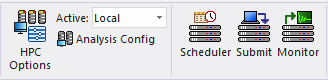
The Select Scheduler dialog box appears. Specify Windows HPC as the scheduler.
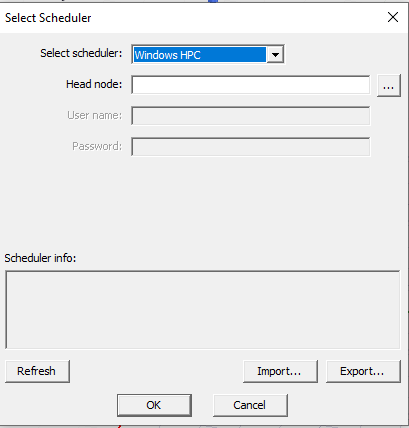
For Windows HPC, specify the head node of the cluster.
Specify the cluster head node and click Refresh. This verifies that the head node may be contacted, and displays the scheduler name, a brief description (including the head node name), and the version of the Windows HPC head node.
Click Cancel to discard your changes. Click OK to verify that the head node can be contacted before accepting the changes. If no problem occurs, the dialog box closes. If there is a problem contacting the head node, the dialog will not be closed and the changes are not accepted.
After setting the job submission node, select Tools > Job Management > Submit Job, Project > Submit Job, or ProductName > Submit Job to open the Submit Job To: dialog box. You can also select the Simulation tab of the ribbon and click the Submit icon. You can also access Submit Job from the shortcut menus for the Project Name, Design name, Analysis Setup, or Optimetrics Setup.
The Submit Job To dialog box contains three tabs:
- Analysis Specification – Specify the Product path, Project name, the setups, and analysis options such as batchoptions, or, for advanced users, Environment variables. If you select the Analysis or Optimetrics setup, the Analysis Specification is pre-populated.
- Compute Resources – This tab can be populated either by automatic settings, by predefined Analysis Configuration, or specifying parameters in the fields for resource selection, for job parallelization and enabled forms of parallelization.
- Scheduler Options – Contains fields for Job name and priority. The customization options shown by selecting advanced are not used for Windows HPC.
In the Analysis Specification tab, enter the path names of the product path and of the project file in the “Project” edit box. These must be UNC paths that are accessible from each compute host used for Ansys Electromagnetics jobs. The Project can be an archive. The submission user must have permission to write to the directory containing the project file.
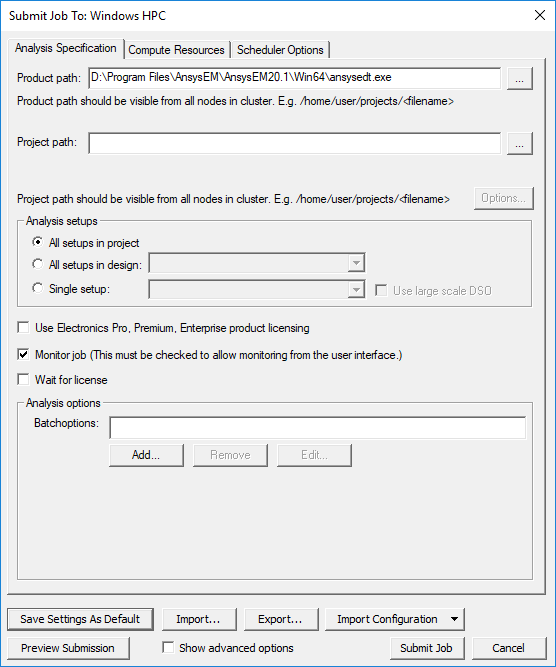
You can select which setups are analyzed in the Analyze Setups section of this dialog box. There are radio buttons to select:
- All setups in the project
- All setups in a specified design: you select the design from the drop-down menu
- Single setup. If you select the Submit Job command from the shortcut menu, the setup name populates the field.
If you specify multiple setups, they will be processed sequentially in the order displayed in the edit box.
The Analysis options include:
- Monitor job. You must enable this option to monitor the job from the user interface.
- Wait for license. Whether to wait until a license if available before starting a simulation.
- Batch options. You can optionally specify -batchoptions in the text field. See detailed discussion of -batchoptions beginning under Running Twin Builder from a Command Line.
Click Add... to open the Add Batchoption dialog box.
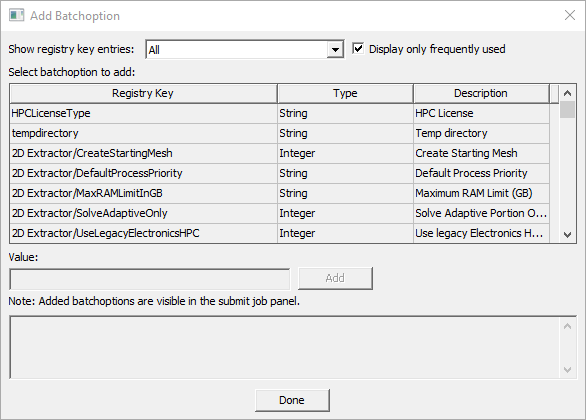
This dialog box provides access to all -batchoption commands. The drop-down menu lets you select specific categories, and you can choose to display only frequently used commands. You can edit and remove any batch options you specify.
Select a Registry Key in order to show the current Value for the type. The lower field explains the meaning of the Type Value.
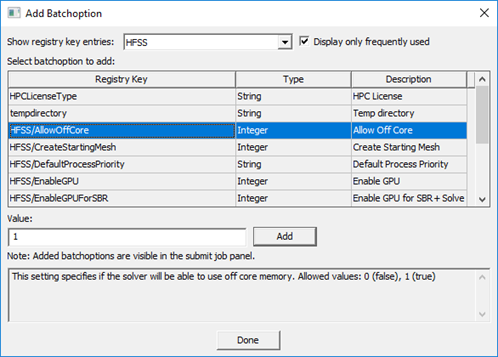
Any batchoptions for which you select Add will be visible in the Submit Job dialog box.
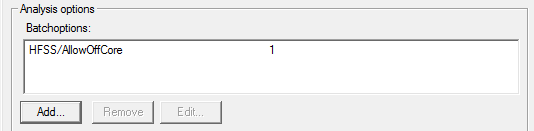
If you select the Show advanced options check box in the Submit Job dialog box, the Environment field and the Use batch extract fields display.
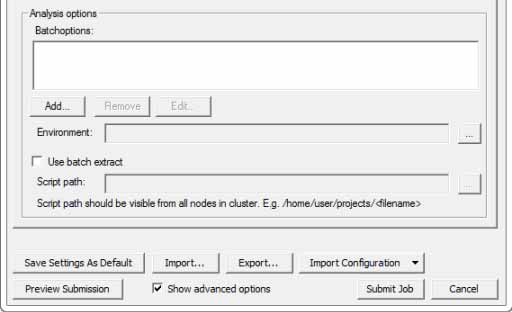
The Environment field lets you specify any Environment variables. Click  to display the Additional Job Options dialog box.
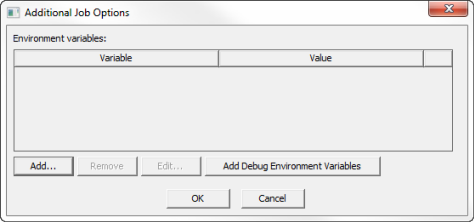
Click Add... to open the New Environment Variable dialog box.
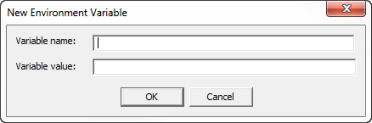
Here you can provide a Variable name and Variable value. Click OK to display the variable in the Additional Job Options dialog box. Select a variable to enables the Remove and Edit... buttons. You can also click Add Debug Environment Variables.
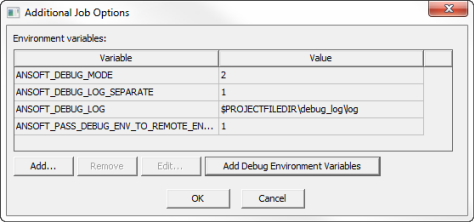
Any Variables that you add will be displayed in the Environment field of the Submit Job dialog box, if you have also enabled Show Advanced options.
Use Batch Extract for Windows HPC
Select Show advanced options for Windows HPC to display the Use batch extract fields.
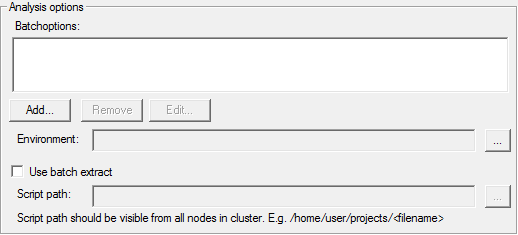
See Running Twin Builder from a Command line for a discussion of the solve information available through batch extract.
Click Preview Submission to open a window that shows the text commands that will be sent to the scheduler.
The following figure shows the Compute Resources tab of the Submit Job To dialog box.
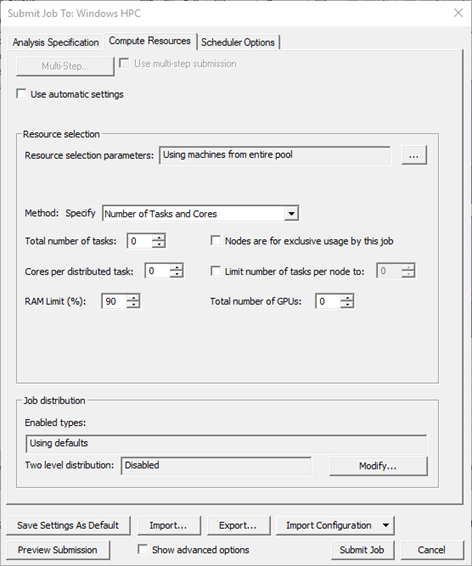
For Ansys Electronics Desktop configurations, the Submit Job dialog box includes a Use automatic settings check box that simplifies the Compute Resources tab.
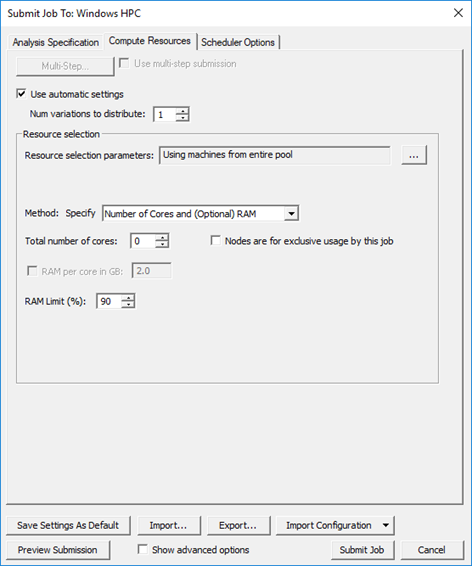
The Method field of the Submit Job To dialog box has a drop-down menu with two or three selections, depending on whether you select Use automatic settings.
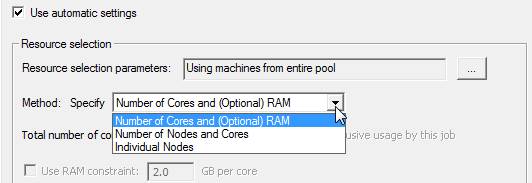
If you select Use automatic settings, Optimetrics variations will be solved sequentially. Other distribution types will be distributed automatically. It does distribute frequencies, domains, and use of multiple level domains.
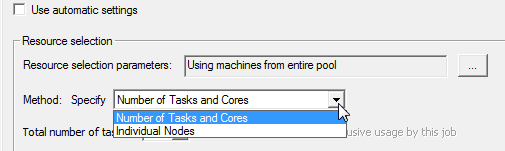
If you clear or cannot access the Use automatic settings check box, these two methods are listed:
Each method selection changes the available options listed:
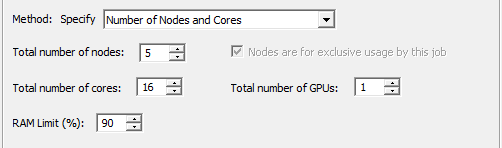
- Specify Number of Cores and (Optional) RAM
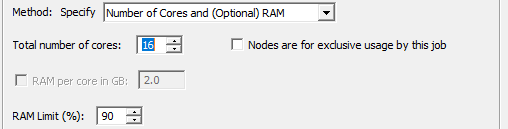
- Number of Nodes and Cores
- Individual Nodes
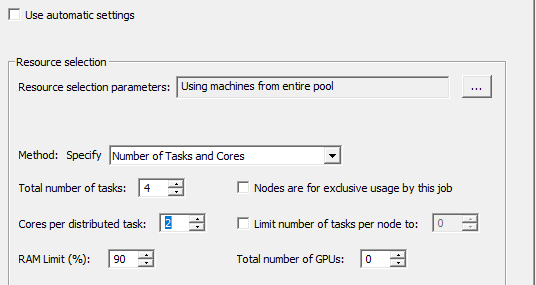
- Number of Tasks and Cores (the Use automatic settings
check box is cleared for this option. Selecting Use automatic settings means
that you do not have to specify tasks or core parameters):
Individual Node List
For Windows HPC jobs, you may either specify a node list, or specify job parallelization parameters, but not both.
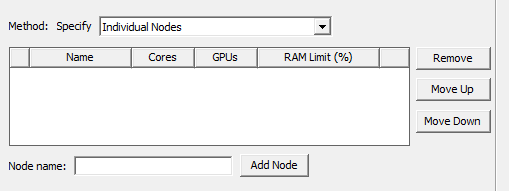
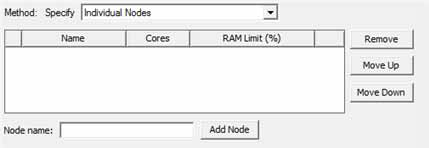
If you select the Individual Nodes Method, you may specify a node list, and the Job parallelization controls are disabled. In this case, the node list should only include cluster nodes that are valid for the job. For each node, you enter the node name and add the node. In the table, you can specify the number of cores and the RAM limit as a percentage. Click Remove, Move Up, and Move Down to edit and order the list.
Compute Resource Selection Dialog
By default, you can draw from the entire pool. You can
also click to open a Compute
Resource Selection dialog box.
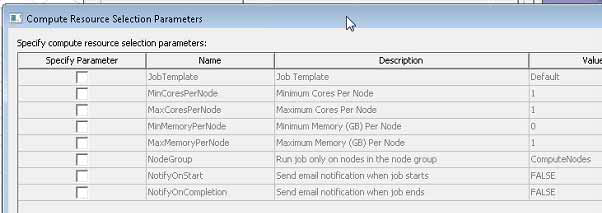
The resource selection parameters for Windows HPC jobs are:
- JobTemplate: Job Template - The JobTemplate may limit the job parameters or specify defaults values for job parameters
- MinCoresPerNode: Minimum Cores Per Node
- MaxCoresPerNode: Maximum Cores Per Node
- MinMemoryPerNode: Minimum Memory (GB) Per Node
- MaxMemoryPerNode: Minimum Memory (GB) Per Node
- NodeGroup: Run job only on nodes in the node group
- NotifyOnStart: If True, send email notification when job starts. Email notifications must be configured and enabled for the cluster by the administrator. (The cluster head node must run Windows HPC Server 2008 or above.)
- NotifyOnCompletion: If True, send email notification when job ends. Email notifications must be configured and enabled for the cluster by the administrator. (The cluster head node must run Windows HPC Server 2008 or above.)
Job Parallelization
For Windows HPC jobs, you may either specify a node list, or specify the job parallelization parameters, but not both. The Job parallelization fields let you specify
- Total number of tasks: The number of nodes requested for the job is the total number of tasks divided by limit on the number of tasks per node, rounded up if it is not an integer.
- Cores per distributed task. This determines the amount of multiprocessing per task.
- Whether nodes are for exclusive usage by this job
- Whether to limit the number of tasks per node to a value. If the Limit number of tasks per node check box is not selected, then the job is submitted with a job unit type of "Core".
Job Distribution
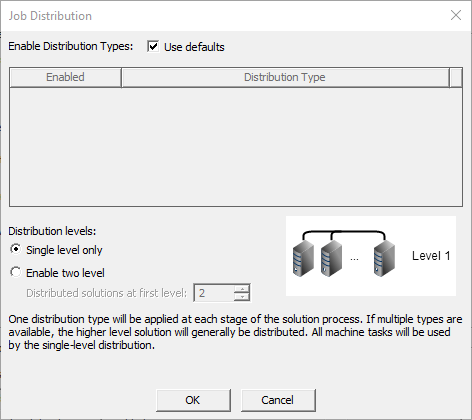
- Single level or two level distribution (single level is the
default). Click Modify to display the Job Distribution dialog box and
select the Enable two level option if applicable and desired.
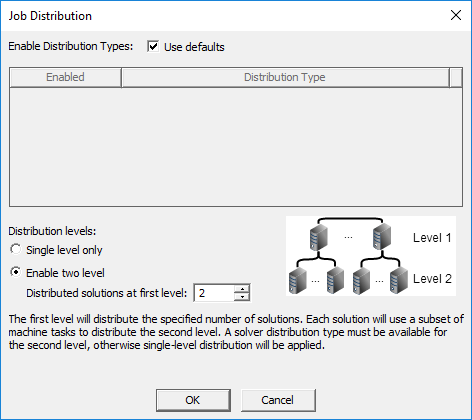
- Second level distribution operates within DSO. If available and
enabled you can specify the number distributed solutions for level 1.
In response to a set of minimal constraints, the Scheduler may increase the resources assigned beyond the minimal values in order to meet the full set of requirements. For example, if you specify 7 distributed engines, with two processors per engine, and also limit the number of engines per node to 4, the scheduler may increase the number of cores used in order to meet the limit specified for engines per node. Notice that a preview of the Submit Job Results shows the number of resources assigned, and that the scheduler generated code includes an MPI specification.
Scheduler Options
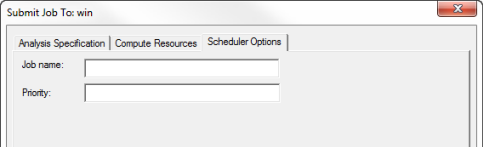
The Scheduler Options tab provides for specifying the job name and/or the job priority. While the Show advanced options check box enables the display of job submission options, no job submission options should be specified for Windows HPC.
Preview Submission
Click Preview Submission to open a window that shows a text description of the job to be submitted and the task used to start the product on one of the nodes.
The JOB PARAMETERS section contains information on parameter that apply to the job as a whole.
- The "Job resource parameters" section indicates whether the job has exclusive use of nodes, the job unit type, and the minimum and maximum number of units requested for the job, node group, and email notifications.
- The "Job attributes" section displays the job name and job priority.
- The "User Specified Compute Resource Attributes" displays the Resource selection settings.
The TASK PARAMETERS section contains information on parameters that apply to the Desktop task, which is the main task of the job.
- The "Desktop task resource parameters" section indicates the job unit type (which is the same as in the JOB PARAMETERS), and the minimum and maximum number of units requested for the Desktop task.
- The "Command Line section" displays the desktop task command line, including all arguments.
- The "Environment variables" section displays the environment variables that are set for the Desktop task; the same environment variables will also apply to all other tasks of the job.
- The "Working directory" section indicates the working directory in which the Desktop task will run.
Monitor Job
If you selected the Monitor Job option on the Submit Job To dialog box, AnalysisSpecification tab, you can invoke the Monitor Job window by selecting Tools > Job Management > Monitor Jobs. This dialog box may also be brought up by selecting the Begin monitoring this job now check box when a job is successfully submitting using the job submission dialog box. .