
Running Twin Builder from a Command Line
Twin Builder includes line arguments you can include when launching from a command line or terminal prompt. All command-line arguments are case-insensitive. The commands associated with batch options can be used with a Job Management Interface for submitting jobs to Ansys or RSM and other supported schedulers. See:
RSM Integration with Job Management UI
Integration with Microsoft Windows® HPC Scheduler
Command-line syntax
ansysedt <options> <run command> <project name/script name>
The following run commands are available in Twin Builder. Of the commands (BatchSave, BatchSolve, BatchExtract, RunScript, RunScriptAndExit), one or none must be used as arguments after ansysedt. Links to the valid options for each run command are listed and/or linked to descriptions.
-BatchSave <project file name>
Saves a named project to the current version. You can run this command with the -Iconic option, the -Logfile option, and the -ng option (no graphics).
-BatchSolve <project file name>
Solves all adaptive setups, sweeps, as well as Optimetrics setups found in the project file. If parallel solve is possible, you can use the -Distribute option in conjunction with -BatchSolve. You can run this command with the -Iconic option, the -Logfile option, the - ng option (no graphics), and the -WaitForLicense option.
Additional parameters for batch solves include the following. It is good practice to put quotes around the path to the executable, and the full path to the project. This ensures that spaces in the path or project will not be an issue. The same is true of the design name, if there are spaces. The quotes must enclose the entire argument including the Nominal or Optimetrics part.
[designName] - batch solve all setups for design with the name given under the project.
[designName]:Nominal - batch solve all nominal setups for design with the name given under the project.
[designName]:Optimetrics - batch solve all Optimetrics setups for design with the name given under the project.
[designName]:Nominal:[setupname] - batch solve the specified nominal setup for design with the name given under the project. The [setupname] variable is case insensitive.
[designName]:Optimetrics:[setupname] - batch solve the specified Optimetrics setup for design with the name given under the project.The setupnamevariable is case insensitive.
-Local | -Remote | -Distributed
Perform the -Batchsolve on a local machine, a remote machine, or as a distributed solve using a specified machine list (see below). These command line options are mutually exclusive. That is, only one of these options should be specified. The settings persist only for the current session.
If you specify -Local, a machine list is not needed.
For -Remote, you should provide a machine list with a single hostname.
For -Distributed, you should provide a machine list or file path.
-Distributed takes optional arguments which modify the job distribution parameters. When the optional parameters are not present, the behavior is single level distributed solves with no change in order of precedence among possible distribution types. The optional parameters are:
includetypes= <default> | <distribution type 1, distribution type 2, ...>
If the distribution types are specified, only the listed distribution types are enabled. If default is specified, a default set of enabled distribution types will be used.
excludetypes= <default> | <distribution type 1, distribution type 2, ...>
If the distributed types are specified, all distribution types except those listed will be enabled. If default is specified, a default set of enabled distribution types will be used.
maxlevels= 1 | 2
This is the maximum level of job distribution. Single- and double-level distribution are supported.
numlevel1= number of level 1 tasks
When two level distribution is enabled, numlevel1 specifies the number of level 1 tasks.
When using -Distributed:
- If neither includetypes= or excludetypes= are specified, default job distribution types will be used.
- If maxlevels is not specified, multilevel distribution will be disabled.
The Job Distribution tab in the Analysis Configuration dialog box displays the valid values for job distribution types.
-MachineList file=“<machine list file path>”
In this format, the DSO machines are listed in a file. The machine names are listed in the text file, one hostname per line. The pathname of the file is file_path_name. The machines may be specified by IP address or by hostname, provided that the hostnames can be resolved on the local host. The number of distributed COM engines run on each host is equal to the number of times that the hostname appears in the list. That is, if host1 appears in the list once, and host2 appears in the list twice, then one COM engine will run on host1 and two COM engines will run on host2.
file=<machine list file path> will also accept machine specifiers in the specified file using the format:
<machine name>:<total number of tasks>:<total number of cores>.
For example:
"Orion:4:8, Aries:3:12, Pluto:6:12"
With this form, duplicate machine names are not allowed, and the number of cores must be greater than the number of tasks.
You can use either form of the MachineList option to indicate the machine(s) on which to run a distributed batchsolve. The settings persist only for the current session.
When you use a file to define the machines available for a distributed solve you should list the machine addresses or names on separate lines:
192.168.1.1
192.168.1.2
(etc)
-MachineList num = <numb distributed engines>
This format is used when a scheduler (such as LSF, PBS, SGE or Windows HPC) manages the jobs sent to a cluster of hosts. In a scheduler environment, you can specify the number of distributed engines to use for distributed processing. In this case, do not specify the machine names after the flag because the names are provided by the scheduler. For example, in the Windows HPC environment, you can write the number of distributed engines as follows.
-machinelist num=4
The COM engines will be distributed across the hosts allocated to the job by the scheduler.
-batchoptions“'<option1>' '<option2>'...”
All options specified through Tools > Options dialog boxes go to the user-level registry. You can override such registry entries via the -batchoptions command line. These overrides apply only to the current Desktop session. This feature is available for all desktop products. The registry setting overrides may be specified on the command line, or may be in a file with the file path name specified on the command line. The -batchoptions command line option is only valid for batch jobs; it is ignored if neither -BatchSolve nor -BatchSave command line options are specified.
-BatchExtract <batchExtractScriptFile> <projectFile>
This command allows the following commands to be executed non-graphically via script and without checking out any GUI licenses: Update Reports, ExportToFile. A project file must be specified when the command line option BatchExtract is used. This means that commands in the <batch extract script file> will only be executed in the specified project. The “open/close” project commands are not supported in BatchExtract mode.
- -ng must be used with BatchExtract or it will fail with an error.
- Including unsupported commands in the batchExtractScriptFile will terminate the script execution.
Examples:
- -ng -BatchExtract <batchExtractScriptFile> <projectFile>
- -ng -BatchSolve ..... -BatchExtract <batchExtractScriptFile> <projectFile>
The commands in batchExtractScriptFile will be executed after BatchSolve is done and before the project is saved.
Note that BatchSolve will continue to require solve licenses.
Example Script For Report Export:
ansysedt -ng -batchextract exportToFile.py "C:\Program Files\ANSYS Inc\v251\AnsysEM\Examples\Twin Builder\Applications\Simple\Basic\mixer.aedt"
where exportToFile.py contains:
oDesktop.RestoreWindow()
oProject = oDesktop.SetActiveProject("mixer")
oDesign = oProject.SetActiveDesign("mixer")
oModule = oDesign.GetModule("ReportSetup")
oModule.UpdateReports(["XY Plot 1"])
oModule.ExportToFile("XY Plot 1", "exportToFilePy.csv")
-Monitor
You can monitor progress and messages on standard output, during non-graphical analysis. Progress, warning and info messages are logged to the standard output stream. Error and fatal messages are logged to the standard error stream. Schedulers intercept these streams and provide commands for display of this output - see individual scheduler documentation for specifics.
Examples:
"C:\Program Files\ANSYS Inc\v251\AnsysEM\ansysedt.exe" -distributed
-machinelist list="192.168.1.1,192.168.1.2"
-batchsolve design_transient:Optimetrics "C:\distrib_project.adsn"
"C:\Program Files\ANSYS Inc\v251\AnsysEM\ansysedt.exe" -batchsolve TwinBuilderDesign1:Nominal "C:\Project1.aedt"
"C:\Program Files\ANSYS Inc\v251\AnsysEM\ansysedt.exe"
-Iconic -Queue
-LogFile "H:\TwinBuilder\_TwinBuilderQueue\fence-v2__Array with Fence4.log"
-BatchSolve "Array with Fence4:Nominal" "H:\TwinBuilder\fence-v2.aedt"
Run the specified script. Use the -ScriptArgs option to add one or more arguments to this command You can also use the -Iconic option.
-RunScriptAndExit <script file name>
Run the specified script and exit. Use the -ScriptArgs option to add one or more arguments to this command. You can also use the -Iconic option, the -Logfile option, and the -WaitForLicense option.
If you do not specify a run command with hfss on the command line, you can still specify the -Help and -Iconic option.
<project file>
Open the specified project on start up. Open a window listing the -batchoptions help. For instance:
"E:\Program Files\ANSYS Inc\v251\AnsysEM\ansysedt" -batchoptionhelp
The following options can be associated with one or more of the run commands.
Open a window that displays the different command-line options. This is only used when none of the four run commands are used.
Distribute a batch solve to multiple machines. This option must be combined with the -BatchSolve run command and must be specified before it in the command line. See Distributed Analysis for more information on distributed analysis.
Example:
C:\TwinBuilder\ansysedt.exe -distribute -batchsolve
TwinBuilderDesign1:Optimetrics:ParametricSetup1 "C:\Project1.aedt"
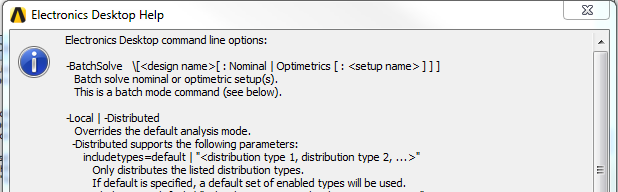
-Help
Open a window that displays the different command-line options. This is only used when none of the four run commands are used.
For example:
"E:\Program Files\ANSYS Inc\v251\AnsysEM\ansysedt" -help
Run Twin Builder with the window iconified (minimized). This can be used with all or none of the run commands.
Specify a log file (use in conjunction with -BatchSave or -BatchSolve or -RunScriptAndExit run commands). If no log file is specified, <project_name>.log file will be written to the <project_name>.batchinfo directory with the current specification.
Run Twin Builder in non-graphical mode. (Use in conjunction with -BatchSave or -BatchSolverun commands. Must be used with -BatchExtract command.)
Wait for licenses (use in conjunction with -BatchSolve or -RunScriptAndExit).
Add arguments to the specified script in conjunction with -RunScript and -RunScriptAndExit.
ScriptArgs looks at the single argument after it and uses those as script arguments. You can pass multiple arguments to scriptargs by surrounding the script arguments in quotes. For example:
ansysedt.exe -scriptargs "TwinBuilderDesign1 Setup1" -RunScriptAndExit C:\temp\test.py
In Python, the command line parameter following -scriptargs is passed without modification as a single string in the ScriptArgument python variable.
In VBscript, the command line parameter following -scriptargs is split into multiple strings and converted to a VBscript collection which is accessible via the AnsoftScript.Arguments collection. To access these arguments, for example:
msgbox AnsoftScript.Arguments(0) // Returns TwinBuilderDesign1
msgbox AnsoftScript.Arguments(1) // Returns Setup1
In either case, Design1 is taken into Twin Builder as the first argument, and Setup1 as the second argument. If you failed to use quotation marks, Design1 would be taken as the first argument and Setup1 would not be understood by Twin Builder.
Related Topics
For -batchoptions Use: Project Directory and Lib Paths
For -batchoptions Use: TempDirectory