
Archiving Projects
Select File > Archive... to bundle a project—and any other files related to the project that you want to include—in an .aedtz file or .zip format archive. You can include notes about the contents of the archive and specify whether to include results and solution files, or related external files. Use Archive to attempt to detect the necessary files for linked projects and include them in the archive. For example, if a project linked to the main project also has linked or associated files, you can add them.
Archive File Types
Internally, project archive files are .zip files, and are compatible with any program that can read .zip files (such as WinZip or 7Zip). The system adds a z to the project file extension (for example,.aedtz) to ensure that archive files have a unique extension. Note that .zip files are also included as a possible filter in file selection dialog boxes.
File Relocation Considerations
In a project to be archived, you can store external files anywhere on your system. One of the goals is for the restored project to be relatively self contained, and NOT to allow the restoration of an archived project to haphazardly write files anywhere on your system.
To achieve this, it is sometimes necessary to change the location of files in the archived project such that the external files are now located in the project directory. At archive time, any external files not located in the project directory are relocated to the restored_files subdirectory of the project directory in the archived project. Any external files located in the user library or system library are relocated to the personal library directory. Note that the project file written into the archive will refer to the files at the new locations, and the original project file will not be altered.
Archive Preview
Archive includes a preview feature that lets you review the contents of a planned archive.
To archive the current project:
- Select File > Archive.... The Archive Options dialog box appears.
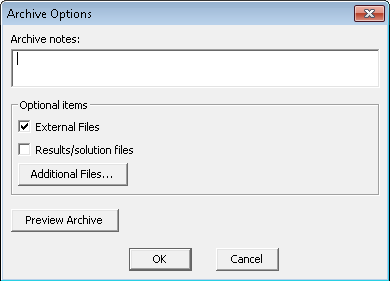
Archive notes: You can specify notes that will be visible when previewing the archive. These notes can be viewed from the preview dialog box without actually restoring the archive.
External Files: Select this check box to include all external files in the archive. The External Files check box refers to any existing files associated with the project, such as linked files, or files added through the Project > Insert Documentation File command or Project > Data Set command.
Results/solution files: Select this check box to include the entire results directory in the archive. This may greatly increase the size of the archive file.
Click Additional Files... to open the Add Additional Files to Archive dialog box.
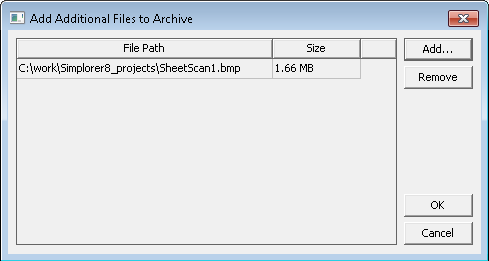
Click Add... to locate any additional files (such as documentation files or datasets) you want to include in the archive. You can also select then Remove any files listed, and OK or Cancel any proposed changes.
- Select any optional items, and make any desired archive notes in the text field.
- When you have made your selections for
optional items, select Preview Archive
to look at the archive contexts, and the locations where restoring from
the archive would place them.
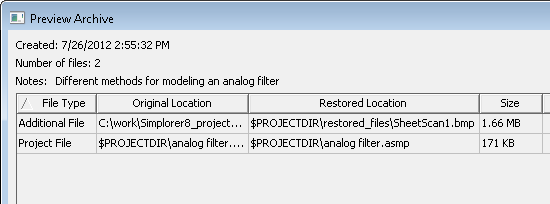
Select Results/solutionif you want to archive those files. Below is a preview showing some included results files.
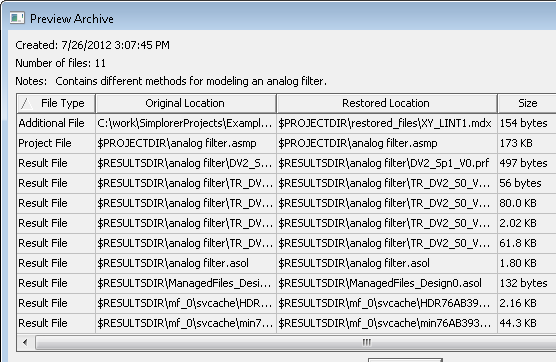
Previewing an archive before creating the archive can be helpful in order to see exactly what files will be included in an archive, as well as how those files are being relocated. Another purpose of previewing an archive is to view warnings and consider if any additional files need to be added to the archive.
The preview dialog box also displays the archive notes, creation date, and the number of included files.
- When you are ready to create the archive, close the preview, and specify the format you want to use, .aedtz or .zip, and specify the archive location and name. Click OK to create the archive.