
Setting HPC and Analysis Options
All analysis parameters are accessed with a single dialog box. The machine list and options settings are integrated into analysis configurations. The default configuration is for solving on a single, local machine. You can create many analysis configurations for remote and distributed solutions, and switch between them depending on the job being solved. Multiprocessing is integrated into the machine lists.
To set the HPC and analysis options, select Tools > Options > HPC and Analysis Options. The HPC and Analysis Options dialog box appears, displaying two tabs: Configurations and Options.
Distributing Optimetrics Variations
Twin Builder does not support any distribution for multiple cores, tasks, or GPUs. However, to support HPC analysis in Co-simulations some settings like cores and processor usage might be required (see Editing Distributed Machine Configurations).
In general, Twin Builder distributes Optimetrics variations using Ansys HPC licenses. In specific cases (see Using Legacy DSO Licenses for Parametric Analysis in Twin Builder) it is still possible to distribute variations using the legacy distributed solve option (DSO) license. Future releases, however, will require HPC licenses for distributed solves.
Distributed analysis still requires certain on-demand model licenses (for example, for Modelica, ROM, and Twin models) during simulation if those models are used in the design.
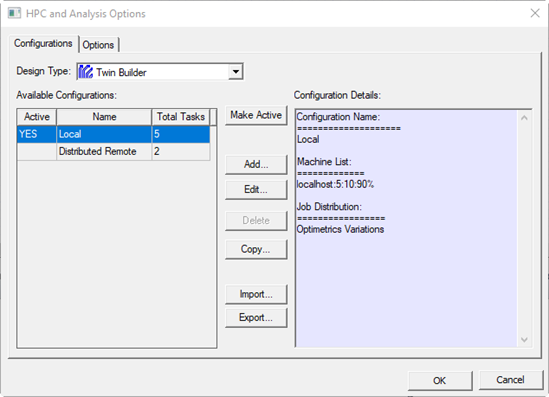
Configurations Tab
In the Configurations tab, you can select the design type and associated configurations. Select a design type to display a list of the available configurations for that type. Select a configuration to display the details of that configuration. A name can describe the use for which a configuration has been defined. The Total Tasks column shows the number of tasks that the analysis configuration can execute.
Design Type
Define configurations for the Twin Builder design type. The Active configuration is used when solving an analysis for the design type.
Available Configurations List
Click the desired configuration in the Available Configurations list for each design type, then click Make Active. The active configuration is indicated with a YES in the Active column.
- Add... – Create a new analysis configuration.
- Edit... – Edit the currently selected analysis configuration.
- Delete– Delete the currently selected analysis configurations.
Note:
You cannot delete the local configuration.
- Copy...– Create a new analysis configuration, and launches the Analysis Configuration dialog box to edit it.
- Import...– Import an .acf
file to create an analysis configuration.
Note:
Importing analysis configurations always adds the imported analysis configurations to the current design type. If there is a name conflict between an imported analysis configuration and an existing analysis configuration, the imported configuration is renamed, and you are notified.
- Export... – Export the selected analysis configurations to an .acf file. You can then import the configurations into a different design type or import them on a different machine.
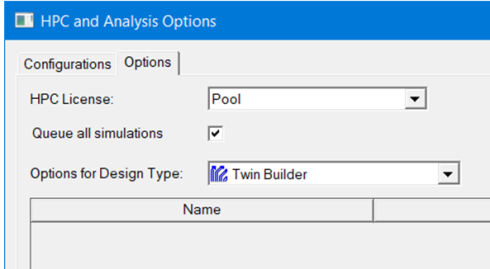
Options Tab
For HPC License, select Workgroup or Pack.
HPC licensing enables the use of cores and GPUs to accelerate simulations. In general, each core requires one unit of HPC, while each GPU requires eight units. The selected HPC license type determines which license is used, and how units of HPC are converted to license counts.
- Workgroup (formerly "pool") – One HPC workgroup license enables one unit of HPC.
- Pack – One HPC pack license enables eight units of HPC. Additional packs multiply by four, enabling 32, 128, 512,... , in the context of a single simulation.
Electronics Desktop products include four units of HPC for each licensed simulation. This means that up to four units can be used without requiring HPC licenses; license counting begins with the fifth unit. For example, a simulation that uses 36 cores requires 32 HPC units after subtracting the four included cores. This simulation will check out 32 HPC workgroup licenses, or two HPC pack licenses.
HPC licenses enable all parallel and distributed simulations, including distributed variations. Distributed variations require a single set of solver licenses, plus HPC to enable the variations.
For HPC Workgroup, distributing N variations requires 8*(N–1) workgroup licenses and, together with the solver licenses, enables up to four HPC units per variation. Each additional set of N workgroup licenses will enable one additional HPC unit per variation. For HPC Pack, distributing N variations requires N–1 pack licenses and, together with the solver licenses, enables up to four HPC units per variation. Each additional set of N pack licenses will enable 8, 32, 128,... additional HPC units per variation.
Ansys licensing supports distributed simulations when Ansys Electronics Desktop is called from other Ansys tools, such as optiSLang and Workbench. In such cases, distributed design points (variations) generally use HPC counts as described above.
Licensing for some calling products may include some distributed design points, in which case the total required HPC will be reduced.
The Options tab in the HPC and Analysis Options dialog box contains design type specific options. These options are not part of an analysis configuration; instead, they are always in effect for the given design type when the following is true:
- A design of the matching design type is being solved.
- You have not specified corresponding overriding batch options on the command line.
You can enable queuing in the Options tab. If the Queue all simulations check box is selected, the Desktop queues any active simulations for design types that have Save before solving turned off in General Options, then processes them in order. You can view and change the queue by using Show Queued Simulations.
To edit configurations, see Editing Distributed Machine Configurations.