
Editing Distributed Machine Configurations
Follow this procedure to edit an existing machine configuration:
-
Select Tools > Edit Active Analysis Configuration to open the Analysis Configuration dialog box directly or select Simulation > Analysis Config on the ribbon. You can also open the HPC and Analysis Options dialog box and click Add, Edit, or Copy.
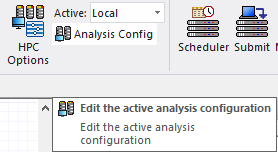
If you select Add from the HPC and Analysis Options dialog box, the fields are empty. If you select Edit or use Tools > Edit Active Analysis Configuration or click Copy from the HPC and Analysis Options dialog box, the fields show the selected configuration.
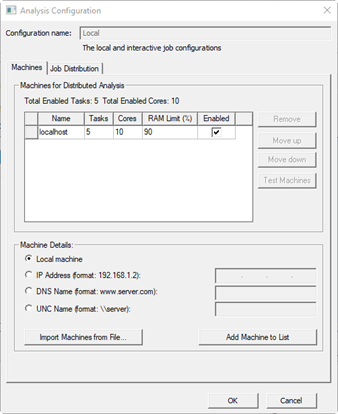
- Specify the name of the new or edited
configuration. The Configuration name field cannot be empty or contain a previously used name or a reserved word.
- The Machines tab contains the machine list for the analysis configuration. Here you can provide machine information: you can either specify machine details and click Add machine to list, or import a list of machines from a file. You can remove, order, test, and enable machines on the list.
- To add machines manually to the list, under
Machine Details, specify an IP Address,
DNS Name, or a UNC
Name.
Note:
The remote machines must have the same Ansys Electromagnetics Suite version installed in the same OS and version, as well as have the RSM service active.
- You can choose to Import
Machines from File. Each line of the file can contain a
machine specifier of the form:
<MachineName>:<NumTasks>:<NumCores>.
Note:This same format is used with the -machinelist file= command line option.
- To streamline the common case of running jobs on the current machine, use the dedicated Local Machine option to specify the local machine for the list.
-
Machine List Details
The Machines for Distributed Analysis area lists machines in the order in which you entered them, irrespective of the load on the machines. To control the list order, select one or more machines, and click Move up and Move down. To remove one or more machines, select the machines and click Remove.
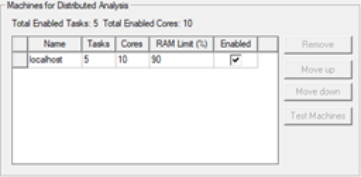
- Name – The machine name.
-
Tasks – This column allows you to specify the number of tasks a given machine will perform simultaneously. Each separate solver or instance counts as one task.
-
Cores – Specifies the total number of cores that will be used on the given machine. The total number of tasks and cores are described just above the machine list. For distributed tasks, the software will allocate the total cores on a given machine to that machine's tasks. If a machine with 8 cores is running 2 distributed tasks, the software allocates 4 cores to each task. If it is running 4 distributed tasks, each gets 2 cores. And if it is running 3 distributed tasks, the first two tasks get 3 cores, and the last task gets 2 cores. The number of cores must always be greater than or equal to the number of tasks.
-
RAM Limit (%) – Specifies the maximum percentage of each machine's RAM you would like to be in use by the solver.
Note:The settings for Cores and RAM Limit are used only for distributed solves that involve a Co-simulation. The Twin Builder solver will otherwise ignore those settings.
-
Each machine on the current list has an Enabled check box. Here you can enable or disable the listed machines. Above the table, the dialog box displays a count of the total enabled tasks.
In general, Twin Builder machines in the distributed analysis machines list are used in the order in which they appear. If you select a distributed configuration (rather than Local) from the ribbon and you launch multiple analyses from the same UI, Twin Builder selects the machines that are running the fewest number of engines in the order in which the machines appear in the list. For example, if the list contains four machines, and you launch a simulation that requires one machine, Twin Builder chooses the first machine in the list. If another simulation is launched while the previous one is running, and this simulation requires two machines, Twin Builder chooses the second and third machines from the list. If the first simulation terminates and you launch another simulation requiring three machines, Twin Builder chooses 1, 4, and 2 (in that order).
-
Test Machines – When multiple users on a network are using distributed solve or remote solve, they should check the status of their machines before launching a simulation to ensure no other Ansys EM processes are running on the machine. To do this, you can select one or more machines and click Test Machine. The Test Machines dialog box opens.
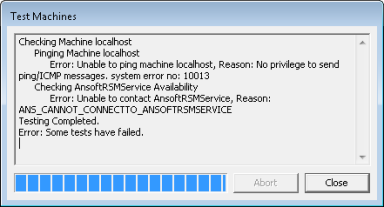
The test goes through the current machine list and gives a report on the status of each machine. A progress bar shows how far testing has gone. Click Abort to cancel a test. When the test is complete, click OK to close the dialog box. If you need to disable or enable machines from the list based on the report, you can do so in the Distributed Analysis Machines dialog box.
Related Topics
Configuring Distributed Analysis
Editing Distributed Machine Configurations