
Determining a Non-conservative Input Node's Value Using Free Values
Component dialog boxes created using the Component Dialog Wizard allow values to be passed to a model's non-conservative input nodes by two methods.
- Direct passing or assignment of values by control elements such as text edits and check boxes.
- Indirect passing or assignment of values using Free Values: parameters that are passed to the component dialog wizard, which then uses the values of these parameters to calculate the values passed to some or all of the model's non-conservative nodes.
This section describes the procedure for assigning a value to a non-conservative input node using free values.
Create free values in a component dialog box using the text edit, ComboBox and check box control elements (for a detailed explanation of how to create free values using these control elements, see Adding Static Information and Control Elements to a Component Dialog). Once you have added free values, they can determine the value of any non-conservative input node not already connected to another control element in a component dialog box.
To determine the value of a non-conservative input node using free values:
- Start the Component Dialog Wizard.
- Add any necessary free values.
- Right-click an empty portion of the component
dialog and select Properties.
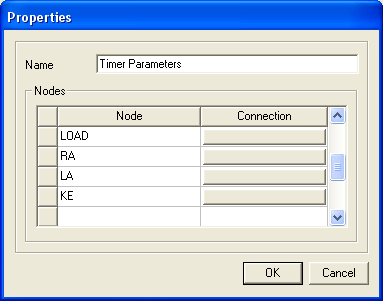
The Properties dialog box opens, and a list of the model's non-conservative input nodes appears in the Nodes panel. In the Connection column, there is a browse edit button to the right of any input node not currently connected to any other control element. The values for such input nodes can be determined by free values. For example, in the illustration below, the values for nodes LOAD, RA, LA, and KE all can all be determined using free values.
- Click the button to the right
of the input node that is to have its value determined using free values.
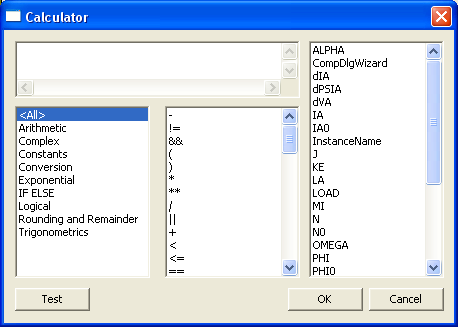
The Calculator
dialog box opens.
- Enter an expression for the value of the
non-conservative input node in the upper-left panel. The expression
should be written in terms of free values, non-conservative input values,
variables, and Twin Builder mathematical and logical operators, functions,
and constants. Type or enter these expressions with the utilities
provided in the Calculator dialog box:
- The lower-left panel contains a list of the various categories of Twin Builder operators, functions, and constants. Click a category to filter the display in the center window to the operators, functions, and constants associated with that category. For example, if you click Trigonometrics in the left window, the list of Twin Builder trigonometric functions appears in the center window.
- The center panel contains a list of all Twin Builder mathematical and logical operators, functions, and constants. Double-click a symbol in this window to add it to the expression.
- The upper-right panel contains a list of all conservative nodes, non-conservative nodes, and free values. Double-click a name in this window to add it to the expression.
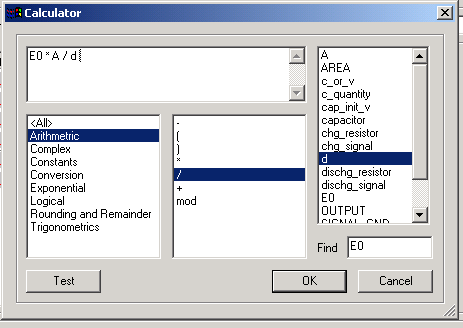
In the example shown below, the expression (E0 * A)/d is assigned to the non-conservative node capacitor. The name of the non-conservative node does not appear in the upper-left window with the rest of the expression.
- Click Test when the expression has been entered. If any SML syntax errors exist in the expression, the Component Dialog Wizard indicates the source of the error so that you can correct it.
- Click OK when the expression is error free.
- Repeat steps 1 through 7 for all non-conservative input nodes whose values are to be calculated using free values.