
Assigning EM Loss Properties
Data can be linked from an HFSS, Maxwell, or Q3D design to an EM Loss thermal boundary condition in an Icepak design. You can assign multiple EM Loss boundary conditions that are linked from the same source design.
- In HFSS, surface loss exists on non-solve-inside conducting objects, and volume loss exists on solve-inside lossy objects.
- In Maxwell, surface loss exists on Impedance Boundaries, and volume loss usually exists on solve-inside conducting objects.
- In Q3D, volume loss exists in conductive objects for DC RL field type, and surface loss exists on conductive objects for the AC RL field type. Volume loss can be a DC loss or a harmonic loss, which is a post-processing field for the DC RL analysis.
Lossy objects are those whose material definition includes a loss tangent greater than zero.
You can couple volume or surface loss into an Icepak design by assigning EM Loss boundary conditions to geometry objects. During the Icepak simulation process, EM loss data is mapped onto the mesh and consumed into the solution.
A summary of coupled EM Loss data can be viewed on the Solutions dialog Profile tab during the solution process. In the Project Manager, expand Analysis, right-click the solution setup, and select Profile.
Assign EM Loss Properties
- Select one or more geometry in the 3D Modeler window or history tree and select EM Loss.
The Setup Link dialog box is displayed.
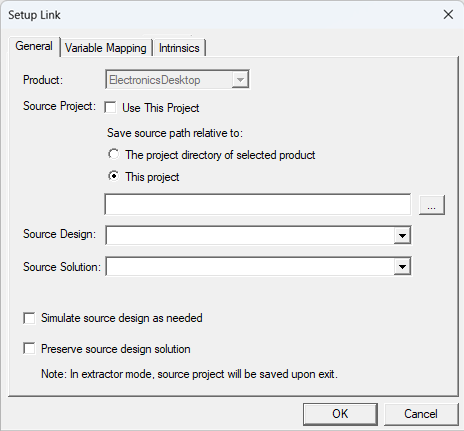
- Specify the project that has the source design in one of the following ways:
- Check Use This Project to pick a design from a current working project.
- Click the ellipsis and browse your computer to pick the design.
- Pick the source design from the Source Design drop-down menu which lists all the designs in the specified project.
- Pick the setup type from the Source Solution pull-down menu (e.g., Last Adaptive, Sweep).
- Select the last two check boxes as needed
and click OK.
Note:
Go to Simulate source design as needed, for more information about that option.
- Click the Variable Mapping tab and ensure the Variable Mapped to Source Design values are as desired for each variable.
- For HFSS designs (Modal and Terminal solution types only) and Maxwell designs (Eddy Current solutions), click the Intrinsics tab and select a Frequency, which defines the frequency used in the source design. When the source design is set up to sweep frequencies, they are available for selection.
- For Q3D designs, click the Intrinsics tab and select Harmonic Loss or DC Volume/AC Surface Loss.
- For Maxwell transient solutions (Magnetic or Electric), click the Intrinsics (Time) tab and select the Start Time and End Time from the drop-down menus.
- Click OK to close the Setup Link dialog. The EM Loss dialog box appears.
- Enter a Name for the EM loss boundary.
- Drag and drop the geometry under Surface or Volume to specify it as either surface or volume loss.
- If needed, enter a Loss Multiplier value. A loss multiplier can be applied to increase or decrease the EM losses applied during the Icepak simulation. For example, a loss multiplier value of 1.2 could be used to build in a safety factor of 20% into the thermal solution.
- If needed, enable Transient curve to define the loss multiplier as function of time. The Transient Multiplier - Transient Variation dialog box opens. See Using Datasets to Define Transient Parameters for more information.
- Click OK to close the EM Loss dialog box. The EM loss assignments appear under Thermal in the Project Manager.
The option Use this project points to the directory relative to where your current working project is located.
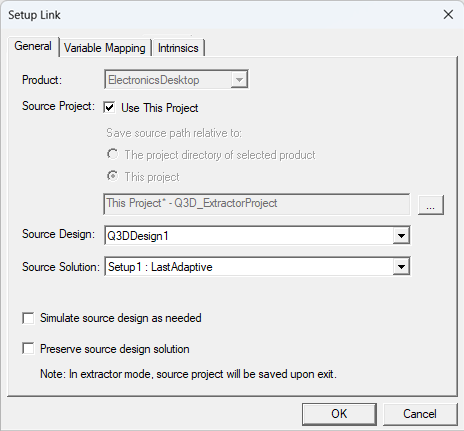
Preserve source design solution
When the source design is in a separate project, and that project is closed, the source design will not be saved (preserving the preexisting solution data). This option is not applicable if the source design is in the same project as the target design.
In the Extractor mode, the source project will be saved upon exit. Extractor mode means that the source project is opened during the link solely for the purpose of solving.
Simulate source design as needed
Select this option if you modify the source design and you want an updated source design solution to be linked to the target design. If you select this option, make sure that you also invalidate the cached link data in the target. To do this, right-click Analysis and select the option Clear Linked Data from the short-cut menu.

You can click Map Variable by Name to compare the source design variables to the Icepak design variables. Any variables with the same name are mapped so that the source design conforms to the Icepak design.


.png "Icepak EM loss setup link dialog box intrinsics (time> tab, start and end times displayed.")
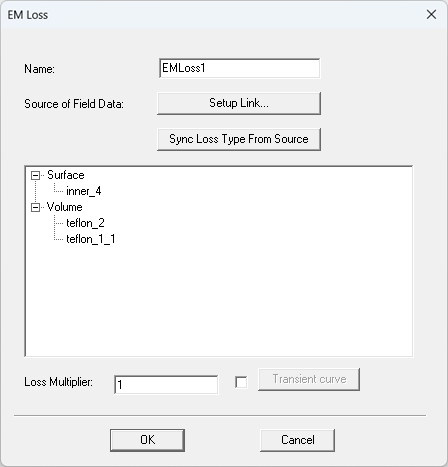
To edit the EM loss link, click Setup Link to open the Setup Link dialog box.
If the source HFSS, Maxwell, or Q3D design is updated, you can click Sync Loss Type From Source to update the link.
To determine the total volume and surface EM loss values in the source design, use the Fields Calculator in the source design by choosing the appropriate objects. EM losses from the source design listed in the solution profile may differ from those assigned in Icepak due to differences in meshing or geometry translations. Source and target values match when scaling factors are close to one.
To produce accurate results, mesh in HFSS and Icepak should be similar. To evaluate mesh similarity between the source design and Icepak design, check the scaling factor in the Icepak solution profile and ensure the value is close to 1.0.


|
Click here for scripting information related to this feature. |