
Modifying Reports
To modify the data that is plotted in a report:
- From the Project Manager, expand Results and select the report you want to modify.
- Right-click and select Modify Report.
The Report window appears, on the Trace tab.
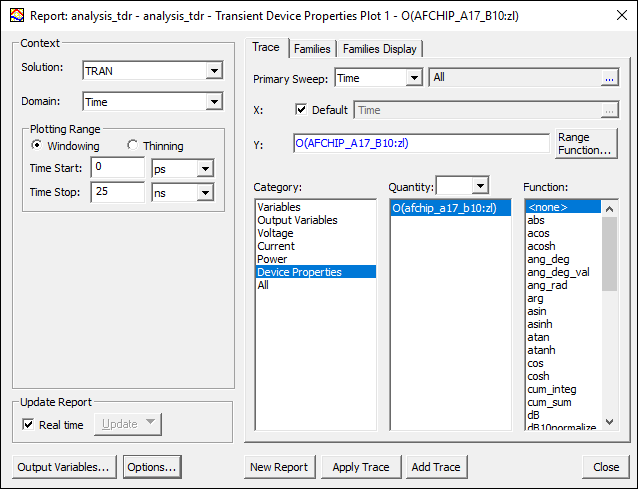
- Report window buttons allow you create a new report with the settings you provide, or to modify the existing report.
- Output Variables – opens the Output Variables window.
- Add Trace – this is enabled when you have created or selected a report. See: Working with Traces.
- Apply Trace – updates the selected traces in a report based on further processing or changes.
- New Report – adds a report to the Project tree under the Results icon. The new Report is displayed in the main window.
- Options – opens the Report Setup Options window. This contains a check box for using the advanced mode for editing and viewing trace components. This mode is automatic if the trace requires it. It also contains a field for setting the maximum number of significant digits to display for numerical quantities.
- Close – closes the Report window.
- The Update Report area contains the Real Time check box and Update drop-down menu.
- Real Time – when selected, enables real time updates for all reports while the reports are being edited. When deselected, enables the drop-down menu to Update Report or Update All Reports manually. This can be useful if you expect a trace to take time to display. You can then add additional traces without having to wait.
- The Context area allows you to make selections depending on the design and solution type.
- The Trace tab provides trace options.
- From the Primary Sweep drop-down menu,
- From the X component field, leave Default selected to maintain SIwave's default settings, or deselect it and click ... to open the Select X Component window.
- The Select X Component window appears.
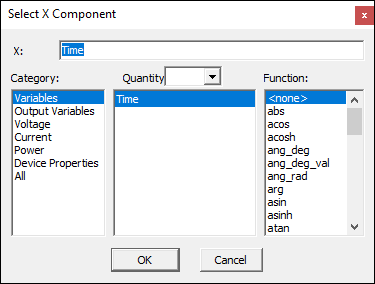
- Use the Category, Quantity, and Function lists to make new selections.
- Click OK to apply your selections and close the window.
- The Select X Component window appears.
- From the Y component field, make selections for:
- Categories – These depend on the solution type and design.
- Quantity – These are relative to the selected category.Note:
The Quantity text field can be used to filter the Quantity list by typing in text, or by using the four predefined selections. This is useful if the Category selected produces a lengthy Quantities list. See Filtering Quantity Selections for the Reporter.
When the matrix is very large, the number of quantities can be correspondingly huge. Therefore, the Quantities field can optionally use a tree structure to divide matrix quantities into groups by their first element name. The initial display shows groups, without initially listing group members.
- Function – Selects the function(s) to apply to Y quantities.
The Y component field displays the currently selected Quantity and Function. You can edit this field directly, or click Range Function to open the Set Range Function window. See: Function List.
Note:Color shows valid expression.
- The Families tab provides a way to select from valid solutions for sweeps where a simulation has multiple variables defined (e.g., for a parametric sweep). If so, the variables other than the one chosen as the X (Primary sweep), are listed under the Families tab with columns for the variable, the value, and an Edit column with a [...] button.
- The Families Display tab
You can also view and edit the properties of Reports and their traces via their Properties windows. See: Changing Report Display.