
Working with Traces
A trace in a 2D or 3D report defines one or more curves on a graph. A trace in a data table defines part of the displayed matrix of text values.
The values used for a plot's axes (which may be X, Y, Z, phi, theta, or R) can be variables in the design (such as frequency) or functions and expressions based on the design's solutions. If you have solved one or more variables at several values, you can "sweep" over some or all of those values, resulting in a curve in 2D or 3D space.
A report can include any number of traces and, for rectangular graphs, up to four y-axes.
Traces appear in the Project Tree under their report, where they can be selected, copied, pasted, and deleted from the shortcut menu.
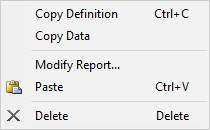
- You must copy and paste trace definitions between reports of one type (e.g., you cannot paste a Modal Solution Data report into a Far Fields report).
- If you copy and paste a report or trace definition to a design containing a definition with the same name, an incremented number is appended to the pasted item.
- If the report or trace definition contains properties that do not exist in the target design (e.g., a port name), an error will state that a solution does not exist for this trace.
When you move a cursor over a trace in a report, the cursor changes to show that you can make a selection:
- For PC systems, the cursor changes to the color of the selectable trace.
- For Unix systems, the cursor changes to a solid black arrow, rather than the default black outline.
To add a trace to a report:
- Right-click a report and select Modify Report.
The Report window appears, on the Trace tab.
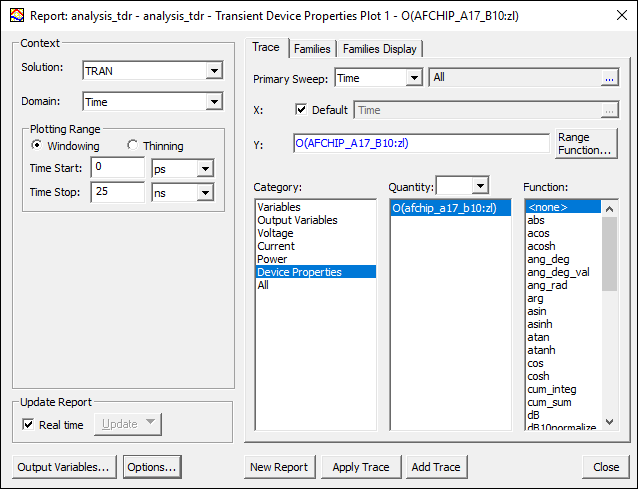
- Specify an appropriate information. See: Modifying Reports.
- Click Add Trace.
A trace is added to the traces list under its report icon in the Project Tree. The trace represents the function of the quantity you selected and will be plotted against other quantities or swept variable values. Selecting a trace in the Project Tree displays the Properties window for that trace.
By the default, the trace name is the definition (category, quantity and function). Trace properties can be edited directly in the Properties window or in the Report window. See: Editing Trace Properties.