
Specifying Output Variables
You can access the Output Variables window in several ways:
- Click Results > Output Variables.
- From the Project Manager, right-click Results and select Output Variables.
- From the Solution Setup window, select the Expression Cache tab, click Add... to display the Add to expression cache window, and click the Output Variables button.
- Click the Output Variables
button in the Reports window.
The Output Variables window appears.
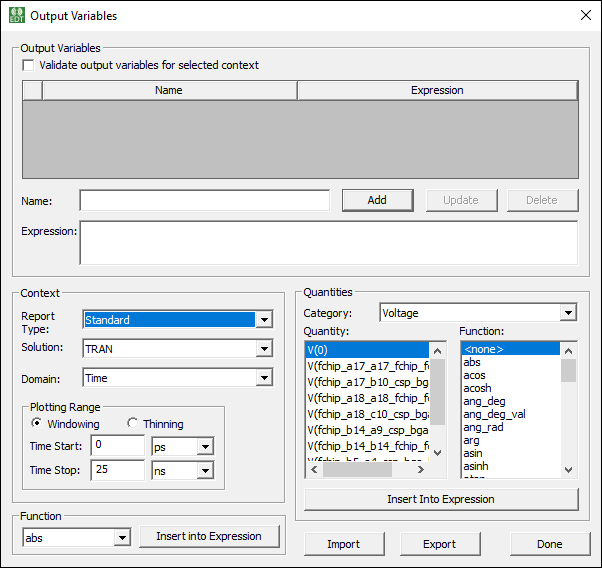
The Output Variables window contains four sections:
- Output Variables – where you can specify the name and expression for a new output variable. Existing variables appear in the list at the top of the window. You can also use a check box to Validate output variable for selected context.
- Context – where you can specify the report type, the solution, and the domain (if applicable). Changing the report type to Near Fields or Far Fields causes a Geometry menu to appear. Selecting Emission tests require a digital signal. All selections affect the Functions listed.
- Quantities – where you can insert quantities into the Expression area of the Output Variables section.
- Function – where you can insert completed expressions into the Expression area of the Output Variables section.