Changing Report Display
To modify the appearance of a report, or the display properties an object in a report.
- Open the report you want to modify.
- Select an editable object in
the report (x-axis, legend, etc.) to view its properties in the docked Properties window. To open
a floating Properties window, double-click an object
or click View > Workspaces > Properties.
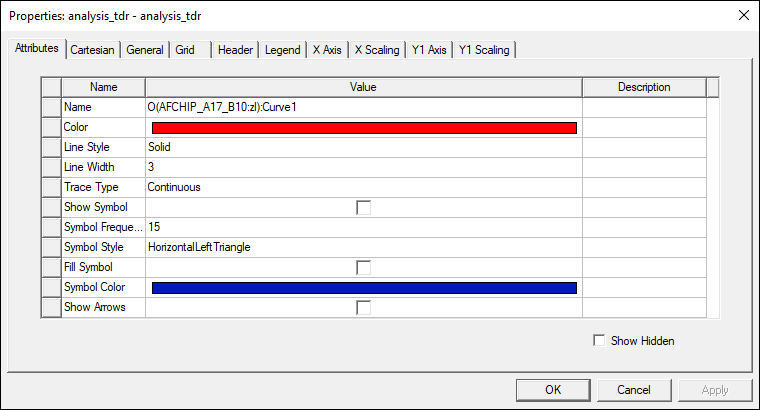
Properties window tabs include:
- Attributes – allows you to edit the report's trace type, line color and style, and symbol and arrow preferences.
- Cartesian – allows you to set the display of the x-axis scrollbar.
- General – allows you to set the background and plot area colors, enable or disable y-axis stripes, and set number formatting.
- Grid – allows you to set grid visibility and colors.
- Header – allows you to select fonts for the report's title and subtitle, and decide whether to display a company name and the design name.
- Legend – allows you to select which elements display in the legend, as well as their fonts and colors.
- X Axis – allows you to set the x-axis display name, units, color, window and field width, and field precision. You can also
- X Scaling – allows you to modify how the x-axis scales.
- Y Axis – allows you to set the y-axis display name, units, color, window and field width, and field precision.
- Y Scaling – allows you to modify how the y-axis scales.
- Click Apply to apply changes.
- Click OK to close the Properties window.
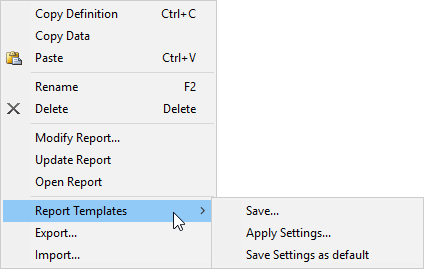
To save any report format as a template, right-click the report in the Project Tree and select Report Templates > Save.
To apply a previously saved template, right-click the report in the Project Tree and select Report Templates > Apply.
To make your settings the default for all reports, right-click the report in the Project Tree and select Report Templates > Save Settings as Default.