
Exporting SYZ Information
Navigate to the SYZ Results menu:
- Click Results.
- From the SIwave area, select SYZ > [Simulation Name].
- Export to Electronics Desktop post-processor – launches Ansys Electronics Desktop and opens the plot.
- Export to Network Data Explorer – launches ndExplorer with SYZ data pre-populated.
- Export to SUtility – launches SUtility with SYZ data pre-populated.
- Export IBIS ICM File – exports files to the IBIS Interconnect Modeling (ICM) standard. See below.
- Export Sentinel-SSO Netlist – exports the results of an SIwave SYZ-parameter extraction as a SPICE netlist with a CPP header for Apache Sentinel SSO flow. See below.
- Export Touchstone File – exports the SYZ data in an *.sNp file that can be used with third-party tools and opened in any text editor.
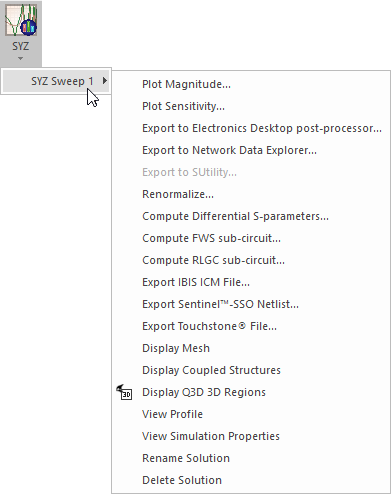
Export menu options include:
Exporting an IBIS ICM File
The IBIS Interconnect Modeling (ICM) standard specifies a "wrapper" around regular Touchstone files. An .*.icm file lists original port names and includes a link to a Touchstone (.*.sNp) file containing the actual SYZ-parameter data.
To export an IBIS ICM file from SIwave:
- Run an SYZ Sweep.
- Click Results.
- From the SIwave area, select SYZ > [Simulation Name] > Export IBIS ICM File.
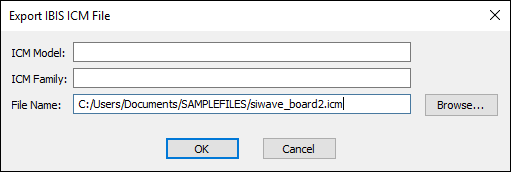
- Enter the ICM Model, ICM Family, and appropriate File Name and path.
- Click OK.
The Export IBIS ICM File window appears.
The file exports.
To conform with the ICM ( IBIS Interconnect Modeling) standard, only lowercase letters, numbers, underscore and dash ("-") are permitted in the .sNp and .icm file names.
Exporting a Sentinel-SSO Netlist
To export a Sentinel-SSO Netlist from SIwave:
- Run an SYZ Sweep.
- Click Results.
- From the SIwave area, select SYZ > [Simulation Name] > Export Sentinel-SSO Netlist.
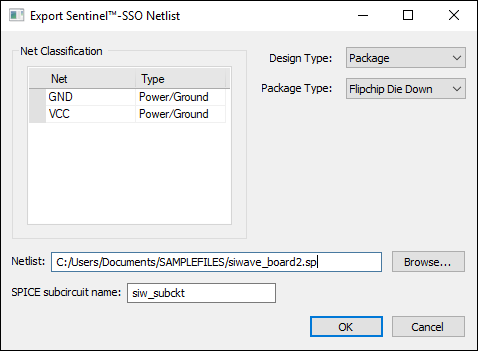
- From the Net Classification area, you can use the Type drop-down menus to reclassify nets as Power/Ground or Signal.
- Use the Design Type drop-down menu to select Package, Board, or Die.
- If you selected Package, use the Package Type drop-down menu to select a package type. This menu is unavailable otherwise.
- From the Netlist field, type a file name and path, or click Browse to select these.
- Specify a SPICE subcircuit name for the netlist file, or accept the default (siw_subckt).
- Click OK .
The Export Sentinel-SSO Netlist window appears.
A SPICE netlist file is created in the specified location. A Touchstone file containing the S-parameter data is created in the same directory.
From the SYZ Results menu, you can also view SYZ results or access additional menu options.