Computing SYZ Parameters using PSI
PSI meshes the selected nets and extracts the SYZ-parameters at and between defined ports, with high-speed Finite Element Meshing (FEM) using prism elements. PSI SYZ is optimized for power integrity and signal integrity analyses of packages. The extraction generates a FWS SPICE file that can be exported for post-processing (see SSO export.)
To compute the S-,Y-, and Z-parameters using PSI:
- Click Simulation.
- From the PSI area, click Compute SYZ Parameters.
- From the Simulation Name field, enter a name or leave the default.
- From the Frequency Range Setup area, enter values for Start Freq., and Num. Points.
- Use the Distribution drop-down menu to select a distribution method:
-
Linear – the difference between the start frequency and the stop frequency is calculated and is divided by the number of solution points.
- By Decade – distributes the number of points specified logarithmically, over each decade.
- Enter a value for either Stop Freq.or Min. Rise/Fall Time.
- If appropriate, you can add or remove frequency points using the Add Above, Add Below, and Delete Selection buttons.
- If appropriate, click Save to save frequency point settings as an SIwave Frequency Sweep Distribution File (*.sfsdf). To load previously saved settings from a *.sfsdf file, click Load.
- If appropriate, click Set Default to make current settings the default for the simulation type. To return to the original default settings, click Clear Default.
- If appropriate, click Preview to open the Frequency List Preview.
- From the Sweep Options area, use the radio buttons to select either Discrete or Interpolating.
- An interpolating sweep estimates a frequency response for an entire frequency range by solving at a relatively small number of frequency points within that range. Between the actual solution frequencies, the frequency response is obtained by rational interpolation.PSI adaptively chooses the frequency points at which it computes the field solution. After a new frequency point is solved, a new interpolating fit is generated. This is compared to the interpolant from the previous step, and the maximum difference between the two is determined. If the difference exceeds the requested tolerance, then a new frequency point is chosen for a solution. The interpolating sweep is complete when the difference between successive interpolants is less than the error tolerance criterion.
- If you choose Interpolating, you can also specify whether to use Fast Sweep and/or Adaptive Sampling. The Fast Sweep algorithm improves runtime by requiring fewer samples to simulate, but uses more memory. Adaptive Sampling determines the number of sample frequency points from the response over the frequency band, adding more points around rapidly changing responses such as resonance peaks.
- To enforce causality and generate S-parameters at the DC point, check Enforce DC Point and Causality.
- If appropriate, check Set FWS generation parameters to export the full-wave SPICE subcircuit.
- If appropriate, check Export Touchstone file after simulation completes to automatically generate a Touchstone file (*.sNp, *.ts) after the SYZ sweep completes.
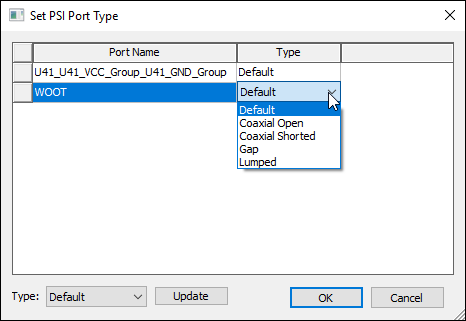
- If appropriate, click Set port type to change port types. For more information, see PSI Solver Port Setup. You can also edit Touchstone Port properties.
- Click OK to exit the Set PSI Port Type window.
- Click Launch to run the simulation.
There are two Compute SYZ Parameters icons on the Simulation tab. Do not use the one in the SIwave area.
The Compute SYZ-parameters using PSI window appears.
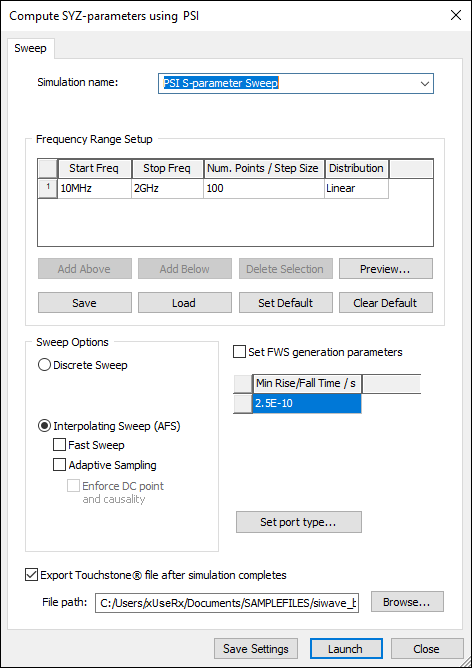
The Min. Rise/Fall Time value represents the time scale that characterizes the rate of change of the input time signal that will be applied in the circuit simulator.
Entering data in one field automatically sets the other. The maximum frequency is considered to be the knee frequency, fknee, which is related to the rise time TR by the formula:
fknee = 0.5 / TR
The Start Frequency value changes to 0Hz. If you have an existing S-parameter solution, you can run an FWS simulation without needing a 0Hz or 1Hz point.
The Set PSI Port Type window appears.
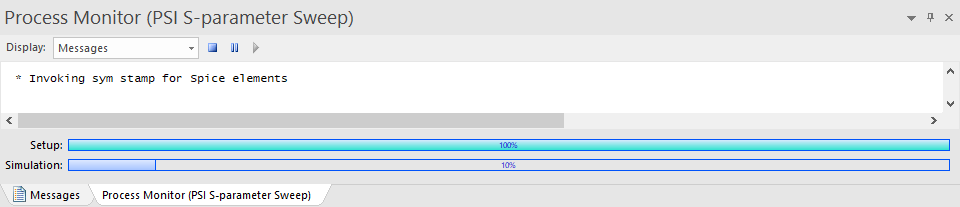
The Messages window updates with a Process Monitor tab that displays the progress.