Computing CPA RLGC Simulations
CPA setup comprises three parts: Die, Channel Components, and the VRM. You can compute an RLGC simulation for the CPA Channel Setup, or for individual sources and sinks.
To compute an RLGC simulation in SIwave:
- Click Simulation.
- From the CPA area, click Compute RLGC.
- Enter a name for the simulation, or leave the default.
- Select either CPA Channel Setup or Individual Source/Sink Setup.
- If you wish to compute for individual sources and sinks, click Source/Sink Assignment and set the options:
- Select one or more rows, select Source, Sink, or Float, and click Apply.
- Click OK to verify the settings and return to the Launch CPA window.
- Select the Extraction Type:
- ESD R Model – select for Pure DC resistance extraction with the Spice netlist customized for Chip ESD applications.
- RLCG Model – select to use the FEM solver. This has a high capacity and fast turn-around time, and is recommended for large PDN structures and/or having several hundreds of source terminals.
- Q3D Solver – select to use the Q3D MoM solver with adaptive meshing. This is recommended for high accuracy applications, and is ideal for lead frames and small scale packages.
- Hotspot Die Pin Group Generation – Rather than extracting every pin (which can make the netlist prohibitively large) or using a grid (which can omit hot spots), this option identifies hotspots and generates pin groups according to the specified partial R percentage, preferred grid size, and maximum number of groups appropriate. This option is only compatible with CPA Channel Setup. If you select Individual Source/Sink Setup, this option will be unavailable. Selecting this option removes the Simulation Name field, as it is not appropriate for pin generation.
Note:
Pin groups created using this method have names beginning with SmartG. See: Grouping Pins.
- Click Other Solver Settings to launch the SIwave Options window with the CPA tab selected.
- If you selected individual sources and sinks, click Launch to run the simulation. The messages window updates and the simulation completes.
- If you selected CPA Channel Setup, click Next.
- On the Die Configuration tab:
The Dies area lists available dies. Each die can be set up independently to use per-pin model, die pin groups defined in layout, or PLOC. Dies showing Yes in the Included in Solution field are extracted.
- Select dies in the list and use the Yes and No buttons to select whether they are included in the simulation.
- Selecting a die from the list populates its Part Name and Ref Des in the Die Info area below.
- Specify Pin Grouping for each selected die.
- None – computes per-pin model.
- Use die groups defined in layout – select and extract only the die pins that belong to a group. To extract all pins, use a sufficiently dense grid. Create a pin group for each of the die pins.
- Use PLOC – import and automatically connect to the die component using the PLOC Connection button. Selecting this option enables the options on the Unconnected Die Pins tab.
- Review the Pin Group Summary.
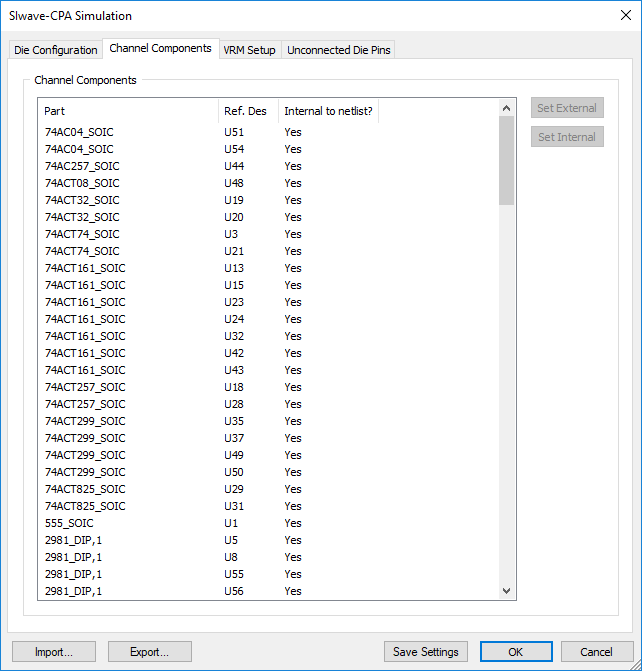
- On the Channel Components tab:
- Review the Channel components. These are passive components mounted on the package (other than the Die and BGA). If any passive component has a capacitor models specified, those component pins are automatically extracted and exposed in the Spice netlist. This helps in studying subsequent what-if scenarios without having to go through the extraction again. If a component contains simple R and L elements, these components are absorbed into the extraction and not exposed at the Spice netlist level.
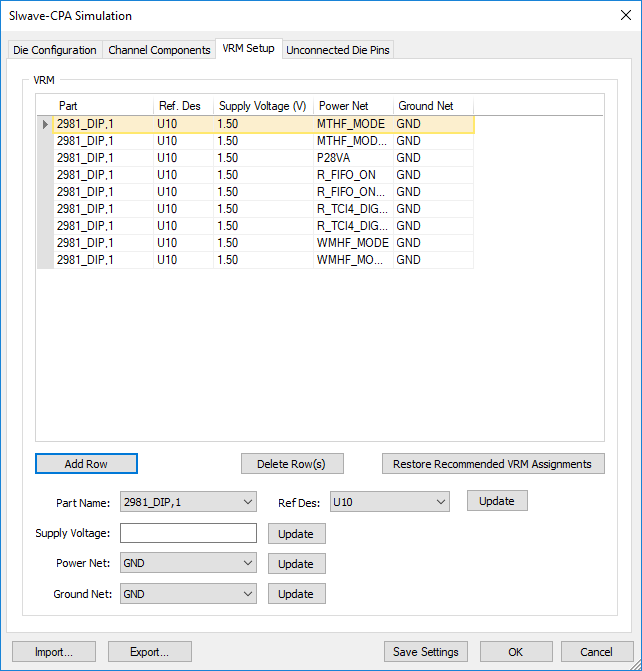
- On the VRM Setup tab:
-
Specify BGA components
and pins that supply voltage and ground to the die. To select parts, use the Part and Ref. Des drop-down menus, or click the gray area adjacent to a row. You can select multiple rows using Ctrl+click.
- Select a Power Net and Ground Net to be extracted, and specify the Supply Voltage. Use the Add Rows and Delete Rows buttons to add and remove parts as appropriate. You can also Restore Recommended VRM Assignments.
- The net with the largest number of BGA component pins is designated as the Reference (Ground) net. Other nets are routed to BGA component, and are terminated with a DC supply voltage of 1.5V by default. This value can be edited independently for each net, and the voltage level can be modified even after the extraction. If a suitable PCB model is available, it can replace the VRM model after the extraction is done.
- The pin groups defined on the BGA component are extracted and VRM supply voltages are distributed to these groups. If no pin groups are defined, all the pins for each net are grouped automatically, and the supply voltages are connected on net-by-net basis.
-
Specify BGA components
and pins that supply voltage and ground to the die. To select parts, use the Part and Ref. Des drop-down menus, or click the gray area adjacent to a row. You can select multiple rows using Ctrl+click.
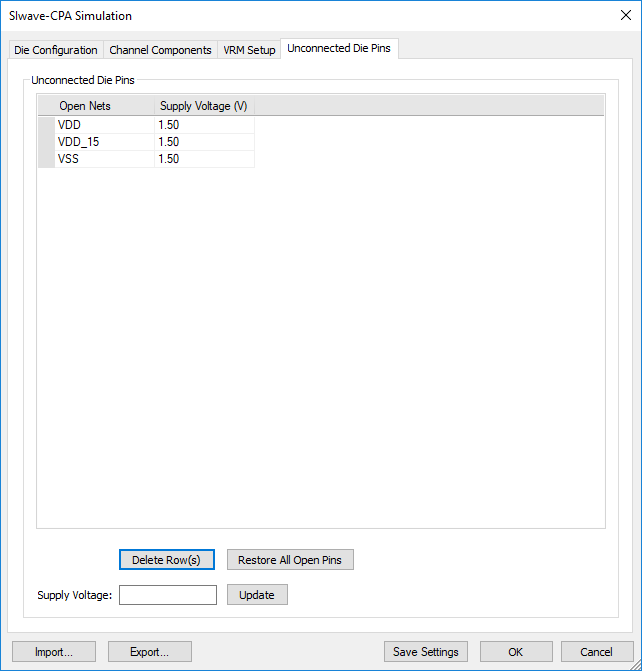
- On the Unconnected Die Pins tab:
- Specify Supply Voltage values for any unconnected PLOC nets. To update a voltage value, select a net, enter a value in the Supply Voltage field, and click Update.
Note:The controls on the Unconnected Die Pins tab are only available if Use PLOC has been selected for a die on the Die Configuration tab.
- From any tab, use the Export button to save the settings as an XML file. Use the Import button to load settings from an existing XML file.
- Click OK to start the CPA model extraction.
The Launch CPA window appears.
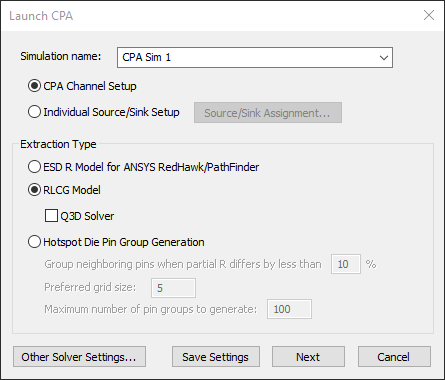
If you select Individual Source/Sink Setup, the Next button becomes a Launch button.
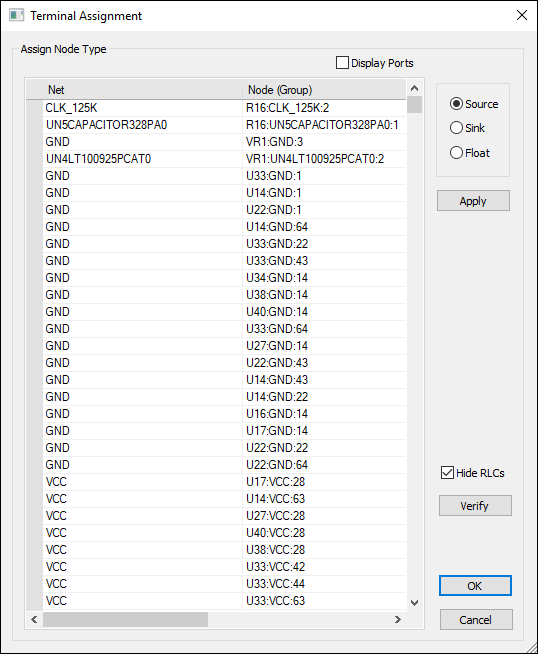
Each net is automatically assigned a Node Type. Dummy and unused nets (named NC, DNU, Dummy, etc.) are set to Float by default.
To change the settings:
If a net has only sources or only sinks, the Source/Sink Count error window appears. You must correct the listed errors before proceeding.
The SIwave-CPA Simulation window appears. Navigate through the tabs to set options.
For Hotspot Die Pin Group options, see: Grouping Pins.
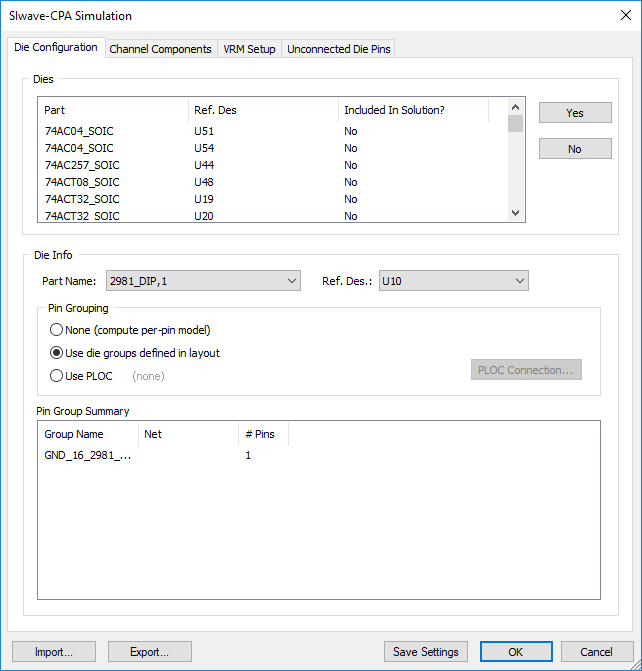
|
The Messages window updates with a Process Monitor tab that displays the progress.
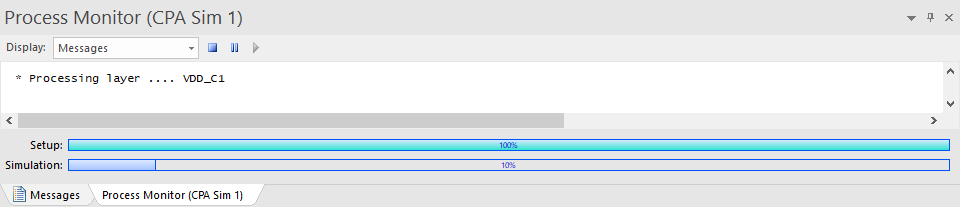
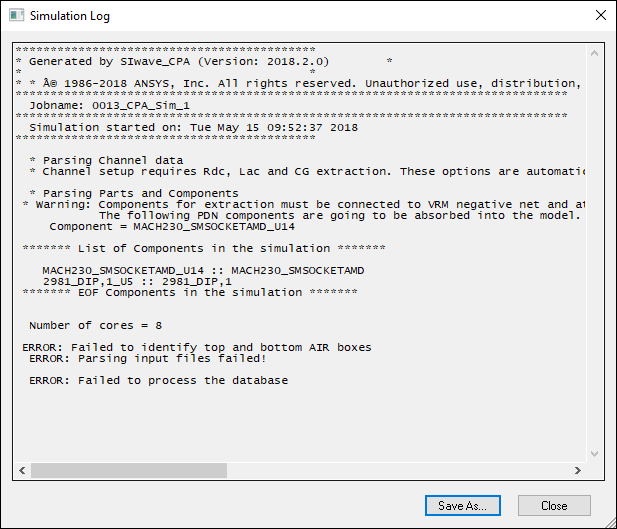
If any errors are encountered, the Simulation Log appears, summarizing them.