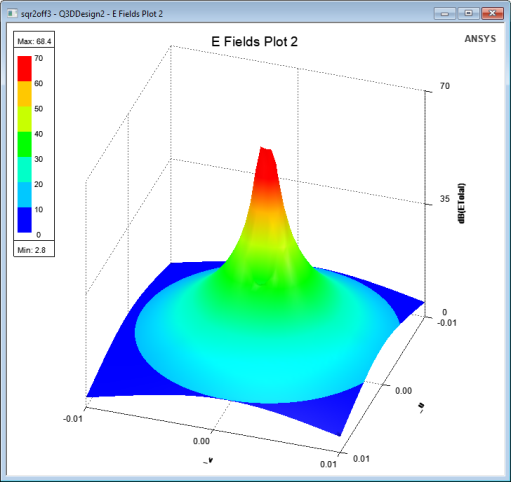
Viewing EM Fields Reports in Q3D Extractor
In order to view EM Fields reports, you must first set up EM fields and run a CG solution.
Important:
In the Solve Setup window, you must select the Save Fields option. See: Specifying Solution Settings in Q3D Extractor.
Once you have performed those prerequisites, add an EM Fields report:
- Access the Report window one of two ways:
- In the Project Manager, right-click Results > Create EM Fields Report > [Report Type].
- On the Results tab, click EM Fields Report > [Report Type].
- In the Report window:
- From the Category list, select E Fields.
- Select the other settings as applicable. See: Creating a New Report.
- Click New Report.
The EM Fields report appears under Results in the Project Manager.
Double-click the report to view it, or add an EM Fields overlay.