
Specifying Solution Settings in Q3D Extractor
The Solve Setup window allows you to specify how the solution will be computed.
You can define more than one setup per design, and each solution setup includes:
- General data about the solution's generation
- Adaptive mesh refinement parameters if you want the mesh to be refined iteratively in areas of highest error
To add a solution setup to a design:
- Select a design from the Project Manager.
- Open the Solve Setup window one of three ways:
- Select Q3D Extractor > Analysis Setup > Add Solution Setup.
- Right-click Analysis in the Project Manager and select Add Solution Setup.
- Copy and paste an existing sweep solution setup, then double-click it to change its properties.
Note:
Copying and pasting only works on sweep setups.
The Solve Setup window appears, on the General tab.
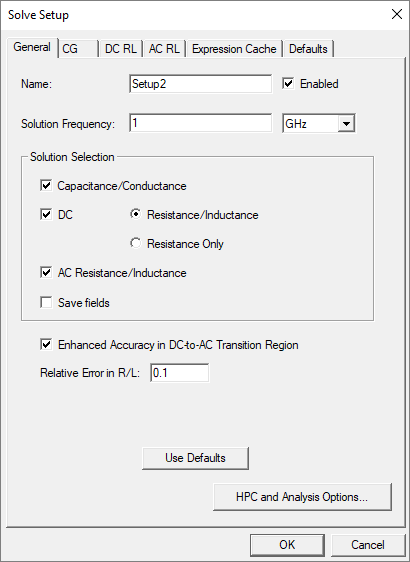
- Enter a Name for the solution.
- Select the Enabled check box to enable the solution. Deselect it to make the solution inactive.
- Specify the Solution Frequency and unit of measure.
- In the Solution Selection area, use the check boxes to select the solution type(s).
By default, Capacitance/Conductance, DC Resistance/Inductance, and AC Resistance/Inductance are selected.
You can click Use Defaults to restore the default settings.
- If desired, click HPC and Analysis Options to change HPC and Analysis settings.
- Select the relevant tab(s) to make additional settings:
- CG – settings for mesh generation for capacitance and conductance.
- DC RL – settings for mesh generation for DC inductance and resistance.
- AC RL – settings for mesh generation for AC inductance and resistance.
- Expression Cache – list of expressions (including post-processing variables) available for use in convergence for adaptive analysis.
- Defaults – options to save the current settings as the defaults for future solution setups or to revert the current settings.
Note:Tabs appear and disappear based on which solutions are selected.
- In order to save disk space, the Save Fields check box is disabled by default. To enable fields
post processing or workbench coupling, select it.
Note:
This setting cannot be applied to sweeps, as each frequency in a sweep contains a flag not to save fields.
- If you are performing transition region analysis, enable Enhanced Accuracy in DC-to-AC Transition Region and specify the relative error.
Note: This option is only available if you have enabled both DC and AC analysis.
- Click OK.