
EM Fields in Q3D Extractor
Q3D Extractor can visualize EM fields on non-model lines, rectangles, boxes, and spheres. Once you have set up a field, you can view EM Fields reports or plot the field overlay.
In the Solve Setup window, you must select the Save Fields option. See: Specifying Solution Settings in Q3D Extractor.
To set up EM fields, access the EM Fields setup window one of two ways:
- In the Project Manager, right-click EM Fields > Insert EM Fields Setup > [Field Type].
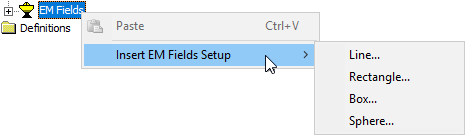
- Select Q3D Extractor > EM Fields > Insert EM Fields Setup > [Field Type].
EM Fields Line Setup
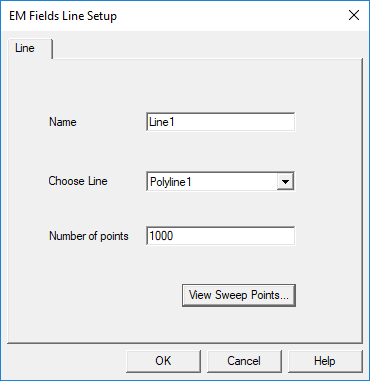
In the EM Fields Line Setup window:
- Enter a Name for the field.
- Use the Choose Line drop-down menu to select a valid polyline.
- In the Number of points field, enter the number of sweep points.
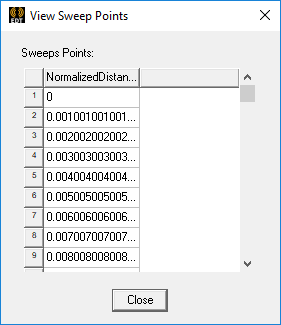
If desired, you can click View Sweep Points to preview a list of points based on your entry.
EM Fields Rectangle Setup
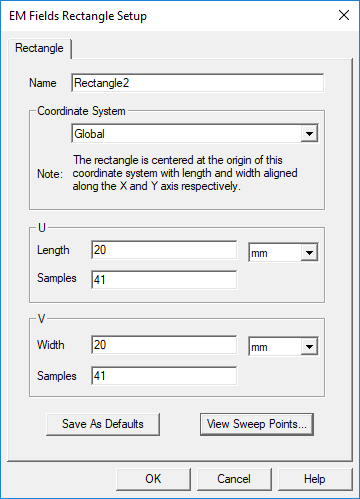
In the EM Fields Rectangle Setup window:
- Enter a Name for the field.
- In the Coordinate System area, use the drop-down menu to select either the Global coordinate system or another coordinate system in the design.
The rectangle is centered at the coordinate system's origin, with length and width aligned along the X and Y axis, respectively.
- In the U area, enter the rectangular field's Length. Use the drop-down menu to select a unit of measure. Enter the number of Samples.
- In the V area, enter the rectangular field's Width. Use the drop-down menu to select a unit of measure. Enter the number of Samples.
If desired, you can click View Sweep Points to preview a list of points based on your entries.
EM Fields Box Setup
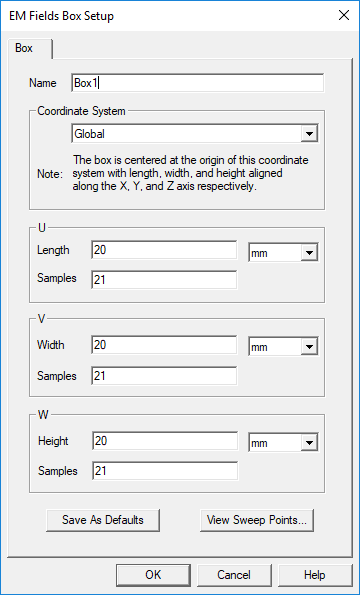
In the EM Fields Box Setup window:
- Enter a Name for the field.
- In the Coordinate System area, use the drop-down menu to select either the Global coordinate system or another coordinate system in the design.
The box is centered at the coordinate system's origin, with length, width, and height aligned along the X, Y, and Z axis, respectively.
- In the U area, enter the rectangular field's Length. Use the drop-down menu to select a unit of measure. Enter the number of Samples.
- In the V area, enter the rectangular field's Width. Use the drop-down menu to select a unit of measure. Enter the number of Samples.
- In the W area, enter the rectangular field's Height. Use the drop-down menu to select a unit of measure. Enter the number of Samples.
If desired, you can click View Sweep Points to preview a list of points based on your entries.
EM Fields Sphere Setup
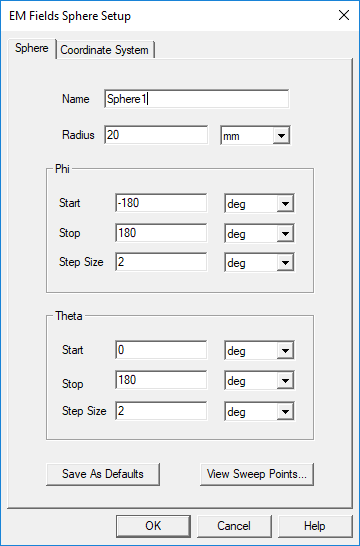
In the EM Fields Sphere Setup window:
- Enter a Name for the field.
- Enter a Radius for the field, and select a unit of measure from the drop-down menu.
- In the Phi area, enter Start, Stop, and Step Size values. Select units of measure from the drop-down menus.
- In the Theta area, enter Start, Stop, and Step Size values. Select units of measure from the drop-down menus.
If desired, you can click View Sweep Points to preview a list of points based on your entries.
- Click the Coordinate System tab to select either Use global coordinate system or Use local coordinate system.