Editing a Polygon Pad
Pads, antipads, thermal pads, and holes can have polygon shapes which can be modified in the Polygon Editor. This editor lists the points of the polygon in a grid and displays a diagram of the polygon. The Polygon Editor is available on the Edit Padstack Definition and the Padstack Usage and Definition windows.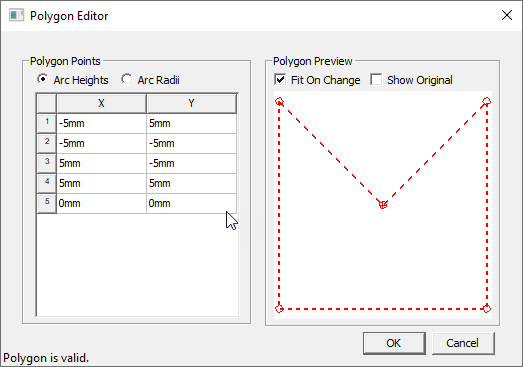
Each row in the grid defines a vertex or an arc segment. Vertices have X and Y coordinates that are located in relation to the center point of the pad, antipad, thermal pad, or hole. The center point is marked by a plus sign (+) on the diagram. Enter a distance on the center point for each coordinate. Select a row to find its corresponding point in the diagram.
Arc segments are curved segments defined by three points: a beginning, end, and apex. Each arc segment must have a vertex before and after it to define its beginning and end. Thus, arc segments cannot be adjacent to one another. Each arc segments has an arc height or arc radius which can be changed in the grid.
The grid has a shortcut menu where you perform the following tasks. Different options appear depending on whether you select a row and whether you Right-click a vertex or arc segment.
- Append Vertex adds a new row for a vertex to the grid with the coordinates 0 mm, 0mm.
- Insert Vertex Before inserts a point before the current selection.
- Insert Vertex After inserts a point after the current selection.
- Remove Vertex/Segment removes the row you Right-clicked on.
- Convert to Arc Segment converts a vertex to an arc segment.
- Insert Arc Segment Before inserts an arc segment before the current selection.
- Insert Arc Segment After inserts an arc segment after the current selection.
The diagram displays a rendering of the polygon and the object's center point. Hover over a point to see its coordinates. Click a point to select it in the grid. Right-click the diagram to zoom in or out or to resize it to show the entire polygon. The diagram offers two options:
- Fit On Change redraws the diagram to fit the polygon whenever you make a change.
- Show Original displays an outline of the original polygon to compare it with any changes.
Edit the Polygon
- Add new vertices as necessary.
- Highlight the row of the point just before where you want to add a vertex.
- Right-click and choose Insert Vertex After. A new row appears in the grid with the coordinates 0 mm, 0mm.
- Enter coordinates in the X and Y columns of the new row.
- Add new arc segments as necessary.
- Highlight the row of the point just before where you want to add an arc segment.
- Right-click and choose Insert Arc Segment After. A new row appears in the grid.
- Above the grid choose whether you want to work with Arc Heights or Arc Radii.
- Enter the arc height or arc radius of the new segment in the new row.
- Remove unnecessary vertices or segments.
- Highlight the row of the unwanted vertex or segment.
- Right-click and click Remove Vertex/Segment.
- Check your work in the diagram.
- Click OK to close the Polygon Editor. The polygon appears in the Top view diagram of the Edit Padstack Definition window. The Cross section view diagram is unchanged.
Change how the diagram looks
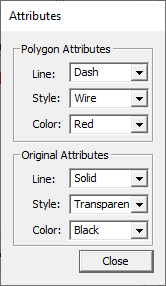
Right-click the diagram and click Show/hide attributes to open an Attributes window. Here customize the lines, fill, and color of the polygon. Controls are available for both the edited polygon and the original polygon if Show Original is enabled.