
When the Layout ribbon is active, click the Layout menu. There are multiple varieties of this menu depending on the type of active design (e.g., Circuit, HFSS 3D Layout, et cetera). The following options appear when the IC mode environment is active. For more information, search the Help or use the Help Index to find information on any of the commands that appear on the Layout menu.
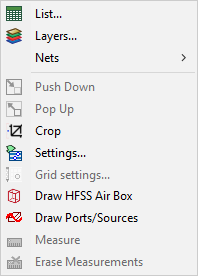
List — opens the Design List window, which lists the objects in the layout.
Layers — opens the Edit Layers window. Also see Configuring a Stackup.
Nets — opens the Nets (IC Mode) drop-down menu; the same options are available after right-clicking in the Layout Editor.
Push Down — moves the selected design instance(s) down one level. Move between a project’s different designs and design instances by double-clicking their icons in the Project Tree. To move down one level, select the symbol for the design to which the user wants to move and select Push Down.
Pop Up — moves the selected design instance(s) up one level. Move between a project’s different designs and design instances by double-clicking their icons in the project tree.
Crop — enters cropping mode in the Layout Editor. See Cropping and Removing Small Fragments in IC Mode.
Settings — opens the Settings tab of the Options window to configure the local option settings in the Layout Editor. See Setting Local Layout Options.
Grid settings — opens the Display tab of the Options window. The settings on this window control the grid in the drawing area. See Layout Editor Options: Display Panel.
Draw HFSS Air Box — invokes the HFSS Air Box drawing tool.
Draw HFSS Ports — invokes the HFSS Port drawing tool.
Measure — invokes measurement mode. The cursor changes to a small diamond shape. Click on any two grid-points to display the linear distance between the two points in the current units.
Erase Measurements — clears measurement lines.