
To insert N-port data into the active project, follow this general procedure:
- From the Project menu, select Add Model > Add NPort Model to open the N-port data window.
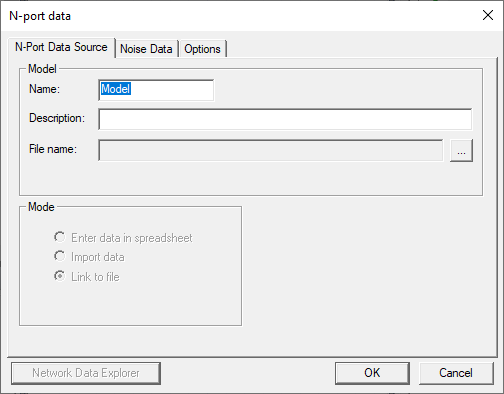
- Under the N-Port Data Source tab, type a name for the N-port in the Name field.
- Select an interpolation method - Linear interpolation, interpolation using
a Cubic spline, or interpolation
using a Rational polynomial -
on the list. Your selection determines how S
- parameters between frequency points in your N-port file, if needed, are calculated. - Specify the data source:
- Select Enter data in spreadsheet if you want to manually enter the S-, Y-, or Z-matrix data for the N-port. Then see Manually Entering N-Port Data.
- Select Import data if you want to import the N-port data file into the active project. Then see Importing or Linking to N-Port Data.
- Select Link to file if you want to refer to an N-port data file during the solution process. This is useful when you want to avoid importing an N-port data file into the project every time it is updated. Then see Importing or Linking to N-Port Data.
- Click the Port Impedance tab. If chosen, change the reference impedance for the S-parameter data.
- If chosen, specify a phase rotation for the S-parameter data.
- Click OK to return to the Layout Editor. The N-port is represented by the following symbol, which varies depending upon the number of ports.

- Click an arbitrary point in the Layout window to place the N-port data in the project.
The N-port is listed under N-Ports in the project tree.
After inserting the N-port into the project, you must draw the connection on the model to the N-port.