
Complete these steps to create and define one or more rigid-flex bends using the Rigid-Flex Workflow.
Design Verification allows selected target objects to be at or below the active level of the hierarchy.
Zones can an also be defined at the Layout Editor. Refer to Defining Bends at the Layout Editor.
-
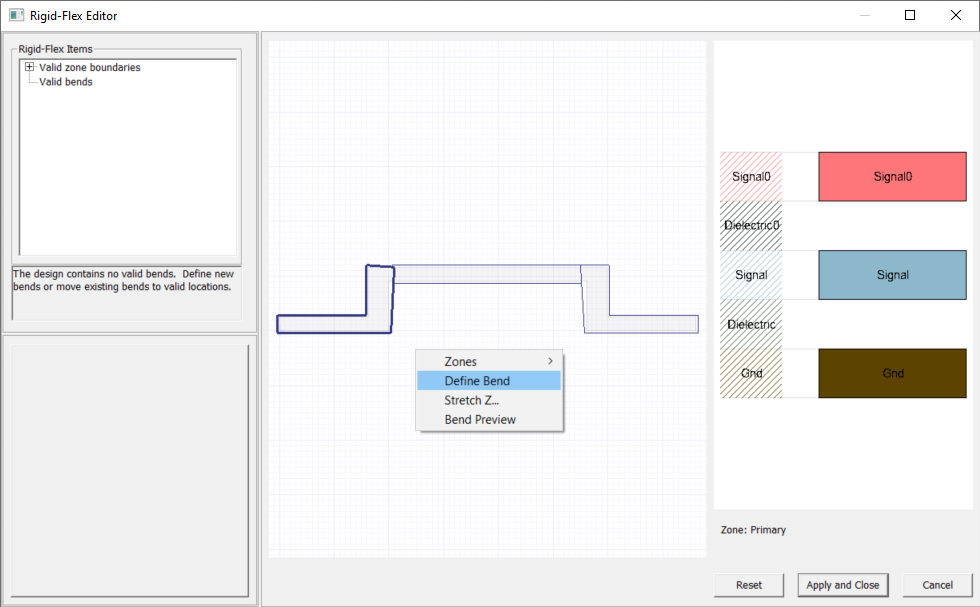
Right-click within the preview window and select Define Bend.
-
Click within any zone that is not Fixed to begin placing a bend. Orient the bend, as appropriate, and click again to simultaneously place the bend and open the Bend Data window.
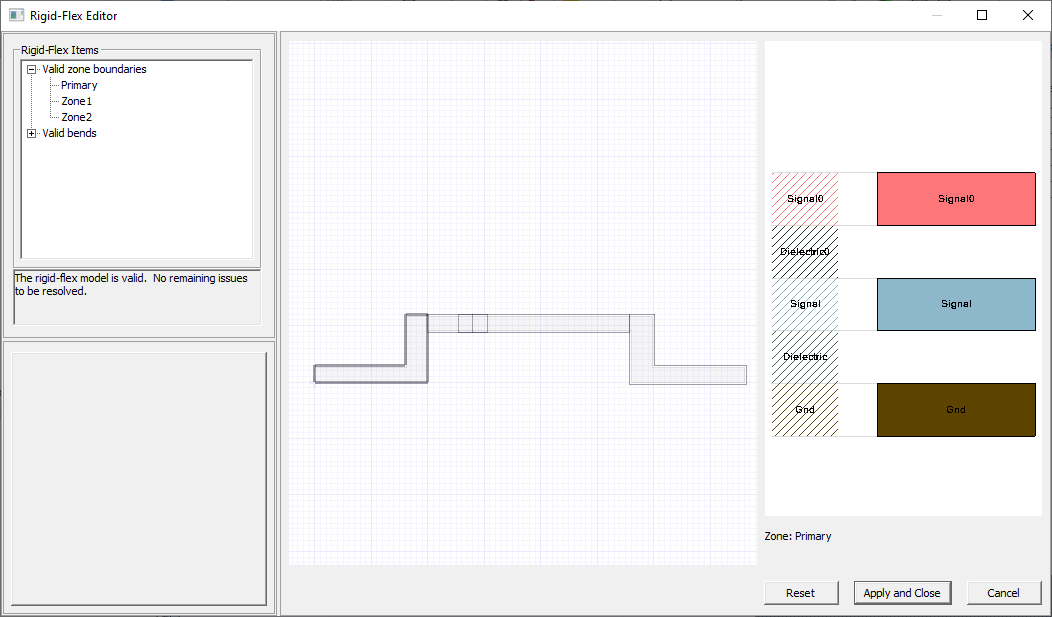 Note:
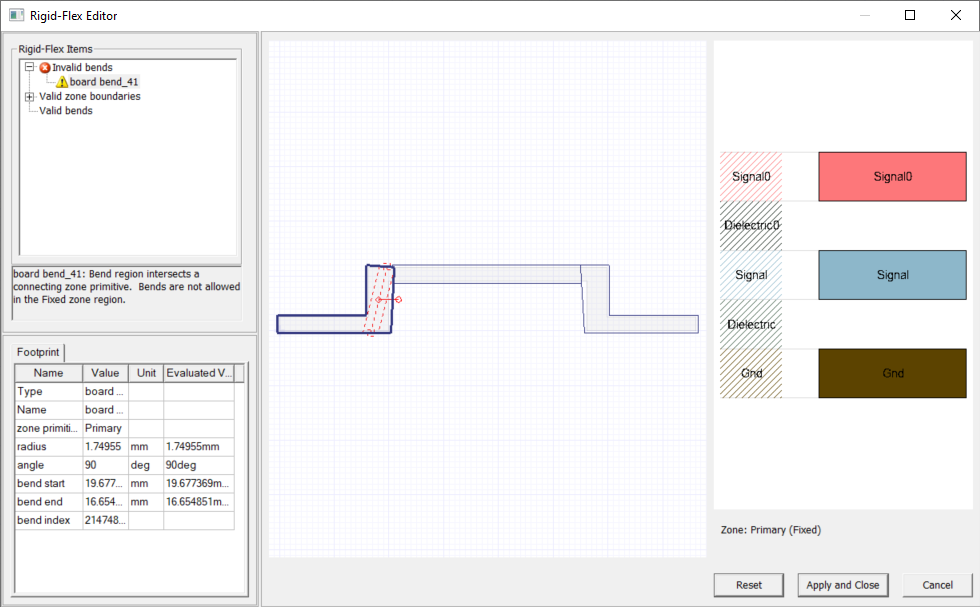
Note:Bends cannot overlap one another, ports or other components, be placed in a Fixed zone or across multiple zones. Bends are defined by two points in the x-y plane indicating their placement in the model, a radius value indicating the sharpness of the bend, and an angle. The magnitude of the angle indicates the extent of the wrapping while the sign of the angle indicates the bend direction (i.e., positive or negative angle implies a positive-z or negative-z bend direction respectively). When computing bent geometry, Electronics Desktop defines the neutral root as a point on the face where the bent region connects with the unbent region. To make the deformation consistent between positive and negative bends, the elevation of the neutral root is dictated by the sign. If the bend is positive, the neutral root is placed at the bottom of the zone stackup. If the bend is negative, the neutral root is placed at the top of the zone stackup. For geometry in bend regions at the same elevation as the neutral root, in-plane distances are preserved, but geometry is contracted at other elevations. The minimum bend radius is 1.1x the thickness of the zone on which the bend is placed. Invalid placement of bends results in error messages, which appear in the Rigid-Flex Items area.
-
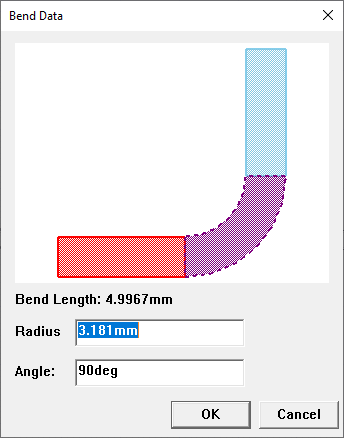
Enter the chosen Radius (e.g., 3.181mm) and Angle (e.g., 90deg) in the appropriate fields.
-
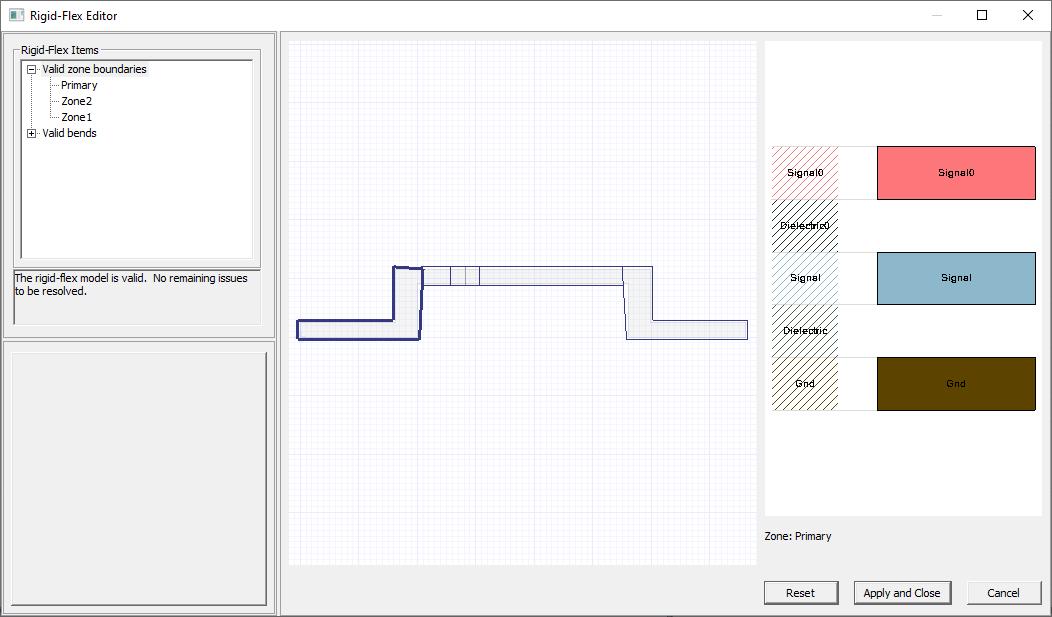
Click OK to close the Bend Data window and return to the Rigid-Flex Editor window.
-
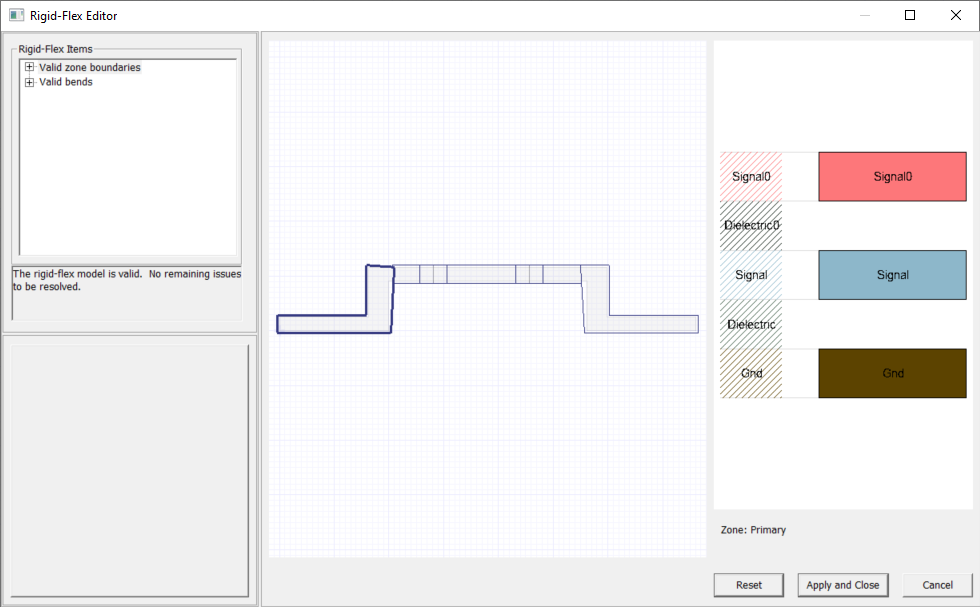
Repeat steps 1-4 to create more bends, as appropriate.
-
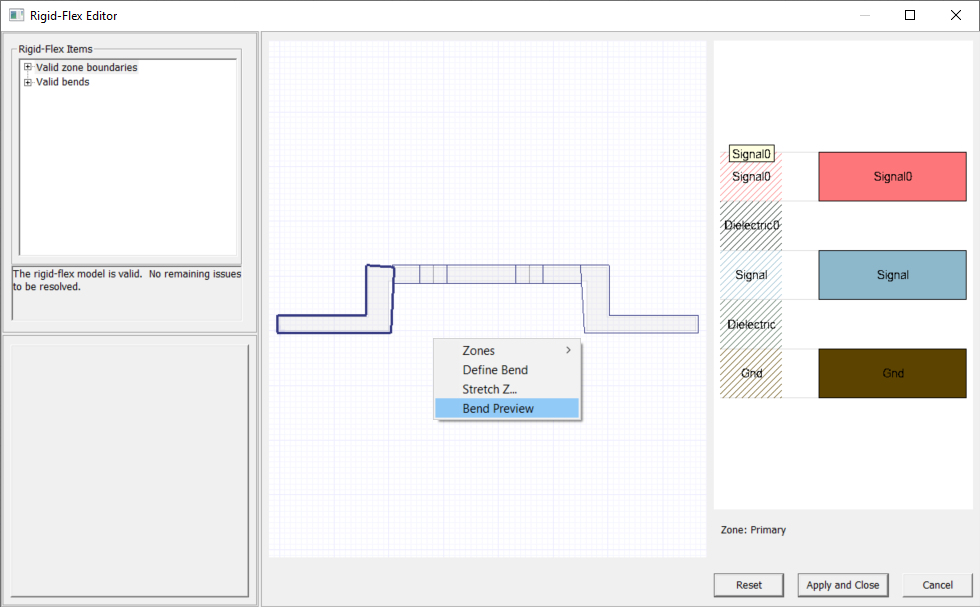
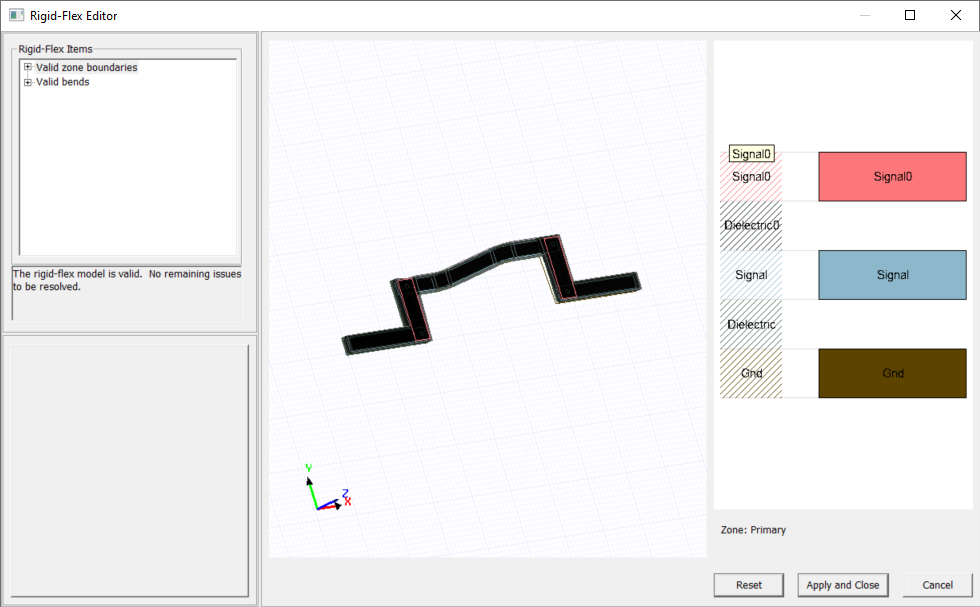
Right-click within the preview window and select Bend Preview to see the rigid-flex version of the design model.
-
Reorient the model using the same control method as in the Layout Editor. Refer to the HFSS 3D Layout Getting Started Guides, if appropriate.
-
Click Apply and Close to close the Rigid-Flex Editor window. The new zones and bends appear in the Layout Editor.
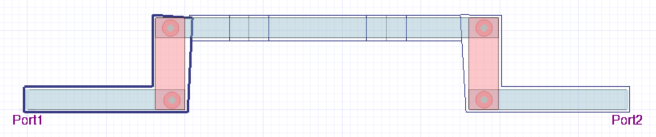
Continue to Analyzing a Design With Rigid-Flex Bends.
Defining Bends at the Layout Editor
Follow these instructions to create and define bends within the Layout Editor.
-
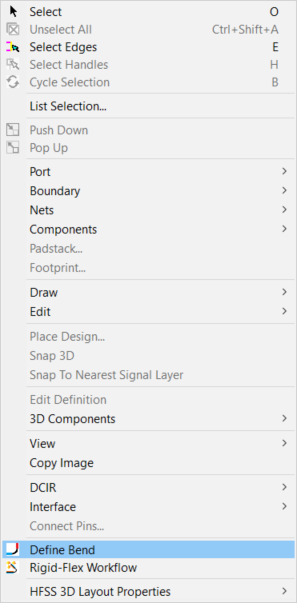
From within the Layout Editor, right-click anywhere and select Define Bend.
-
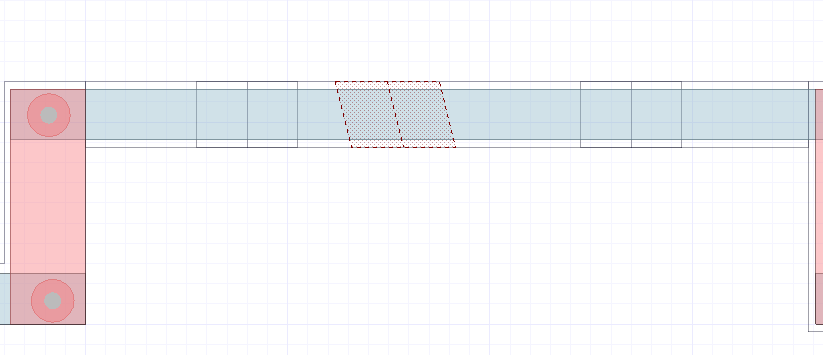
Click within any zone to begin placing a bend. Orient the bend, as appropriate, and click again to simultaneously place the bend and open the Bend Data window.
 Note:
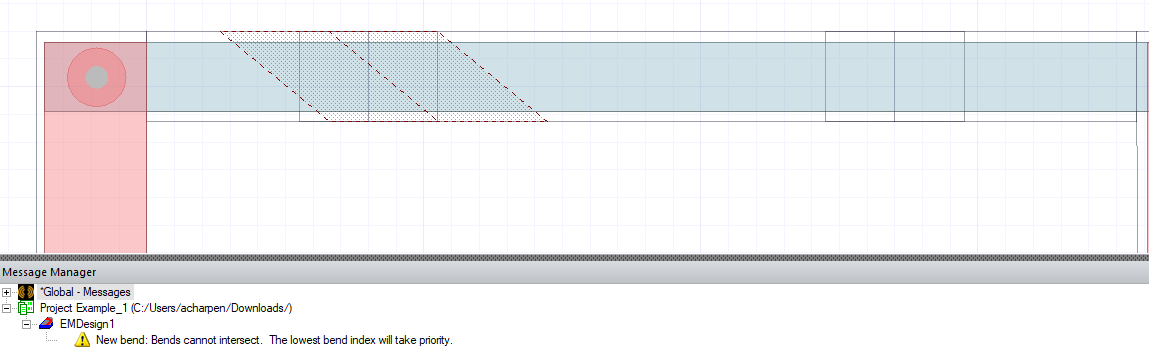
Note:Bends cannot overlap one another, ports or other components, be placed in a Fixed zone or across multiple zones. Invalid placement will result in an Error Message.
-
Enter the chosen Radius (e.g., 3.181mm) and Angle (e.g., 90deg) in the appropriate fields.
-
Repeat steps 1-3 to create more bends, as appropriate.
Rigid-Flex Bends can be animated. Refer to Animating Rigid-Flex Bends.
Continue to Analyzing a Design With Rigid-Flex Bends.