
Complete these steps to animate rigid-flex bends.
Before continuing, ensure rigid-flex are defined. Refer to Defining Bends at the Layout Editor.
-
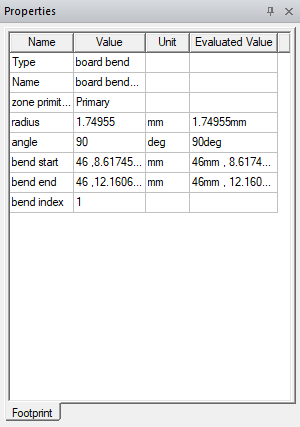
From the Layout Editor, select a rigid-flex bend to populate the Properties window with its parameters.
-
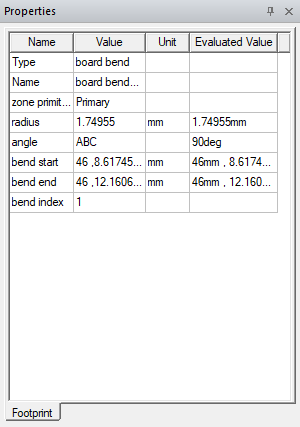
Enter a variable in the angle field (e.g., ABC) and press Enter to open the Add Variable window.
-
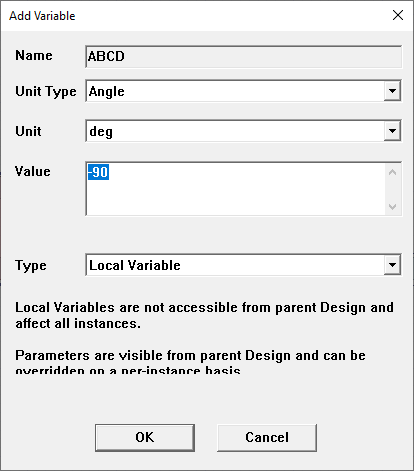
Enter an integer (positive or negative) in the Value field (e.g., -90) and Angle.
-
Click OK to close the Add Variable window and return to the Rigid-Flex Editor window.
-
Repeat steps 1-4 for each bend.
-
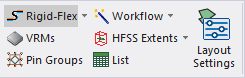
From the Layout tab, click Rigid-Flex to apply the rigid-flex bend to the design.
-
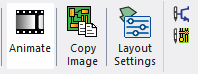
Navigate to the View tab and select Animate to open the Create Animation Setup window.
-
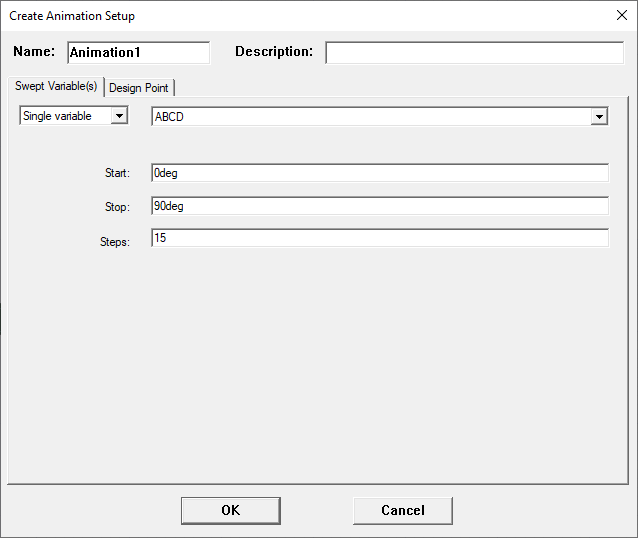
From the Create Animation Setup window, do the following:
-
Select the new variable (e.g., ABC) from the Single variable drop-down menu.
-
Enter an appropriate Start angle (e.g., 0deg).
-
Enter an appropriate Stop angle (e.g., 90deg).
-
-
Click OK to create the animation. Refer to Creating Animations.
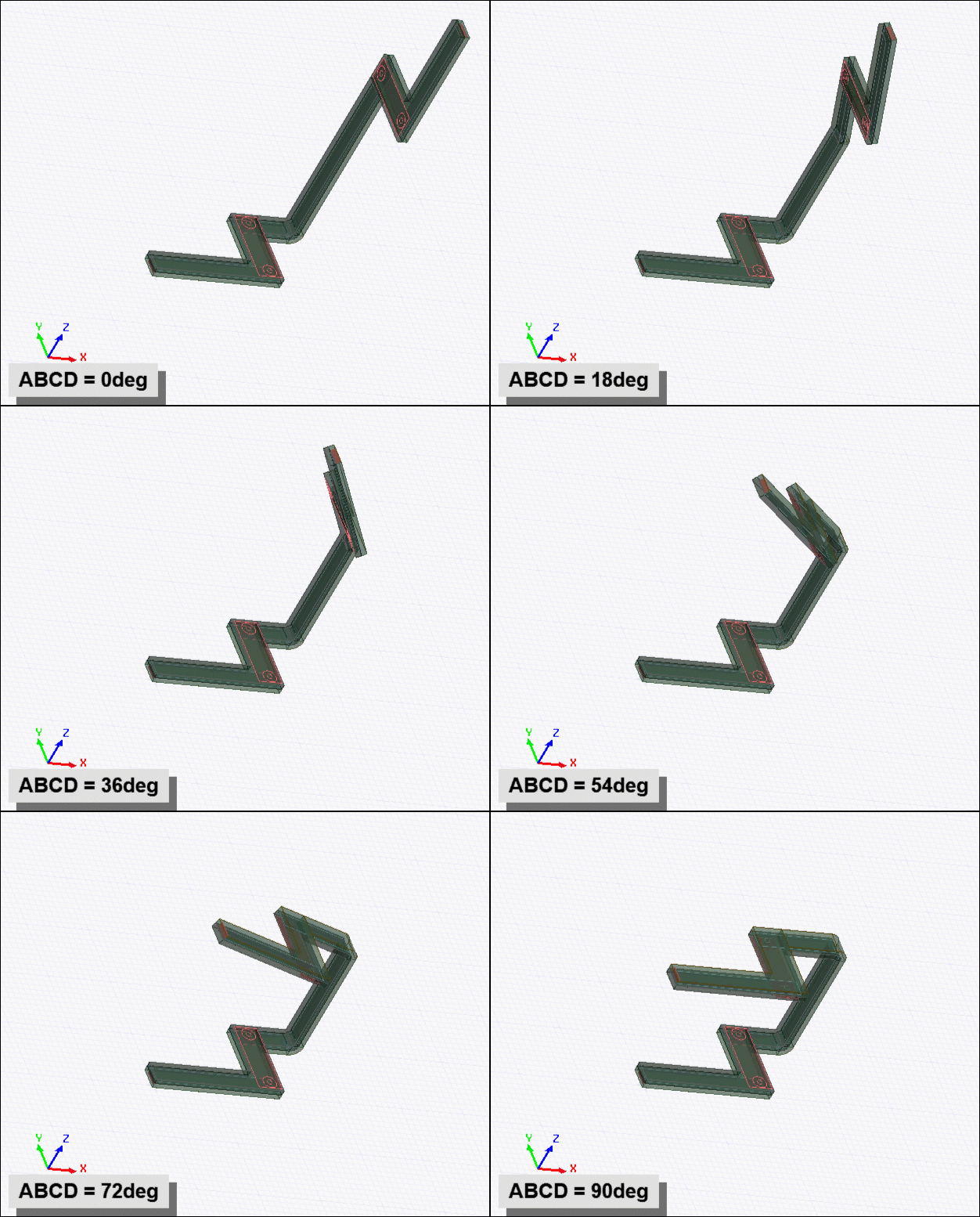
Continue to Analyzing a Design With Rigid-Flex Bends.