
HFSS 3D Layout Getting Started Guides
The following guides are tutorials covering various types of HFSS 3D Layout designs. These Getting Started guides typically walk you through the steps to build the geometry, set up the solution, run the analysis, and evaluate the results (by generating plots, overlays, and animations):
-
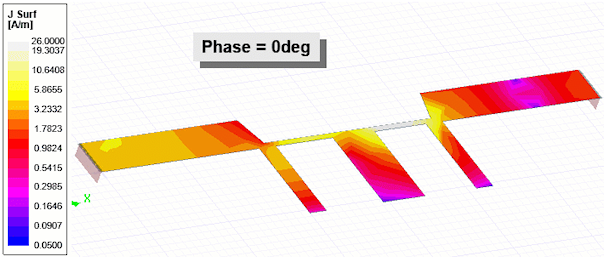
This Getting Started guide describes a Low Pass filter model. It includes instructions to create, solve, and evaluate the results of a Low Pass Filter using the HFSS 3D Layout design type in the Ansys Electronics Desktop application.
-
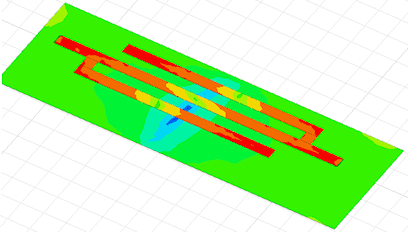
This Getting Started guide describes a Microstrip Filter model. It includes instructions to create, solve, and analyze the results of a Microstrip Filter using the HFSS 3D Layout design type in the Ansys Electronics Desktop application.
-
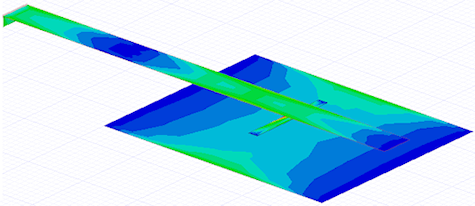
This Getting Started guide describes a Slot Fed Patch Antenna model. It includes instructions to create, solve, and analyze the results of an antenna using the HFSS 3D Layout design type in the Ansys Electronics Desktop application.
Inserting an HFSS 3D Layout Design
Now that the application is launched, a new project has been added and named, and the needed general options are set, it's time to insert an HFSS 3D Layout design.
- From the Desktop ribbon, select
 HFSS 3D Layout on the
  HFSS drop-down menu.
Alternatively, insert an HFSS 3D Layout using either of the following two options:
- Using the menu bar, click Project> Insert HFSS 3D Layout Design.
- Right-click the project name at the top of the Project Manager window and select Insert > Insert HFSS 3D Layout Design.
- If the Choose Technology window opens, click None to open the Layout Editor.
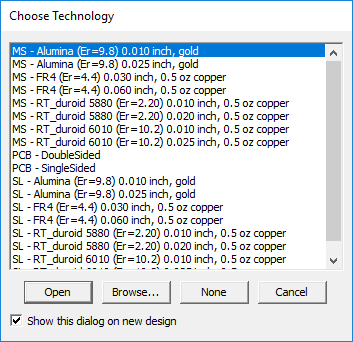
- All EM designs must define a process topology (also called a stackup).
- Layout technology files provide a quick way to store frequently used process topologies (e.g., an engineer who frequently uses a specific substrate can pre-specify the correct materials and stackups with a single click.
- This example does not use a layout technology file. The topology or stackup is manually defined.).
- Optionally, hide the Message Manager and Progress windows if either is currently displayed.
- From the View menu, deselect the check-boxes for Message Manager and Progress.
- Alternatively, click Hide Messages and Hide Progress along the bottom of the program window.
- From the Desktop ribbon, select