
Once rigid-flex bends have been defined, follow these steps to analyze the design in both its bent and flat states.
-
From the Layout tab, click Rigid-Flex to apply the rigid-flex bend to the design.
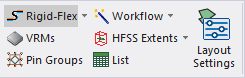
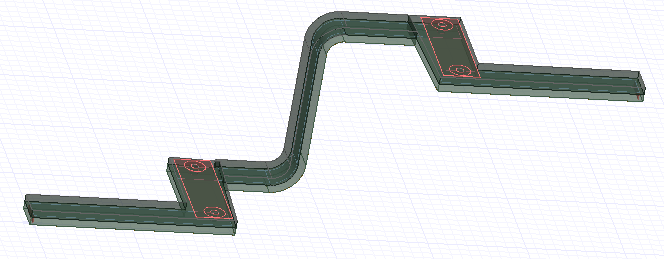
The design in the Layout Editor will change to the rigid-flex version. Reorient, as appropriate.
-
Now that the bent model is generated, click Rigid-Flex to toggle between the bent and flat designs.
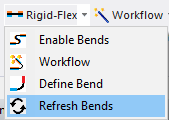
To return to the Rigid-Flex Editor window, click the Rigid-Flex arrow and select Workflow. If the design is altered, select Refresh Bends to overwrite the saved rigid-flex design.
-
Set up a Solution to analyze. Refer to the Solution Setup in HFSS 3D Layout.
-
From the Project Manager window, expand the Project Tree and [Active Design Folder]. Then right-click Analysis and select Analyze. Wait for the analysis to complete.
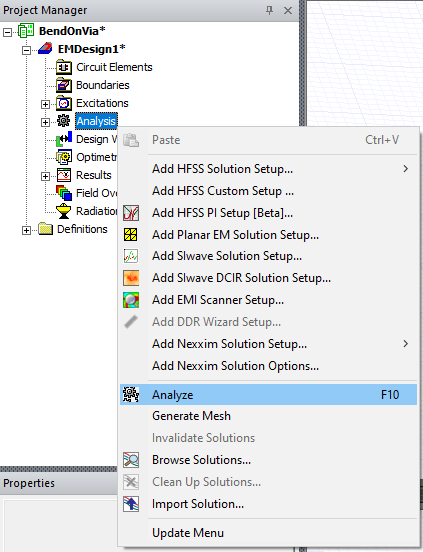
- Click Rigid-Flex to change the model from the bent version to the flat version or vice versa. Then, on the Project Manager window, right-click Analysis and select Analyze, again.
The second time the design is analyzed is no more expedient because the entire analysis is conducted again for the design in its changed state. The solutions derived on the analyses do not invalidate one another.
-
From the Project Manager window, expand the Project Tree > [Active Design Folder] > Results > plot folder (e.g., S Parameter Plot). There is a solution for each (bent and flat) state.
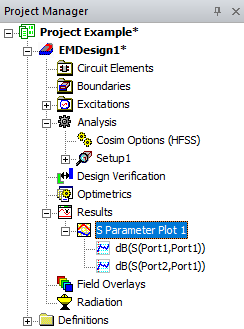
-
Manually alter the model or bend angle to analyze different design variations, or parameterize the model to analyze and animate the design (refer to Design Variables and Animating Rigid-Flex Bends).
Deactivating Simplified Bend Graphics
Depending on the complexity of the design, rendering a rigid-flex bend in the Layout Editor can take time and system resources. By default, Simplified Bend Graphics is active to more efficiently render the design. The basic shape of the design is maintained, but detail is not rendered. Complete these steps to deactivate Simplified Bend Graphics.
Simplification only affects rendering within the UI. It does not impact export of the bent design or simulation.
-
From the Layout tab ribbon, navigate to Rigid-Flex drop-down menu and select Simplified Bend Graphics.
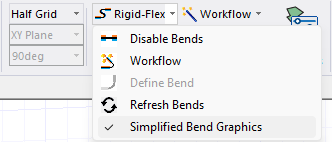
The Simplified Bend Graphics check disappears.
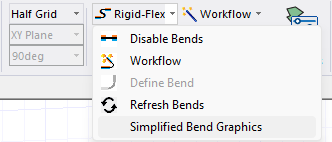
-
From the Rigid-Flex drop-down menu, select Refresh Bends to see the full rendering of the design in the Layout Editor.
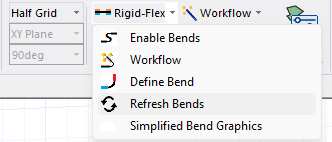
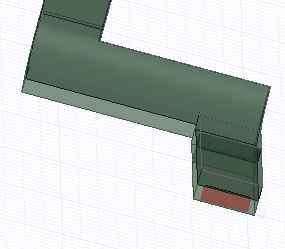
Before Simplified Bend Graphics is deactivated, the model may look similar to the following example, maintaining the basic shape of the design.
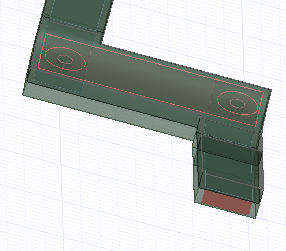
After Simplified Bend Graphics is deactivated, the model will render completely.
-
To reactivate Simplified Bend Graphics, simply repeat steps 1-2.
Continue to Exporting a Flexed Design Component