
Creating a Circuit Element Between Any Two Layers
When most components are created, they are formed on a single layer from existing pins. Combinations of resistors, inductors, and capacitors can be created without pins and with terminals that are attached to different layers.
When a circuit element is created, a generic graphic appears. As the RLC properties are deactivated or deactivated, the graphic updates to reflect the state of the element. The element's model type determines if the graphic displays elements in series or in parallel. A circuit element which has an S-parameter model assigned to it is represented by a generic graphic with an X in it.
Complete these steps to create a circuit element between two layers. These steps assume that there are already multiple layers in the project.
- From the Layout Editor, right-click and select Boundary > Create Circuit Element.
- Click+drag to draw the component into position in the Layout Editor to open the Circuit Element window.
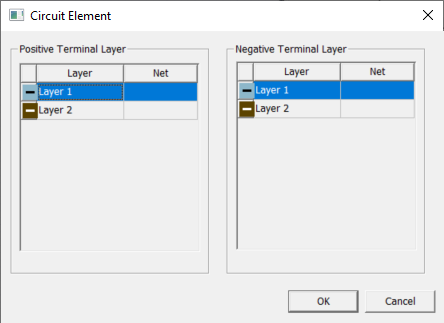
- Choose which layer each terminal of the component connects to and click OK.
- Select the component.
- From the Properties window, click the Footprint tab.
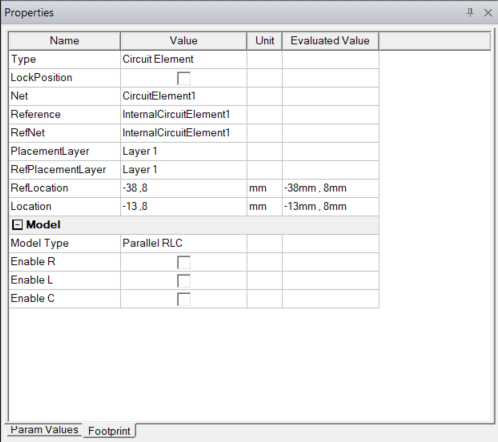
- Choose one of the following model types on the Model Type Value Field drop-down menu:
- Parallel RLC – the components are parallel to one another
- Series RLC – the components are in series to one another
- S-parameter – a frequency-dependent, imported model
Parallel RLC or Series RLC components only.
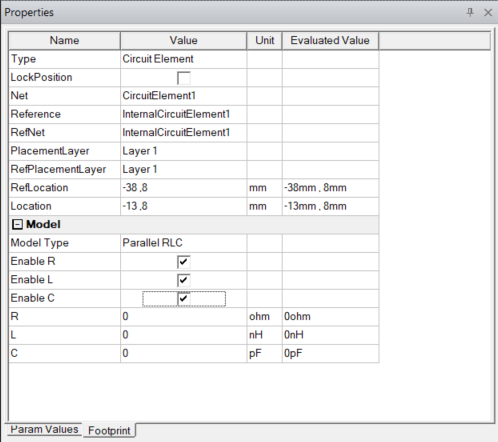
- Add a resistance:
- Click the Enable R check box to add an R row to the Footprint tab.
- Click the RValue Field to enter the resistance into the field.
- Add inductance:
- Click the Enabled L check box to add an L row to the Footprint tab.
- Enter the inductance into L.
- Click the L Value Field to enter the inductance into the field.
- Add capacitance:
- Click the Enable C check box to add a C row to the Footprint tab.
- Click the C Value Field to enter the capacitance into the field.
S-parameter components only.
- Click the S-parameter mo del [...] button in the Value field to open the Circuit Element S-Parameter Model window.
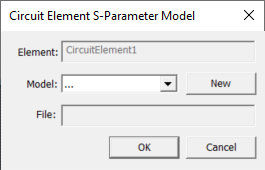
- To import an existing model, click the Model drop-down menu and select an existing model. By default, no model is selected. Then click OK.
To Import a new model, click New to open an explorer window. Then navigate to the model, select it, and click Open.
Note:By default, the model is assigned the same name as the file. To give the model a new name, enter it in the Comp Name field.
Click Open. The new model is imported into HFSS 3D Layout and set in the S-parameter model row.
-
The new model is imported into HFSS 3D Layout and set in the S-parameter model row.