
Adding and Removing Layers
Layers can be added three ways: though the Layer menu, by right-clicking in the Stackup page, and in the Layer pane. With each method, select whether to insert the new layer above or below a layer selected in the Grid Control pane. Right-click Grid Control to access quick options to insert a new signal or dielectric layer.
Via layers are only available in overlapping stackups and are added in a unique process.
Adding a Layer
- From the Grid Control pane of the Edit Layers window, click a layer that are above or below the new layer.
- Do one of the following:
- From the Grid Control pane, right-click selected layer and click an Insert command. Note:
If you click an Insert signal or Insert dielectric command, the layer is added with no further steps.
- Open the Layer menu and click an Insert command.
- From the Layer pane, click Insert to open the Add Stackup Layer window.
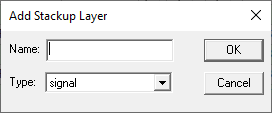
- From the Grid Control pane, right-click selected layer and click an Insert command.
-
Enter a name for the new layer in the Name field.
-
Select a type of layer on the Type drop-down menu. Different types are available for physical (stackup) layers and non-physical (non-stackup) layers.
Type
Physical Layer
Purpose
signal Y For drawing traces. dielectric Y Acts as a substrate upon which signal layers border. Infinite in the XY plane. assembly N For assembly geometry and text. Only one assembly type layer can be defined. silkscreen N For silkscreen geometry and text. Only one silkscreen type layer can be defined. soldermask N For soldermask geometry. Only one soldermask type layer can be defined. solderpaste N For solderpaste geometry. Only one solderpaste type layer can be defined. glue N For glue geometry. Only one glue type layer can be defined. user N For user-defined geometry and text. Any number of user type layers can be defined. post-processing N Provides placement for a 3D Line primitive that can then be used for post-processing calculations. -
Click OK. The layer is added above or below the selected layer, depending on what was picked.
Removing a Layer
- From the Edit Layers window, click the layer(s) you want to remove on the stackup.
- Do one of the following:
- From the Grid Control pane, right-click unwanted layer and click Remove.
- Open the Layer menu and click Remove command.
- From the Layer pane, click Remove.
- Confirm the action. The layers you selected are removed on the stackup.