
Converting Polygons to Circles in IC Mode
Designs can be cropped in IC mode, just like in General Mode. Complete steps in the following subsections to configure Convert Polygons to Circles, then convert polygons to circles in Layout Editor.
Configuring Convert Polygons to Circles Settings
- From the Layout tab, click Settings.
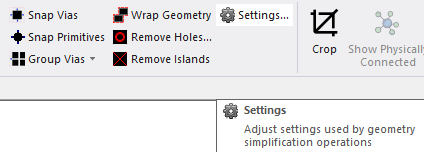
The Geometry Simplification Settings window opens.
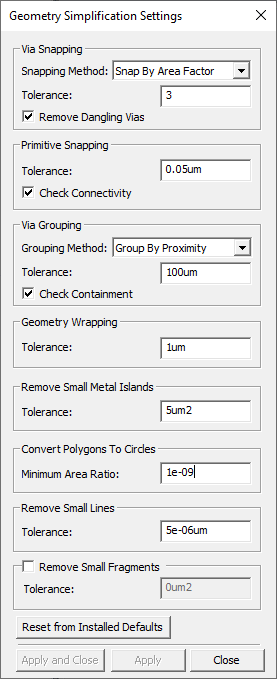
- From the Convert Polygons To Circles area, enter a value in the Minimum Area Ratio field (e.g., 1e-09, although the default value is 0.75).
- Click Apply and Close.
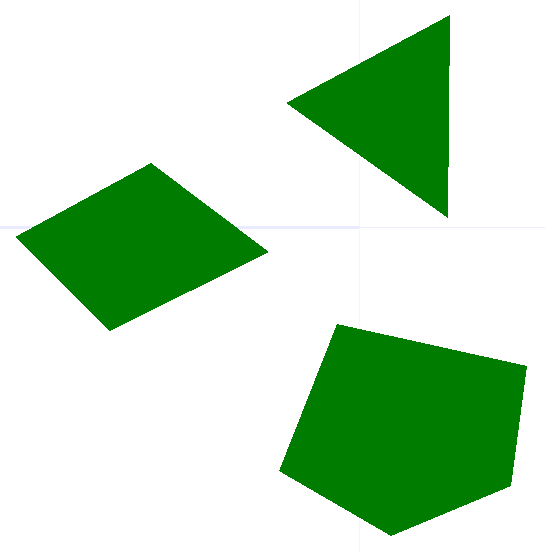
Converting Polygons to Circles in the IC Layout Editor
-
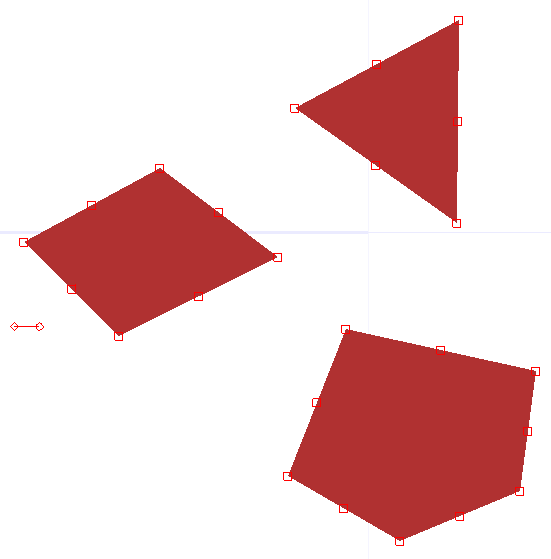
From the IC Mode, click+drag to select the chosen polygons. Alternatively, press Ctrl+A to select all the available polygons.
-
Do one of the following:
-
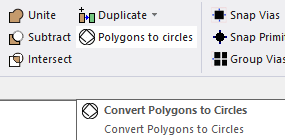
From the Layout tab, click Polygons to circles.
-
Right-click within the Layout Editor and select Convert Polygons to Circles.
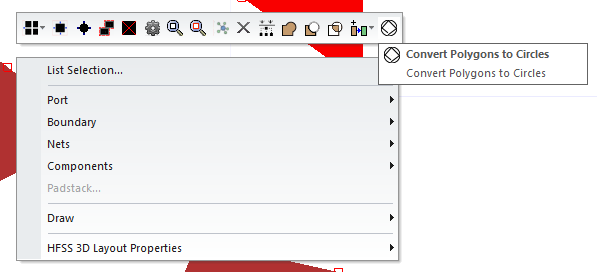
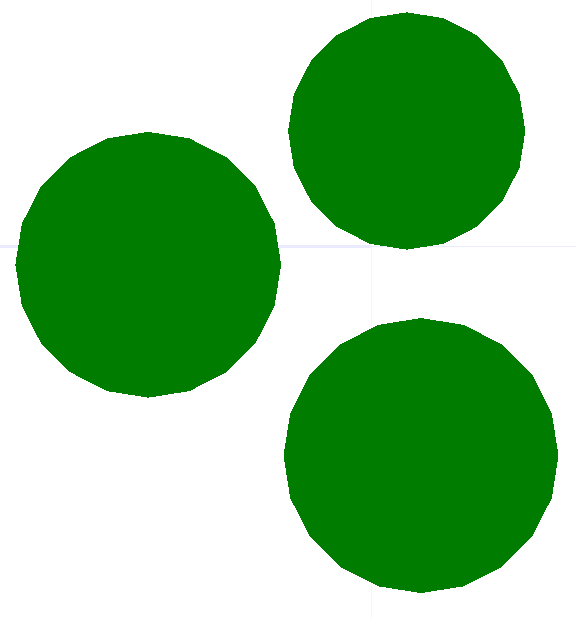
The selected polygons are compared to the value in the Minimum Area Ratio field. Every polygon that meets or falls within the value is formed into a circle.
-
For other instructions on the usage of the Layout Editor, keyboard commands, and simple tasks like converting polygons to circles, refer to Getting Started with Ansys Electronics Desktop.