
Creating or Importing a Multizone Stackup
Follow the steps in either subsection to create or import a multizone stackup.
Importing a Multizone Stackup
Complete these steps import a multizone stackup.
-
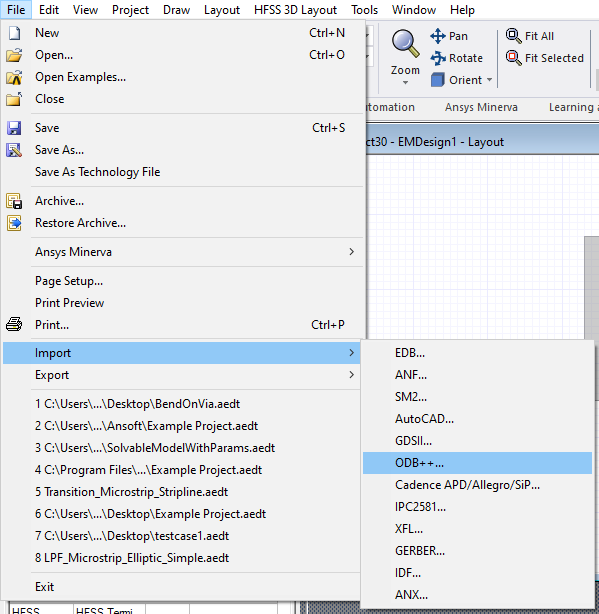
From File, select Import > ODB++, Cadence APD/Allegro/SiP, or IPC2581 to open an explorer window.
-
Navigate to an appropriate file. Then double-click the file or select the file and click Open.
Note:Multizone stackup import supports ODB++ *.tgz, Cadence *.brd, and IPC2581 rev. c *.cvg or .xml file types.
-
If appropriate, refer to Importing ODB++ into the Layout Editor, Importing Cadence APD/ALLEGRO/SIP Files into the Layout Editor, or Importing IPC2581 Files into the Layout Editor.
-
Make further changes to the imported stackup by completing the steps in Creating a Multizone Stackup.
Creating a Multizone Stackup
Complete these steps to enable multizone editing and add zones to a project.
-
Once Electronic Desktop restarts, Create or Open a project. Refer to Creating Projects or Opening Projects.
-
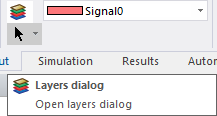
From the Layout tab, select Layers dialog to open the Edit Layers window.
 Note:
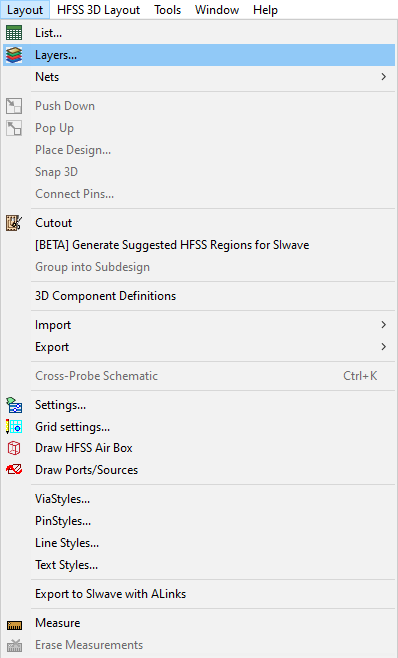
Note:Alternatively, from Layout, select Layers to open the Edit Layers window.
-
Select Multizone on the Type drop-down menu and the Multizone tab appears.
![Edit Layers Window > Multizone [Beta] Tab](../Resources/Images/3dlayout_beta_edit_layers_multizone_tab.png "Edit Layers Window > Multizone [Beta] Tab")
-
If the design was imported with multiple zones already activated, make any appropriate changes using the same methods described in the The Edit Layers Window for editing layers.
Continue to Creating or Copying Zones.