


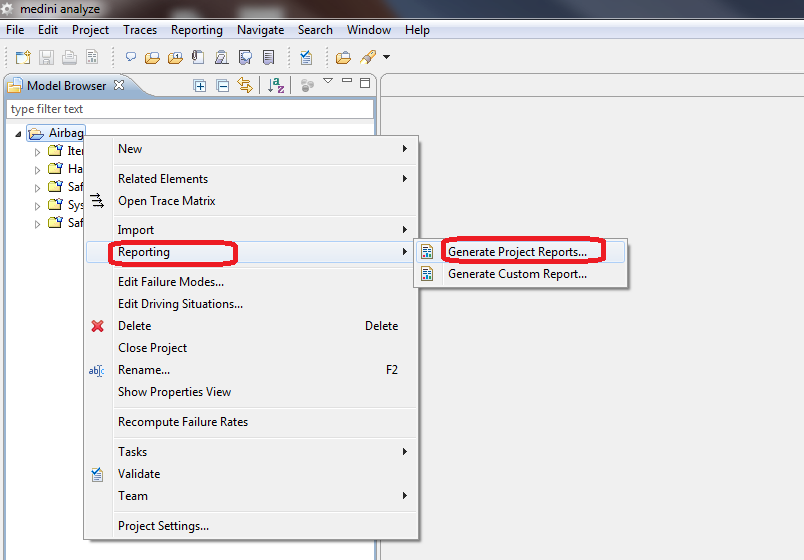
To create reports representing the whole project content or multiple different reports at once select "Generate Project Reports..." from the project "Report" context menu or the "Report" main menu.
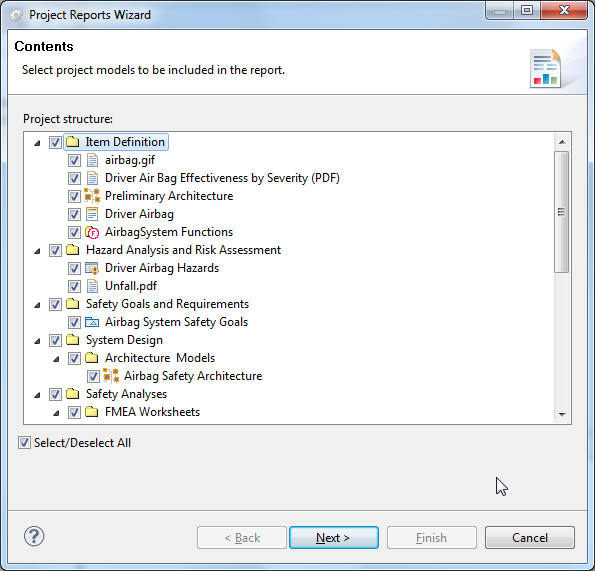
A wizard for the selection of project elements for which a report should be generated is opened. Select the anticipated elements and press the "Next" Button.
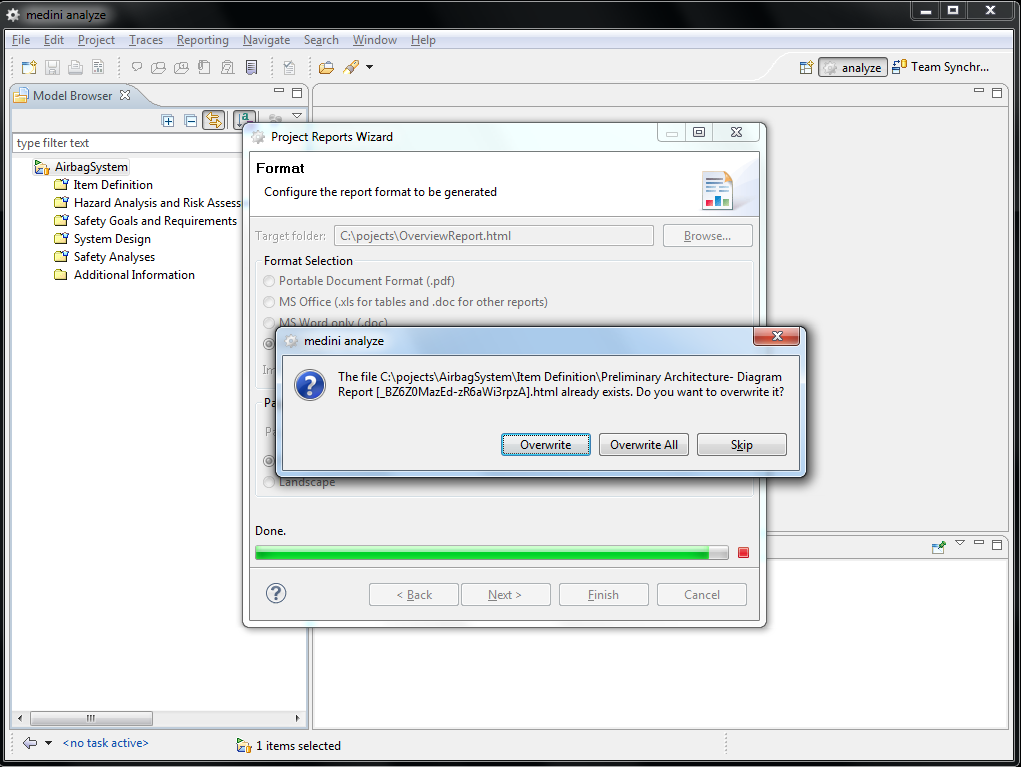
The next page behaves similar as the other report wizards described above except to one difference: A target directory must be chosen for the generated reports. This directory must not be empty so that updates to existing report sets are possible. The report generator gives a warning when files with same name already exist in this location. Please be aware that the generated file names will contain a unique identifier to prevent name clashes when the same name is used twice in the project.
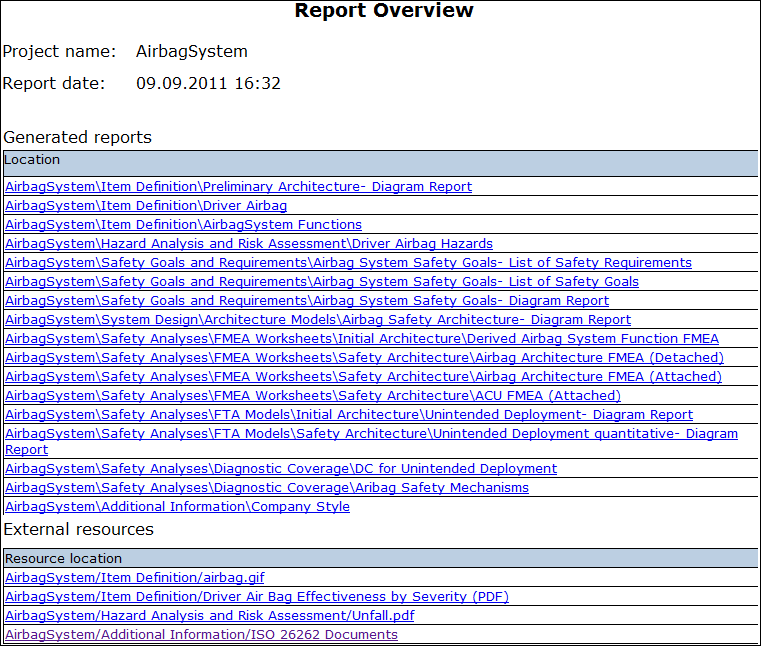
After successful report generation the target folder will contain an overview report which lists all generated reports as navigable links.
The next table summarizes the generated report types.
| Project Element | Generated Reports |
|---|---|
| Item | Item Definition Document including preliminary architecture and functions summary |
| Preliminary Architecture | Diagram report |
| Functions | Detailed functions information including contribution relations, requirement relations and malfunctions |
| Hazard List | Hazard list report |
| Safety Goals/Safety Requirements | Safety Goals list report, Safety Requirements list report, diagram report |
| System/Function Model | Diagram report |
| Function FMEA | FMEA table report |
| Component FMEA | FMEA table report |
| FMEA Worksheet | FMEA table report |
| FTA | Diagram report |
| FTA Analysis | CutSets list report, Events of CutSets list report |
| Diagnostic Coverage | Diagnostic Coverage list report |
| Safety Mechanisms | Safety Mechanisms list report |
| Checklist | Checklist list report |
| External Artifact | External artifacts are copied into the sub-folder "docs" of the target directory |
| External Link | External links can be navigated from the overview report |