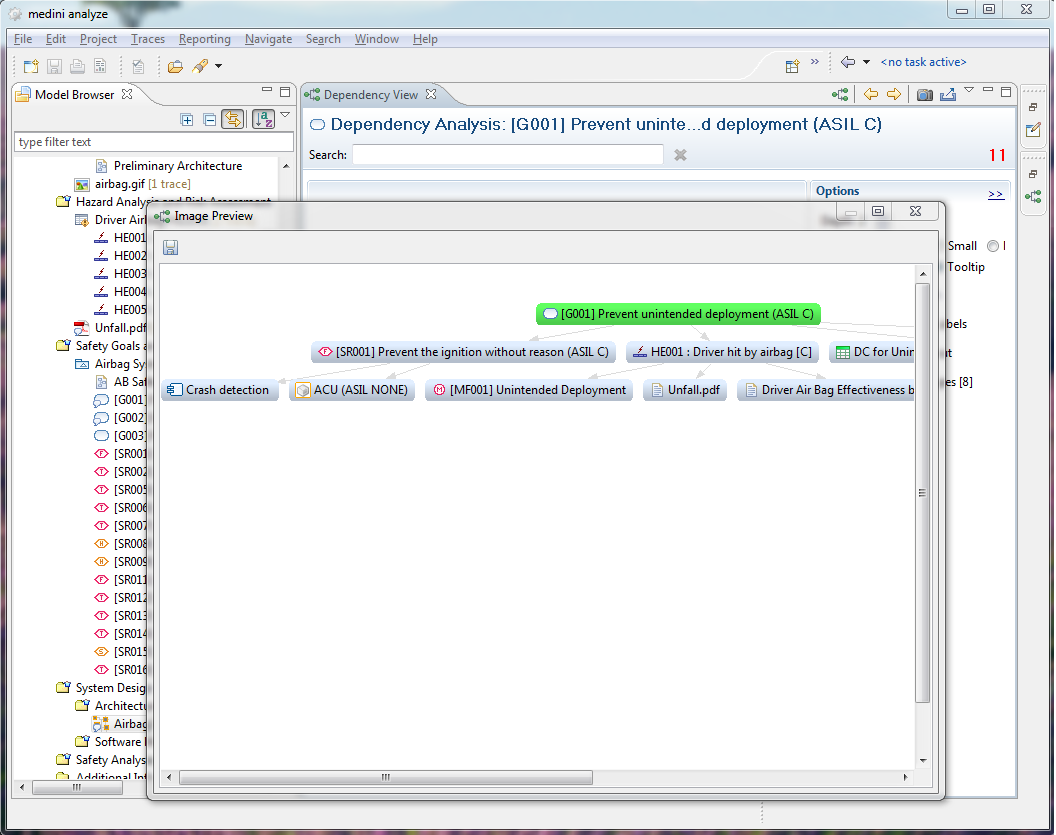
The dependency viewer offers a possibility to visualize relations between model elements. The dependencies are computed following the relations from one specific element (the focus). Relations that are taken into account are those that are also available in the relations submenu of the context menu (see Element Relationships).
The dependency view can be activated via the relations submenu. It is also possible to open further dependency views from an already open dependency viewer by using a button from the tool bar of the dependency viewer.

To show dependencies of an element in the dependency viewer, the following methods can be used:
Drag and Drop a model element from the model browser into an open dependency view window
Select Focus on from an element which is displayed on the dependency viewer
Choose Related Elements->Show in Dependency View from the context menu of an element in the model browser.
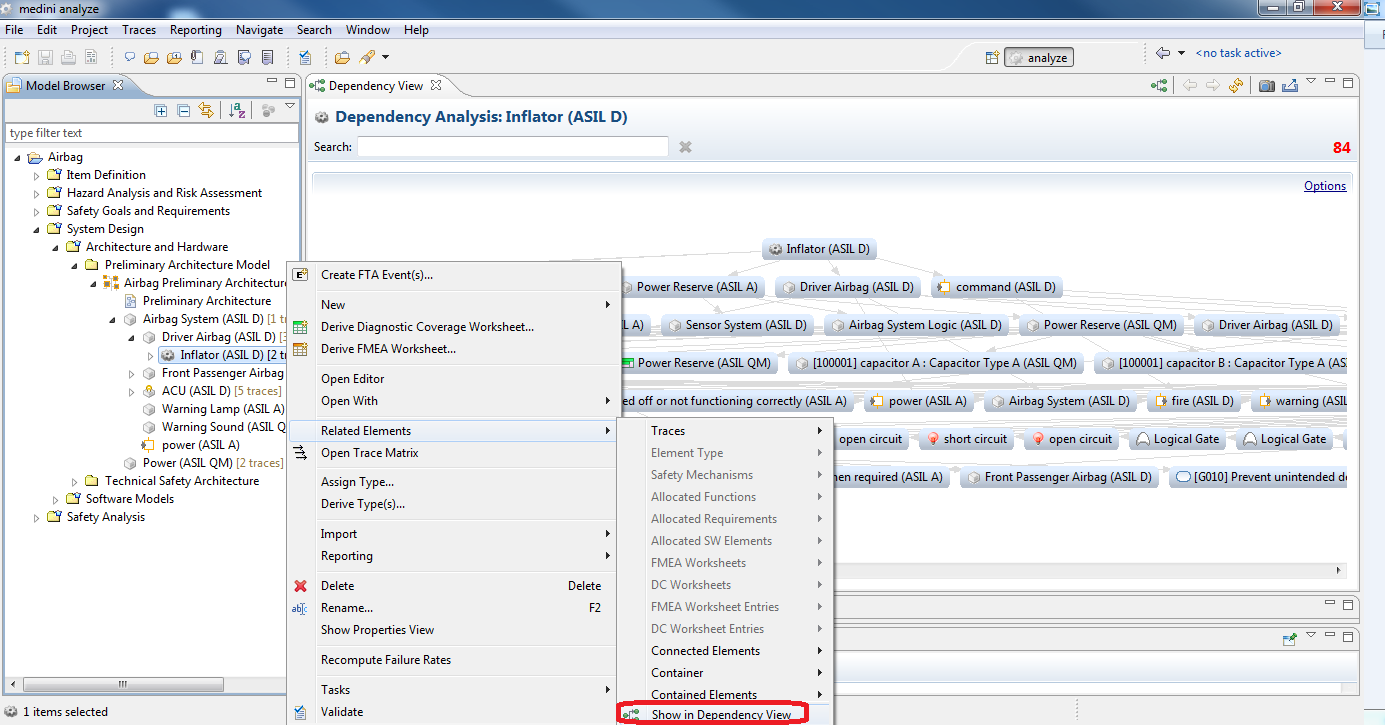
The later will also open an dependency view window if it is not already open.
The dependency viewer offers several options to influence which other elements are shown as related to the element in the focus. Also, the graphical representation can be controlled by the options. The options can be accessed from the options panel in the dependency viewer window. If the options panel is not visible, it can be activated by pressing the Options link in the dependency viewer window.
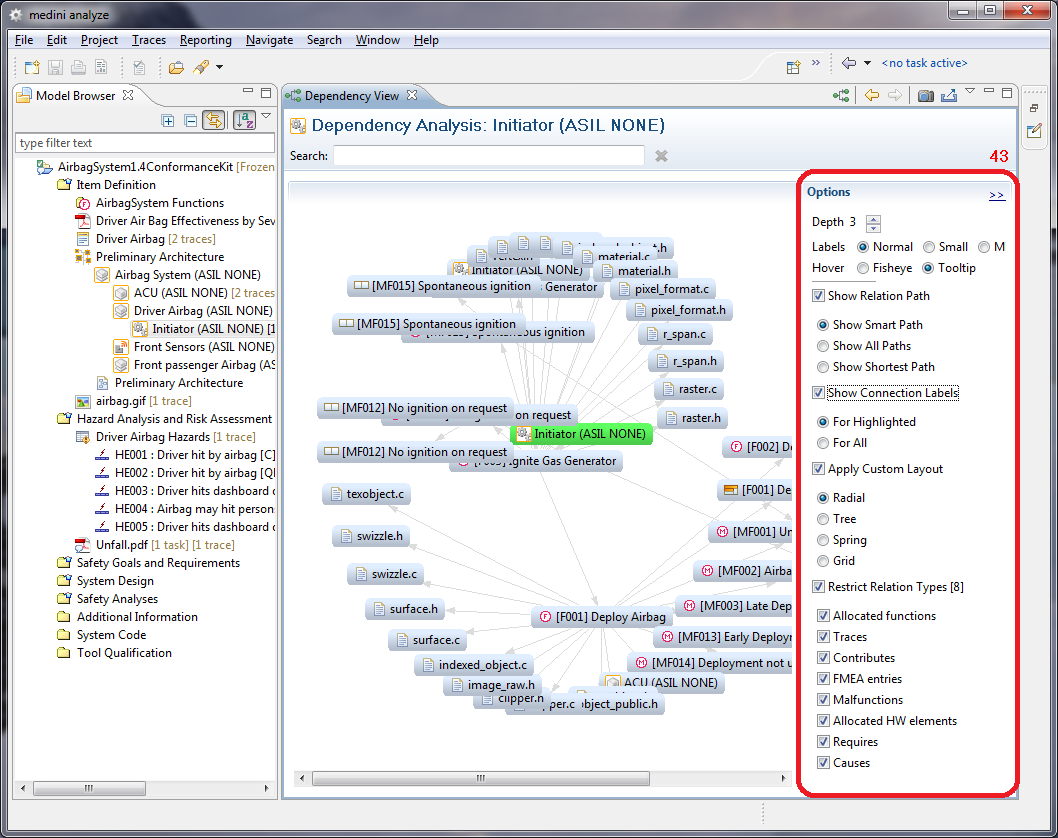
In the options panel the following options can be set:
Depth - with this property it is possible to set the depth until which related elements are included in the dependency view starting from the element in the focus.
Labels - this allows to set the size of the labels of the elements that are displayed to either minimum, small or normal.
Hover - this allows to define what shall be the action if the mouse is over a certain element on the view. Either the element is enlarged (Fisheye) or a tooltip is shown.
Show relation path - this allows to visualize the path from the element in the focus to the selected element. Path information is shown when you click on an element which is not the focus.
Show connection labels - if selected, this shows the kind of relation for each relation (e.g. trace or contributes). You can select whether the labels are only shown for relations in a path or for all relations.
Apply custom layout- several standard layout types are available to arrange the display of elements in the dependency view.
Restrict relation types - with this option it is possible to restrict the types of relations that are considered when the dependencies from the element in the focus are computed.