


Defining checklist templates is part of the general project property settings.
To list all available checklist templates for a project, complete these steps:
In the context menu of the project's top node, click Project Settings....
In the Project Settings dialog, click Checklist Templates.
To select a template, click one in the list.
The template you select is highlighted and its content is shown in the lower table.
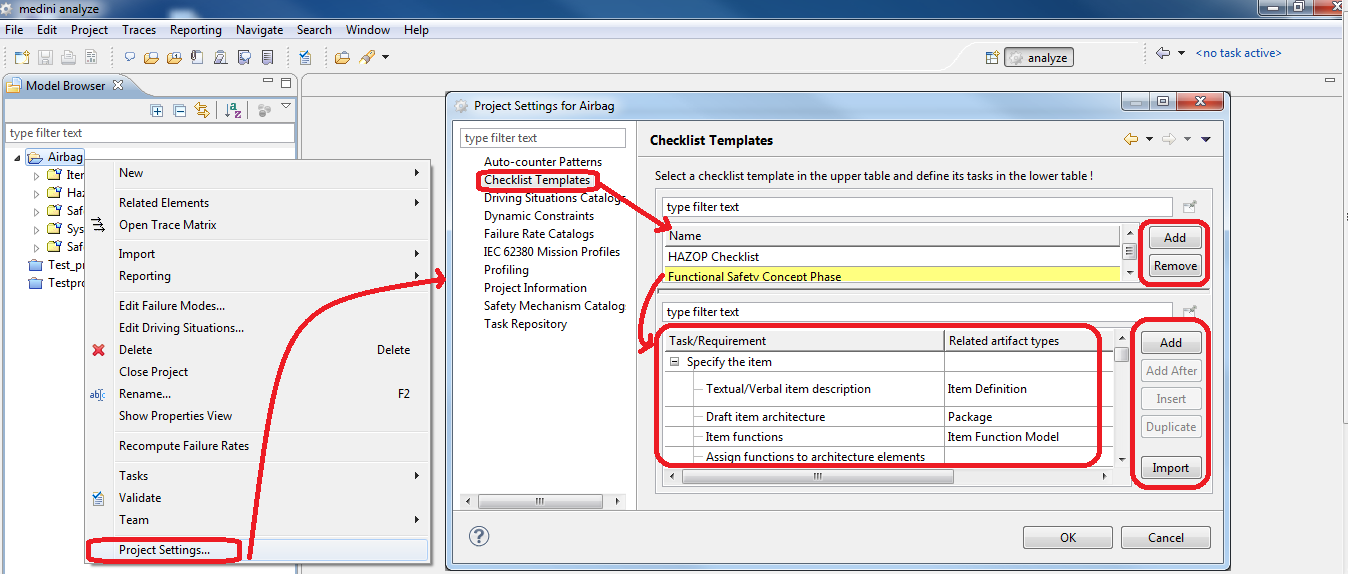
To create a new checklist template or to remove an existing one from the project, use the and buttons at the top of the right side of the table.
Each checklist template consists of a list of to-do tasks or requirements. You can use the buttons on the right side of the lower table to execute the following actions:
Table 10.1:
| Button | Name | Description |
|---|---|---|
 | Add | Create a new entry at the bottom of the checklist |
 | Add After | Create a new entry directly below the selected checklist item |
 | Insert | Create a new subentry for a selected entry. The hierarchy of the subentry is shown in the table. |
 | Duplicate | Creates a duplicate entry of the selected checklist item |
 | Remove | Delete the selected entry. Note that this also removes any subentries of the selected entry. |
 | Headline | Create a headline row in the tasklist. A headline can help organize groups of tasks. |
 | Import | Import a checklist template in CSV or XLS format. For more information, see Import of data in Excel/CSV-Format . |
 | Shift buttons | Shift an entry to the left or right to change its position in the hierarchy. |
 | Arrow buttons | Move an entry up or down to change its order in the entries. |
The entries in a checklist template consist of a description of the task or requirement, together with an optional specification of the types of related artifacts.
After you create a new entry in the table, you can add a description in the corresponding cell. When you double-click in a cell in the Related artifact types column, a new dialog opens. There you can select one or more artifact types related to the current task or requirement. Close the dialog with to show the chosen selection in the checklist template.