


To create a new job definition using a "blank slate" approach, follow these steps:
Go to the Projects page and open the project.
In the navigation path at the top of the page, select Jobs.
On the Jobs page, select the Job Definitions tab.
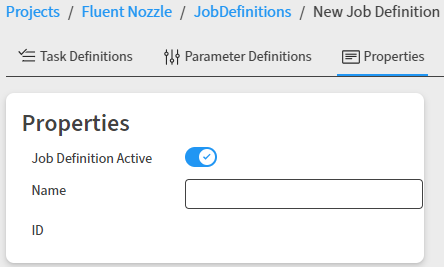
On the toolbar above the job definitions table, click . A new, empty job definition is created with the Properties tab displayed:
If at any time you want to discard changes that you have made, click to revert the job definition to its previous state.
In the Name field, specify a name for the job definition.
By default, the job definition will be active. If you do not want it to be active at this time, click the Job Definition Active toggle to turn it off.
Select the Task Definitions tab.
Click and select either or depending on how you want to create your first task.
If you select , a generic task definition is displayed. You will need to specify an application and manually specify task requirements, execution settings, input and output files, and success criteria. See Defining a Task.
If you select , you are prompted to select a solver-specific task definition template. To quickly find a specific template, use the Software and Version drop-downs to filter the list.
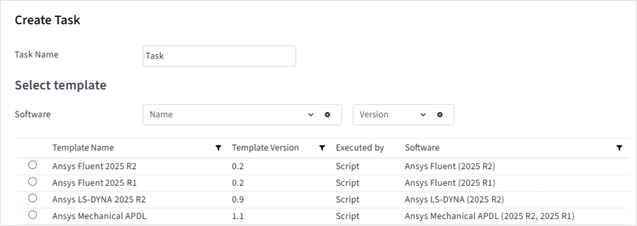
A wizard is then launched whose content is based on the selected template.
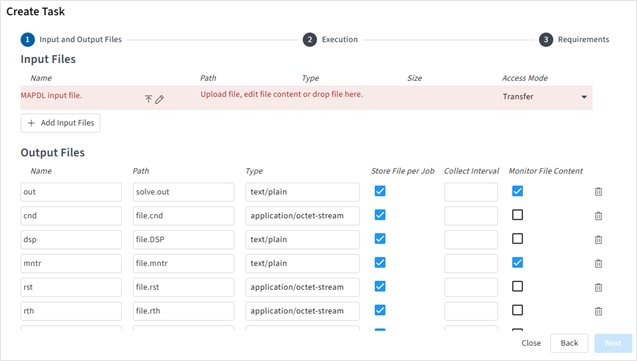
Work your way through the wizard to select input files and specify task settings.
Input Files
To upload input files, click
 or click anywhere in an input row and
browse to select files. Or, drag and drop files into the input rows. When you
upload a file, its name appears in the Path field.
or click anywhere in an input row and
browse to select files. Or, drag and drop files into the input rows. When you
upload a file, its name appears in the Path field.Keep the Access Mode set to Transfer to ensure that the input file is transferred to the cluster.

To allow the cluster to directly access a file that is already on the cluster, set Access Mode to Direct Access. Then, in the Path field, specify the path of the input file on the cluster.
In the input file entry, you can then paste the path in the Path field and add the input file name to the path.

To edit the content of a text-based file that you have uploaded, click
 . The content is displayed in
an onscreen editor.
. The content is displayed in
an onscreen editor.If you make changes to the content but then decide that you do not want to proceed with those changes, click to undo them. Otherwise, to proceed with the modified file, click .
To delete an input file entry from the list, click
 .
.Note: You cannot delete an input file entry that is set as required, but you can replace the selected file with a different one.
To replace an uploaded file with a different file, click
again.To add more input files, click and specify the desired file(s).
Output Files
In the Output Files section you can edit, add, or remove output files as needed.
If Store Console Output is enabled, evaluators will capture all messages that the process prints during execution to standard output (
stdout) and standard error (stderr) and store them in a log file.You can specify the following for each output file:
Name. A name to identify the type of output file. This could be the file extension such as 'rst' or a common name such as 'transcript'.
Path. The filename to which the output file is written.
In paths for both input and output files, wildcard characters are supported. This allows Ansys HPC Manager to read and store files with file paths varying in different runs, such as random directory names, file names, and file extensions. You can use the common asterisk (*) and question mark (?) wildcard characters to collect solver log files, images, error logs, and other files that do not have fixed names.
In the path file*.err, for example, an asterisk is used to collect all error files that start with file.
To recursively collect files from nested subdirectories, you can use glob patterns as described in glob - Unix style pathname pattern expansion in the Python documentation. For example, to collect all .txt files from nested subdirectories, you would use **/*.txt.
Type. The type of data contained in the file: Binary, Image, or Text. Binary file types store data as a sequence of bytes, some of which may be intended to be interpreted as something other than text characters (for example, a graph), while text file types store data as a sequence of characters in human-readable format.
Store File per Job. Specifies whether to permanently store the file for every job. When enabled, you use the Collect Interval option to specify the interval in seconds at which to collect the current state of the file and upload it to the server so that the latest information is available for clients to fetch.
Monitor File Content. Specifies whether a file can be opened while the evaluation is running. For a solver job, rather than being blind to what is going on during the evaluation, selecting this check box for the solver log file (solve.out, for example) provides you with live monitoring capabilities. While the evaluation is running, you can open the solver log file to see solution progress and how far it is from reaching convergence. Once the evaluation is completed, the solver log file is deleted.
Execution Context
Settings available to define the context of the solution. Settings such as additional_args and mpi_type are common to many solvers, while other settings are solver-specific. For Mechanical APDL, for example, you can see an amfg setting that can be used to enable the additive manufacturing capability in Mechanical simulations.
To add a context entry, click and select either , , , or . These are described below.
- String
A string is a data type that represents text. It is composed of a sequence of characters that can include letters, spaces, and numbers.
- Integer
An integer is a data type used to represent real numbers that do not have fractional values. It is a numerical value that can be positive, negative, or zero.
- Float
A float is a data type that represents a fraction in decimal format.
- Boolean
A Boolean is a data type that has one of two possible values (usually True/False or On/Off).
Environment
The settings below are standard for all solution types. Additional settings may be available depending on the selected template.
- Custom Working Directory
Optionally specify a task working directory, or leave blank to use the default directory. If specified, this sets a top-level directory under the root directory. Work takes place in auto-generated directories under the custom working directory.
Note:The custom working directory must exist and have write permissions.
The custom working directory is not subject to the Task Directory Cleanup policy. The files and folders generated under the custom working directory remain available after the job has completed.
- Maximum Execution Time
Maximum time in seconds for executing the task. A value of 0 means that there is no time limit. If a time limit is set, and an evaluation is not completed within the time limit, the evaluator assumes something is wrong and stops, changing the status of the job to timeout. For more information, see Job Lifecycle and Evaluation Status.
- Number of Attempts
Maximum number of attempts to make to evaluate the task. The default is 1. However, if you expect that job failures are related to licensing issues on a particular evaluator, you can increase the number of attempts so that a failed job automatically goes from failed to pending, allowing it to then be picked up by another evaluator. In a job's details you can see if the evaluation is running in the first attempt, second attempt, or so on.
To add an environment variable, click and then specify the variable's name and value:

Software
The required software and application version are predefined by the template.
Resource Requirements
Specify the system requirements that an evaluator must have to pick up the task.
- CPU
Minimum number of CPU cores that an evaluator must have
- Memory
Minimum amount of random access memory (RAM) in megabytes that the evaluator must have (optional requirement)
- Disk Space
Minimum amount of free disk space in megabytes that the evaluator must have (optional requirement)
- Platform
The platform on which the task can run (Linux, Windows, or Any)
- Distributed
Enables distributed parallel processing
- Compute Resource
Optionally assign a specific compute resource on which the task should run
HPC Resource Requirements
These settings apply when submitting a job to an HPC cluster:
- Queue
The default queue for job submission. Select a queue from the drop-down or type the queue name.
- CPU per Node
Total number of CPU cores per compute node.
- GPU per Node
Number of GPU accelerator devices per compute node. While the CPU handles most operations for a simulation, it can offload certain time-intensive parallel operations to a GPU for faster performance.
- Exclusive
If set to true, compute resources will be used exclusively by this task and will not be shared with other running tasks.
- Native Submit Options
Additional command line options to pass directly to the scheduler.
- Local Scratch
Whether to use a scratch directory local to the compute node(s) as the job execution working directory. Using a local scratch directory may optimize performance if the solver has heavy Input/Output (I/O) patterns (for example, produces numerous, relatively large files, re-reads the same file multiple times, or continuously opens and closes files).
Custom Requirements
To add a custom requirement to the task requirements, click . Specify the property key name, then select the desired format:
- String
A string is a data type that represents text. It is composed of a sequence of characters that can include letters, spaces, and numbers.
- Integer
An integer is a data type used to represent real numbers that do not have fractional values. It is a numerical value that can be positive, negative, or zero.
- Float
A float is a data type that represents a fraction in decimal format.
- Boolean
A Boolean is a data type that has one of two possible values (usually True/False or On/Off).
Optionally specify a default value or list of possible values (for string, float, or integer types).
Once tasks are defined, select the Parameter Definitions tab. Define parameters as described in Defining Parameters.
Click . The job definition is added to the list of available job definitions.