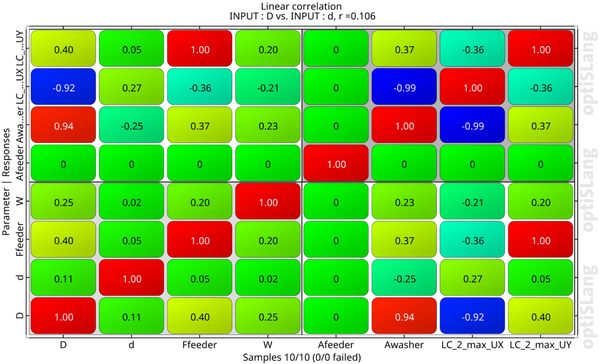
This tutorial allows you to complete a sensitivity analysis of the Feeder Clamp:
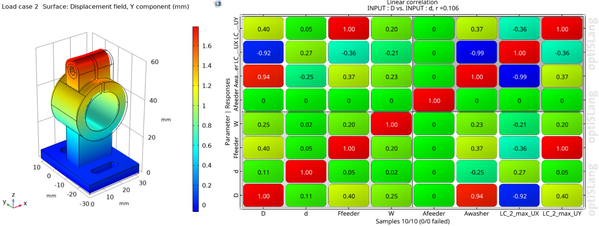
The feeder clamp is parametrized by the feeder force (Ffeeder),
clamp width (W), and inner (d) and outer
(D) diameters. The responses are the maximum directional
displacements (X and Y) at load case 2.
This tutorial demonstrates how to do the following:
Generate an optiSLang workflow using the COMSOL integration node
Set up the COMSOL integration node settings
Define and register the parameters and the responses
Before you start the tutorial, download the feeder_clamp.mph file from here and add it to your project reference directory *.opr.
To set up and run the tutorial, perform the following steps:
Start optiSLang.
Create a new empty project.

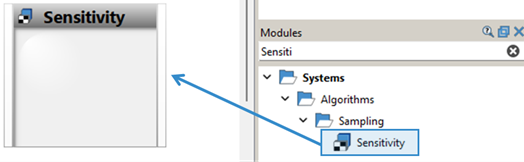
From the Modules > Systems > Algorithms > Sampling folder, drag the Sensitivity system to the Scenery pane and let it drop.
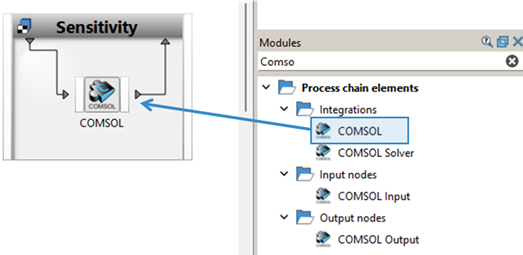
From the Modules > Process chain elements > Integrations folder, drag the COMSOL node into the Sensitivity system and let it drop.
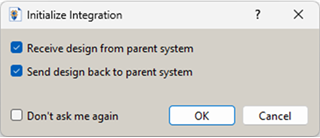
In the Initialize Integration dialog, click the OK button to accept the defaults.
Double-click the COMSOL integration node (or right-click the COMSOL node and select Edit).
Go to the Settings tab.
Here you can set a custom COMSOL executable path in Executable file and/or set a Custom plugins directory.
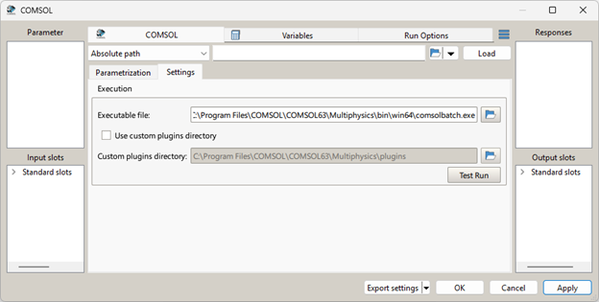
Note: From version COMSOL 6.3 onward, you must use command-line script (a batch file (*.bat) or a command script (*.cmd)) path in Executable file to run the COMSOL and set the Custom plugins directory. The batch file or command script must contain the following:
"comsolbatch" -disablemodelclassmethodexec on -clientsidemodelclass on %*
where
[comsolbatch]should be replaced with the path to the comsolbatch executable file.Detailed information is provided in the optiSLang Help documentation.
Click Test Run and check the results in the Test Run Results window that pops up.
In the Parametrization tab, browse the reference folder *.opr and select the feeder_clamp.mph file.
In the Inputs table, select
D,d,Ffeeder, andWand drag them to the Parameter pane to register them as inputs.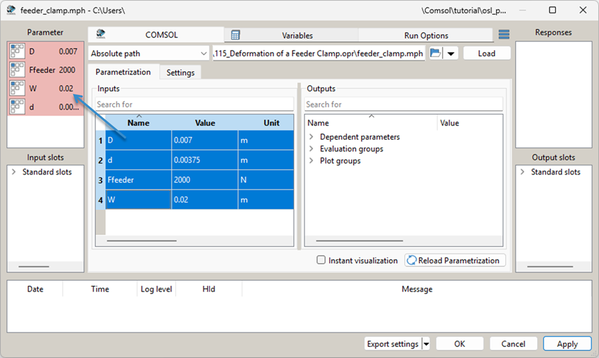
In the Outputs pane, select
AfeederandAwasherand drag them to the Responses pane to register them as outputs.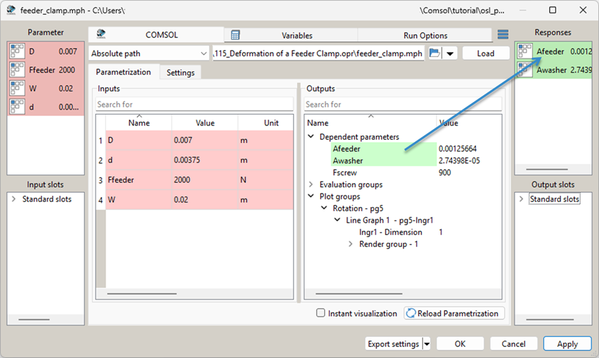
Double-click the Sensitivity system to open the settings.
On the Parameter tab, check registered parameters.
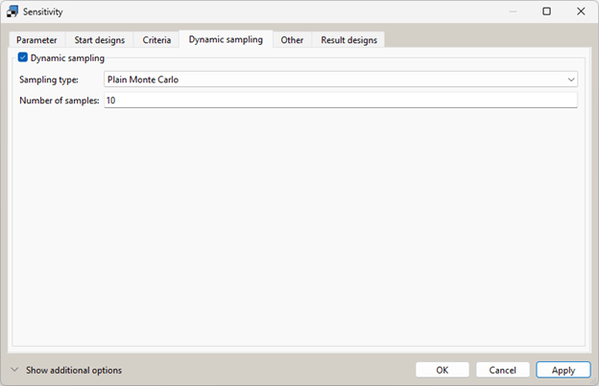
On the Dynamic sampling tab, set dynamic sampling:
Select Dynamic sampling.
Select "Plain Monte Carlo" as the Sampling type.
Set Number of samples to
10.
Click .
To save the project, click
 .
.Right-click the Sensitivity system and select Start from here.
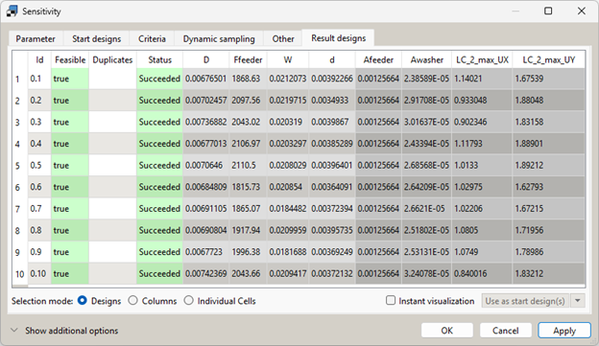
To review the result, double-click the Sensitivity system and switch to the Result designs tab.
To view the optiSLang Postprocessing, right-click the Sensitivity system and select Show Postprocessing.