


FreeFlow opens by default with no new simulation project, so you must first choose what kind of project you want to open. You can begin a brand new (blank) project, open an existing simulation project, or restore an archived simulation project. There are also many ways you can save a simulation project, which will be covered at the end of this chapter.
What would you like to learn about?
How to Create a Project
How to Open a Project
How to Restore a Project
How to Save a Project
If you want to begin a new, blank simulation using no prior FreeFlow settings or simulation results, you can choose to begin a new simulation project.
From the File menu, click New Project. The Data panel is populated with default sections including Study, Physics, Geometries and others.
To view or edit a project that was set up and/or processed in FreeFlow, you can open an existing simulation project.
From the File menu, click Open Project.
Locate and select the .FreeFlow file you want, and then click Open. The file opens with the settings, results and analyses items you have saved.
Note: If you have a single-instance license of FreeFlow, you are limited to opening only one instance of the FreeFlow program at a time. Attempting to open another project from a file directory, for example, might result in a "No license for feature" error on the License Management screen so it is important to only use the above procedure to open FreeFlow projects when FreeFlow is already open.
Note: No matter how many FreeFlow licenses you have, FreeFlow is designed to have only one instance of a simulation project opened at any one time. This means that whenever you open a project file in FreeFlow, that project automatically becomes "locked" to your instance of FreeFlow until you close it. This step helps prevent yourself and other users in your network from accidentally opening up a duplicate instance of the project and making changes.
If you have received an archived simulation project from someone else, or have archived your own project and lost access to the original .FreeFlow project, you can choose to restore it. Restoring a project opens the simulation project from the .FreeFlow_archive file. This is the same as opening the .FreeFlow file directly so it is only necessary in cases where you have only the .FreeFlow_archive file and not the original .FreeFlow simulation project file.
From the File menu, click Restore archived project.
Locate and select the
.FreeFlow_archivefile you want, and then click Open. The file opens the associated simulation project information, including the settings, results, and analyses items you have saved.
Tip: You may also use a drag and drop method to restore an archived simulation
project. From your file directory, click the
.FreeFlow_archive file you want to restore, drag it to
an empty location on a FreeFlow Workspace or the Data panel, and then when you see the +
Copy icon, drop the file by releasing your mouse.
When you save a simulation project, you are saving into a .FreeFlow file the various parameters you have specified in the FreeFlow user interface. When you choose to process a simulation, you will be asked to save the simulation project before processing. As you process, the simulation output files are saved automatically.
There are several different ways you can choose to save, copy, and archive your FreeFlow project, depending upon your goals. See sections below for details.
What would you like to see next?
You can save the full project, including any results that have been generated, as a new project by specifying a project name and location for the .FreeFlow and related project files.
From the File menu, click Save.
In the Save in list, click the drive or folder of the location to which you want to save the file.
In the File name box, enter a name for the file, and then click Save.
SAVE OVER THE CURRENT SIMULATION PROJECT
Once the project has been saved, you can continue to save over the current simulation project as needed.
From the File menu, click Save.
Tip: You can see the full path of the saved project file on the "Study" entity.
If you want to save a copy of all or part of the FreeFlow project for building upon later, you have three options for doing so:
SAVE AN EXACT COPY OF THE SIMULATION PROJECT INCLUDING THE SIMULATION RESULTS
From the File menu, click Save As.
From the Save As dialog, choose the first option, "Save As a New Project and Copy Simulation Results", and then click OK.
In the Save in list, click the drive or folder of the location to which you want to save the file.
In the File name box, enter a name for the file, and then click Save.
SAVE A COPY OF ONLY THE SIMULATION SETTINGS WITHOUT SIMULATION RESULTS
From the File menu, click Save As.
From the Save As dialog, choose the second option, "Save As a New Project but DON'T Copy Simulation Results," and then click OK.
In the Save in list, click the drive or folder of the location to which you want to save the file.
In the File name box, enter a name for the file, and then click Save.
Note: If you do not want to save the results of your simulation, but you do want to reuse your setup parameters as a basis for your next analysis, you can also choose to delete the simulation results.
Tip: You can see the full path of the saved project file on the "Study" entity.
SAVE A COPY OF A PARTIALLY PROCESSED SIMULATION FOR RESTART PURPOSES
This procedure is useful in situations where you make use of the beginning part of a processed simulation as a starting place for other, new simulations. This saves you from having to repeat the beginning portions of a simulation over and over, conserving processing time. Some examples of when this might be useful include:
Pre-filling a large bin or container with SPH elements
Changing-out boundaries in the latter part of a long tube or draining system
Important: Because you are saving a copy of an already processed simulation, you will lose the ability to see time step files within the copy prior to the point you saved it, and the processing time will be reset to zero (0).
Requirements: The main requirement for this procedure is that there must be SPH elements released into the simulation at the time step you select when the copy is made. If the selected time step is zero or is at a point prior to when SPH elements are released into the domain, no restart copy will be saved.
Limitations: If you have chosen to use parametric expressions in certain Start Time and Stop Time fields, only the resulting value and not the variables and/or mathematical functions will be retained in the copy you have saved for restart purposes.
To Save a Copy of a Partially Processed Simulation for Restart Purposes
Folow the steps:
From the Time toolbar, ensure that the current time step is set to the point at which you want the new copy to begin. Note: There must be SPH elements released into the domain at the time step you select otherwise a copy will not be saved.
From the File menu, click Save project as….
From the Save Options dialog, choose the third option, "Save as a New Project for Restart", and then click OK. Note: This dialog will only appear if your simulation has been processed far enough to have results.
In the Save File dialog, select the folder in which you want to save the project copy.
In the File name box, enter a name for the new file, and then click Save.
You can see the full path of the saved project file on the "Study" entity. (See also About Study Parameters.)
Archiving a project is similar to saving a copy of the simulation, but it packages it in a format that makes sharing with support easier.
An Archive of a project contains all the associated setup information, post-processing analyses and results. Archives are useful for simulations that have already been processed, because they result in a much smaller file that can be easily shared.
Follow the steps to archive a simulation project:
From the File menu, click Archive project;
From the Archive Options select one between the options Archive project with Simulation Results or Archive project WITHOUT Simulation Results;
From the Archive project dialog, choose the drive or folder of the location to which you want to save the file, verify the File name, and then click Save;
From the Project saved message, click Yes to open the directory. The .FreeFlow_archive file that you just saved is shown.
SAVE CUSTOM PROPERTIES AND CURVES INTO PROJECTS
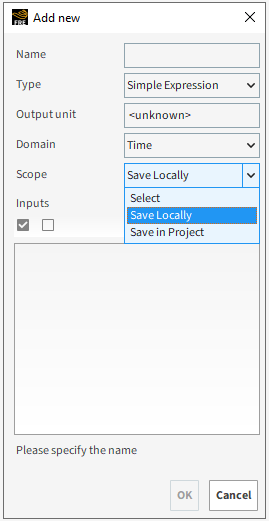
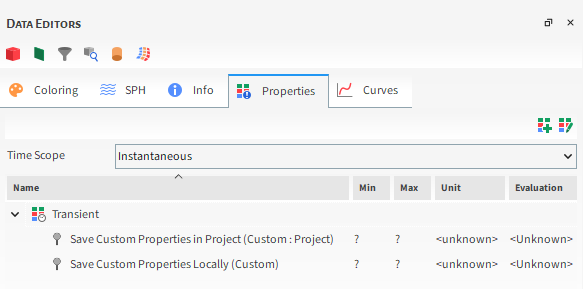
When adding a custom property or a custom curve, you can select in the Scope option whether you want to save it in the project, so that this curve or property is sent together when sharing the project, or save it only locally.
SAVE AN IMAGE OF THE FREEFLOW WINDOW
When working on a simulation project, it is possible to save an image of the FreeFlow window. Follow the steps to do so:
In the Workspace, select the 3D View, Motion Preview, Plot, or Histogram window for which you want to save an image.
From the Window menu, click Save Image. The Snapshot dialog appears.
From the Snapshot dialog, enter a folder location, File Name and Save as Type information, and then click Save. The image is saved to the location you chose and FreeFlow asks you whether you want to open the snapshot.
Tip:
If you want more control over the dimensions of your image, export your image from the Window Editors panel.
To make a copy the image instead of saving it, right-click the area within your window, point to Copy, and then click Image. A copy of the image will be placed on the clipboard for you to paste into an image editor or other program.
Delete the Results of a Simulation (But Keep the Setup)
If you know that you do not want to keep the results of your simulation, but you do want to reuse your setup parameters as a basis for your next analysis, you can choose to delete the simulation results.
To delete the results of a simulation, while keeping the setup, follow the steps:
With your processed simulation stopped or completed, change any setup parameter, such as Simulation Duration. A new dialog appears.
From the Project already has simulated results dialog, click Yes. The results of your simulation are deleted and your setup parameters are fully editable.
If you know that you do not want to keep the results of your simulation, but you do want to reuse your setup parameters as a basis for your next analysis, you can choose to delete the simulation results.
Note: You can also keep the results and start a new simulation using a copy of the setup parameters.
With your processed simulation stopped or completed, change any setup parameter, such as Simulation Duration. A new dialog appears.
From the Project already has simulated results dialog, click Yes. The results of your simulation are deleted and your setup parameters are fully editable.
See Also: