


This method enables you to determine the optimal distribution of different materials in one domain. The mixable density-based performs optimization based on the density of each element. The application creates a unique nodal field where the density is forced to approach either 0 or 1 rather than varying continuously. In contrast, this method generates one field that distributes one or more materials throughout the specified design space.
Points to Remember
Note the following before beginning your analysis:
Use the Engineering Data Workspace to create specific materials. Engineering Data is a component of the Workbench application. To use the workspace, you must create or resume your analysis from the Workbench Project Schematic.
You can add materials to your project using the Materials object.
You can import materials from an external library file into your project.
When performing an optimization with multiple materials, Ansys recommends that you use materials with significantly different properties. Similar material properties increase the risk of creating problems that do not have a feasible solution.
Applying multiple Local Design Restriction objects that include different materials to the same region can create infeasible problems.
This method enables you to perform lattice optimization. All of the requirements, limitations, and definition specifics Lattice Optimization Analysis are applicable.
Important:You can specify the analysis to use only material distribution () or lattice distribution. These capabilities cannot be combined.
Lattice optimization only supports the use of one material.
Because of processing differences, results for lattice structures evaluated using this method may differ form those you receive using the Lattice Optimization method.
Use a uniform mesh to equally capture geometric details for the entire domain.
- Limitations
When you change the Optimization Type property to , the worksheet for material definition may not automatically refresh or display. To resolve this issue, you need to select any other object in the Outline and then return to the Optimization Region object. This action will properly display the worksheet.
When using Full Screen mode, you could see an issue when changing the options of the Filling Method drop-down menu of the worksheet. Exit Full Screen mode to correct the issue.
Definition
You can define the analysis for the following:
- Multiple Materials
This procedure assumes that you have opened the application, defined your upstream analysis, and inserted a Structural Optimization analysis. To define an analysis using the Materials Optimization method:
Select the option for the Optimization Type property, a worksheet automatically displays.
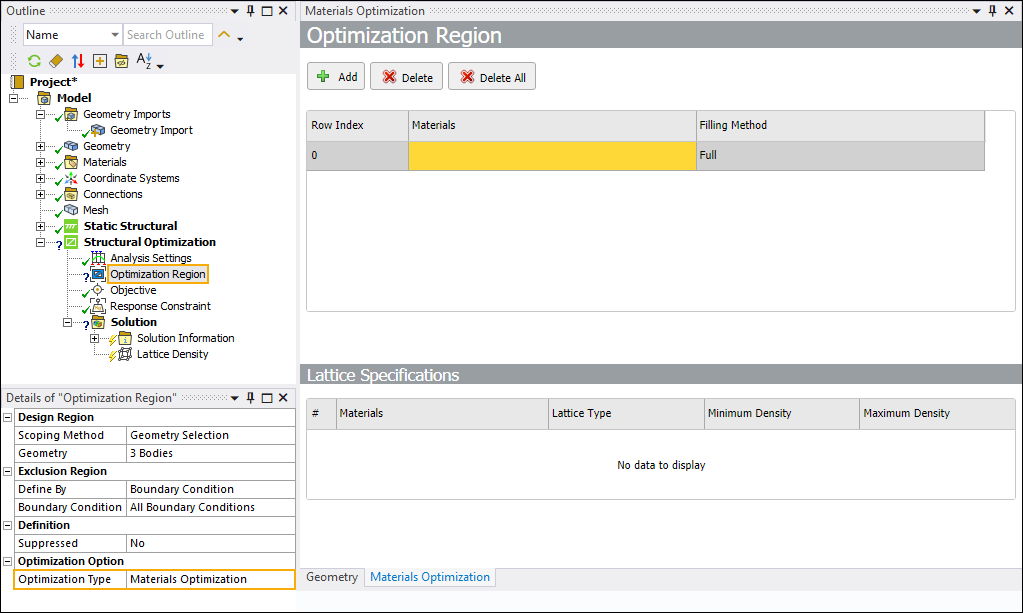
Use the Materials drop-down menu of the worksheet to select the desired material. If you wish to use the option, it must be specified first. This option behaves as material selection but gives the application the option to not use material in the design space.
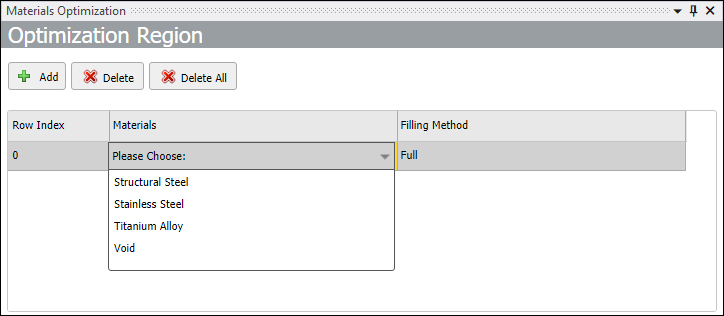
Select from the Filling Method drop-down menu. is the only supported option to perform material distribution. To perform a lattice optimization, see the topic below.
Note: If you are working with a project that was originally saved in release 2025 R1, the application sets the Filling Method property of the Materials Optimization method to . This is a result of lattice only support in release 2025 R1 but not multiple materials optimization. Change this setting as needed.
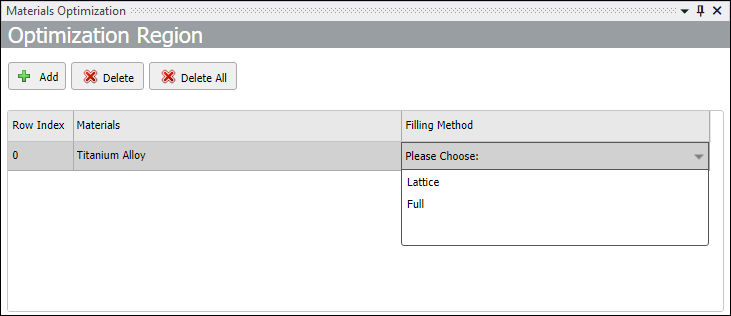
Specify additional materials as desired.
- Lattice
Select the option for the Optimization Type property, a worksheet automatically displays.
Use the Materials drop-down menu of the worksheet to select the desired material. The Lattice feature only supports the use of one material.
Select from the Filling Method drop-down menu.
Under Lattice Specifications table, the selected material displays automatically with default settings for the Lattice Type, Minimum Density, and Maximum Density properties.
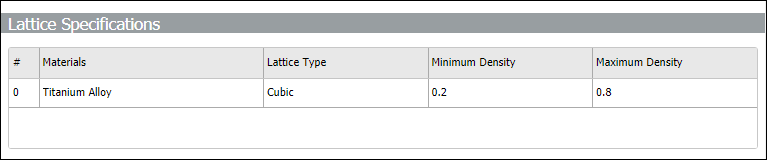
Note: These are the same properties that display in the Details pane when you specify the method for the Optimization Type property of the Optimization Region object. However, the application does not specify default values for the Maximum Density property and a Lattice Cell Size property is also available using this method.
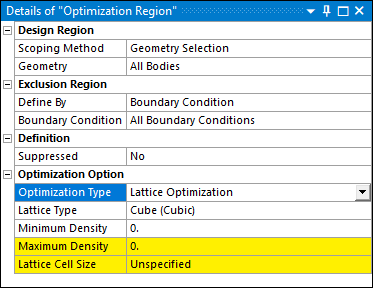
Select a desired Lattice Type and then specify the Minimum Density and Maximum Density properties.
See the Lattice Optimization Analysis section for additional details for completing your simulation using the lattice-based method.