


If you encounter issues when configuring an Ansys RSM Cluster (ARC), refer to the following topics:
For additional troubleshooting information, refer to RSM Troubleshooting in the RSM User's Guide.
When you test an RSM queue on the Queues tab of a configuration, RSM sends a test job to the cluster via the associated cluster queue.
If the test job gets stuck or fails, click  in the queue's Report column to display a
detailed test report:
in the queue's Report column to display a
detailed test report:
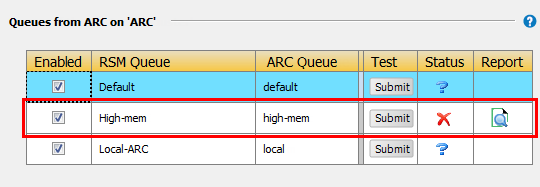
This report can provide support staff with valuable debugging information.
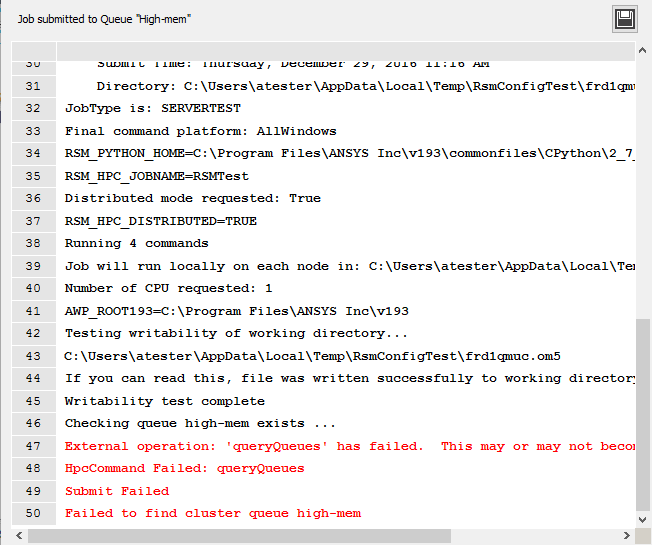
In this example, the test job failed because the cluster queue 'high-mem' could not be found. The queue may have been recently removed or edited. Or, if you added the RSM queue manually, you may have typed the cluster queue name incorrectly.
To save the test report so that it can be shared with support staff:
Click
 in the job report window.
Accept or specify the save location, filename, and content to include.
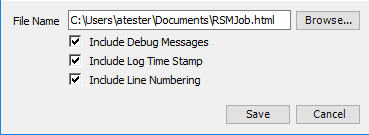
Click .
You can use the following log files to troubleshoot issues relating to an Ansys RSM Cluster (ARC) configuration:
Table 1: ARC Log Files
| Log File | Location | Purpose |
|---|---|---|
| ArcMaster242-<date>.log |
If running as a Windows service:
If not running as a Windows service:
Linux:
| When configuring an Ansys RSM Cluster (ARC), this provides a transcript of what has occurred while starting the ARC Master Service on the submit host. |
| ArcNode242-<date>.log |
Windows If running as a Windows service:
If not running as a Windows service:
Linux:
| When configuring an Ansys RSM Cluster (ARC), this provides a transcript of what has occurred while starting the ARC Node Service on an execution host. |
Important: Although different versions of RSM can be installed side by side, RSM allows only one version of ARC to be used on each node at one time. You cannot have two versions of an ARC (for example, 18.2 and 19.0) running at the same time. This ensures that resources such as cores, memory and disk space can be properly allocated on each node.
When multiple versions of RSM are running, it is recommended that you set the ARC_ROOT environment variable on the ARC master node to ensure that the correct version of ARC is used when jobs are submitted to that machine.
The variable should point to the following directory, where
xxx242):
Windows:
%AWP_ROOTxxx%\RSM\ARC
Linux:
$AWP_ROOTxxx/RSM/ARC
If you do not specify the ARC_ROOT variable, RSM will attempt to use the ARC from the current installation.
If you have set up a firewall to protect computer ports that are connected to the Internet, traffic from the master node to the execution nodes (and vice versa) may be blocked. To resolve this issue, you must enable ports on cluster nodes to allow incoming traffic, and then tell each node what port to use when communicating with other nodes.
There are three port values that you can set:
CommandCommunicationPort: The port on the master
and execution nodes that allows incoming commands such as
arcsubmit and arcstatus to
be read. By default, port 11242 is used. |
MasterCommunicationPort: The port on the master
node that allows incoming traffic from execution nodes. By default, port
12242 is used. |
NodeCommunicationPort: The port on the execution
node that allows incoming traffic from the master node. By default, port
13242 is used. |
To specify port numbers for ARC cluster nodes to use:
Windows: Run the following command in the [RSMInstall]\bin directory:
rsm.exe appsettings AnsysRSMCluster <PortName>
                    <PortValue>
Linux: Run the following command in the [RSMInstall]\Config\tools\linux directory:
rsmutils appsettings AnsysRSMCluster <PortName>
                    <PortValue>
For example, to set the value of the node communication port to 14242 on Windows, you would enter the following:
rsm.exe appsettings set AnsysRSMCluster NodeCommunicationPort
                    14242
Important:
Port settings must be specified on the master node and each execution node. If you are not using a network installation of RSM, this means that you will need to run the RSM Utilities application (in other words modify the Ans.Rsm.AppSettings.config file) on each node in the cluster.
When specifying the three ports, make sure that each port is different, and is not being used by any other service (such as the RSM launcher service).
The following are errors you may encounter when submitting a job to an Ansys RSM Cluster (ARC). For additional troubleshooting information, refer to RSM Troubleshooting in the RSM User's Guide.
Job Stuck on an Ansys RSM Cluster (ARC)
A job may get stuck in the Running or Submitted state if ARC services have crashed or have been restarted while the job was still running.
To resolve this issue:
First, try to cancel the job using the
arckill
                            <jobId>
command. For more information refer to Cancelling a Job (arckill) in the RSM User's Guide.If cancelling the job does not work, stop the ARC services, and then clear out the job database and load database files on the Master node and the node(s) assigned to the stuck job. Delete the backups of these databases as well.
On Windows, the database files are located in the %PROGRAMDATA%\Ansys\v242\ARC folder.
On Linux, the database files are located in the service user's home directory. For example, /home/rsmadmin/.ansys/v242/ARC.
Once the database files are deleted, restart the ARC services. The databases will be recreated automatically.
Tip: Clearing out the databases will fix almost any issue that you encounter with an Ansys RSM Cluster. It is the equivalent of a reinstall.
Error Starting Job on Windows-Based Multi-Node Ansys RSM Cluster (ARC)
When starting a job on an advanced Ansys RSM Cluster (ARC) that is running on Windows, you may see the following error in the RSM job report:
Job was not run on the cluster. Check the cluster logs and check if the cluster is configured properly.
Use the arcstatus command to view any errors related to
the job (or check the ArcNode log). For details refer to Getting the
Status of a Job (arcstatus) in the RSM User's
Guide.
2018-12-02 12:04:29 [WARN] System.ComponentModel.Win32Exception: The directory name is invalid
["\\MachineName\RSM_temp\tkdqfuro.4ef\clusterjob.bat"] (CreateProcessAsUser)
This is likely due to a permissions restriction on the share that is displayed.
To resolve this issue you may need to open the network share of the cluster
staging directory (\\MachineName\RSM_temp in the example)
and grant Read/Write permissions on one of the following accounts:
