


This tutorial allows you to export data from Excel (versions 2007, 2010, 2013, and 2016) into the optiSLang database format.
This tutorial demonstrates how to do the following:
Export data from Excel into the optiSLang database format
Define input values
Define output values
Define design numbers
Generate an optiSLang database file (*.omdb) from Excel
Before you start the tutorial, download the excel_tools zip file from here , and extract it to your working directory. Also ensure that the optiSLang Exel Add-in has been installed.
To set up and run the tutorial, perform the following steps:
Start Excel.
Open the coupled_function.xlsx file from the excel_tools folder.
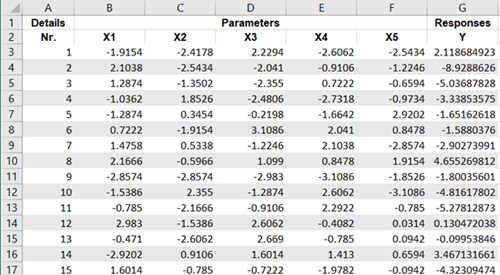
The worksheet contains 100 designs with five parameters and one response. Parameter and response names are listed in row 2. Each row (from 3 to 102) represents one design variation.
On the Excel Ribbon, switch to the tab.
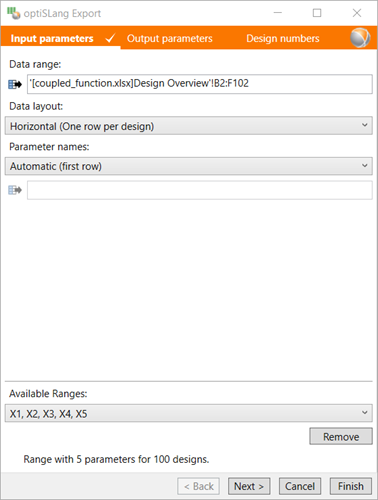
Select columns B-F, from row 2 onwards.

Click .
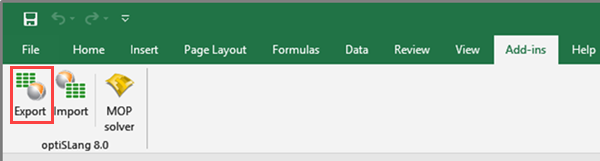
Click .

Accept the current defaults for the input parameters and click .
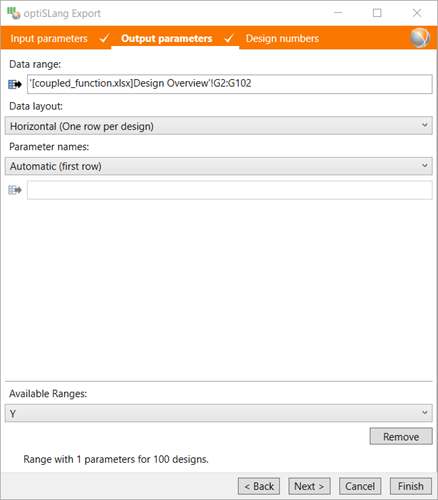
Select column G, from row 2 onwards.
Under Data range, click
 to adjust the selected
cells.
to adjust the selected
cells.Accept the remaining defaults for the output parameters and click .
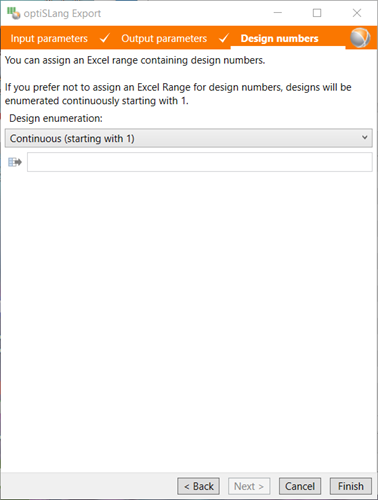
Accept the current defaults for the design numbers and click .
Browse to the location to save the file and type a project name in the File name field.
Click .
The statistic postprocessing is displayed.


