


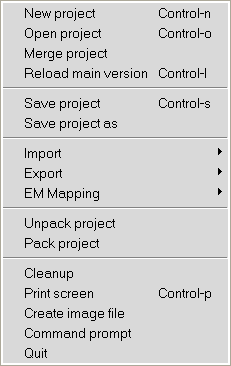
When running Ansys Icepak in Workbench, the File menu options are slightly different. The following options are no longer available. New project, Open project, Save Project as, Unpack and Quit. Instead, the File menu options in the Workbench interface are used to create, open, save and exit projects. The File menu options are described below.
Refresh Input Data refreshes the current data with new input data.
Merge project enables you to merge an existing project into your current project using the Merge project panel.
Reload main version enables you to re-open the original version of the Ansys Icepak project when your project has multiple versions. See Defining a Project for more information.
Save project saves the current Ansys Icepak project.
Import provides options to import tetin file geometries into Ansys Icepak. You can also import powermap and IDF files, as well as comma separated values or spreadsheet format (CSV) using this option. See Importing and Exporting Model Files for more information about importing files.
Export enables you to export your work as IDF 2.0 or 3.0 library files, comma separated values or spreadsheet format (CSV), and also STEP or tetin files. See Importing and Exporting Model Files for more information about exporting files.
EM Mapping enables you to perform a one-way mapping of volumetric and/or surface loss information from HFSS, Q3D, or Maxwell to Icepak for steady-state or transient solutions. For steady state solutions, you must select a Solution ID and a Frequency. For transient solutions, you must select a Solution ID and Start and End time steps. See Ansoft to Icepak Coupling in Workbench for more information on the Icepak to HFSS workflow.
Pack project opens a File selection dialog box that enables you to compact your project into a compressed .tzr file.
Cleanup enables you to clean up your project by removing or compressing data related to ECAD, mesh, postprocessing, screen captures, summary output, reports, and scratch files using the Clean up project data panel.
Print screen enables you to print a PostScript image of the Ansys Icepak model that is displayed in the graphics window using the Print options panel. The inputs for the Print options panel are similar to those in the Graphics file options panel. See Saving Image Files for details.
Create image file opens a Save image dialog box that enables you to save your model displayed in the graphics window to an image file. Supported file types include: PNG, GIF (8-bit color), JPEG, PPM, TIFF, VRML, and PS. PNG is the default file type.
Shell window opens a separate window running an operating system shell. The window is initially in the subdirectory of the Ansys Icepak projects directory that contains all the files for the current projects. In this window you can issue commands to the operating system without exiting Ansys Icepak. Type exit in the window to close the window when you are finished using it. Note that on Windows machines, this menu item appears as Command prompt.
Close Icepak exits the Ansys Icepak application. See Quitting Ansys Icepak for details.