


This tutorial is divided into the following sections:
This tutorial examines the reacting flow through a can combustor that burns methane in air in order to determine the combustor performance. In this tutorial, you will first mesh the geometry in the Ansys Fluent Meshing and then simulate the combustion process using the Eddy Dissipation model. You will then repeat the simulation using the steady flamelet model and compare the results of these two approaches.
This tutorial demonstrates how to do the following:
Mesh the geometry in Ansys Fluent Meshing.
Set up a combustion simulation in Ansys Fluent.
Set up a reacting flow involving fuel and oxidizer.
Use the Eddy Dissipation model.
Use the Steady Diffusion Flamelet model.
Display the results obtained using these two models.
This tutorial is written with the assumption that you have completed the introductory tutorials found in this manual and that you are familiar with the Ansys Fluent outline view and ribbon structure. Some steps in the setup and solution procedure will not be shown explicitly.
A can type combustor is a component of a land-based gas turbine in which combustion occurs. Can combustors are designed to burn the fuel efficiently, minimize the emissions, and reduce the wall temperature. The can combustor to be considered in this tutorial is shown schematically in Figure 18.1: Can Combustor Geometry.
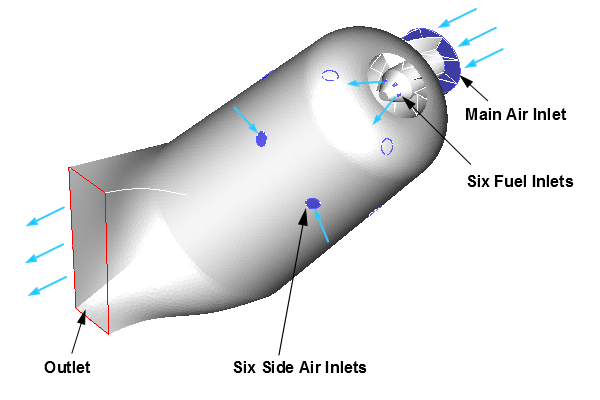
Compressed primary air is forced into the combustion chamber at 10 m/s through the main inlet at the base of the canister. Six swirl inlet vanes guide the incoming air into the canister and facilitate its mixing with pure methane for proper combustion. Methane is injected through six fuel inlets with a velocity of 40 m/s. As the reacting mixture proceeds through the canister, secondary air is fed into the combustion chamber at a velocity of 6 m/s through six secondary air inlets downstream from the primary combustion zone. This helps increase the combustion efficiency and also cool the can walls as they are exposed to the hot reacting flow. The fuel and oxidizer enter the combustion chamber at 300 K.
In this tutorial, the quantitative analysis of the combusting mixture is performed and the following quantities are determined:
The following sections describe the setup and solution steps for this tutorial:
You can also watch a video that demonstrates how to setup, solve, and postprocess the solution results for diffusion-controlled combustion at:
To prepare for running this tutorial:
Download the
edm_flamelet.zipfile here .Unzip
edm_flamelet.zipto your working directory.The file
can_combustor.pmdbcan be found in the folder.Use the Fluent Launcher to start Ansys Fluent.
Select Meshing in the top-left selection list to start Fluent in Meshing Mode.
Enable Double Precision under Options.
Set Meshing Processes and Solver Processes to
4under Parallel (Local Machine).
In the Workflow tab on the left of the interface, click the drop-down list and select Watertight Geometry.
Import the CAD geometry (
can_combustor.pmdb).Select the Import Geometry task.
Enable Advanced Options to expose additional options that may be required when importing a CAD geometry.
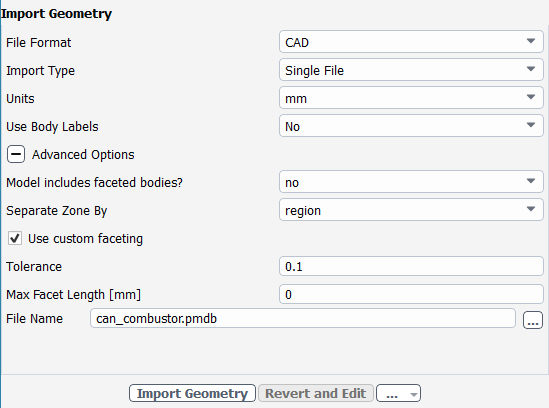
Select region for the Separate Zone By.
Enable the checkbox beside Use custom faceting.
Enter
0.1for the Tolerance.Locate the
can_combustor.pmdbfile using the File Name option and select the file.Select .
Add local sizing.
Select yes to add local face sizing to the inlets.
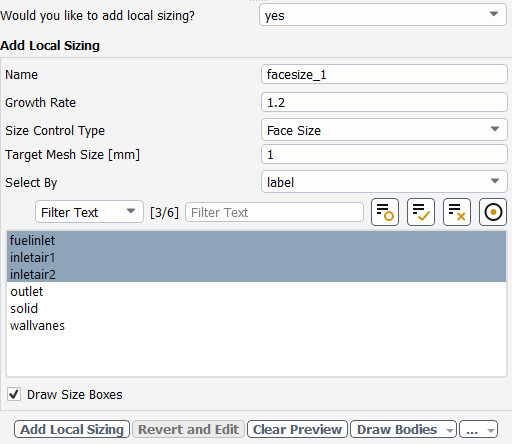
Select Face Size for the Size Control Type.
Change the Target Mesh Size to
1.Select
fuelinlet,inletair1andinletair2from the list of labels.Click .
Add
fuelinletproximity sizing.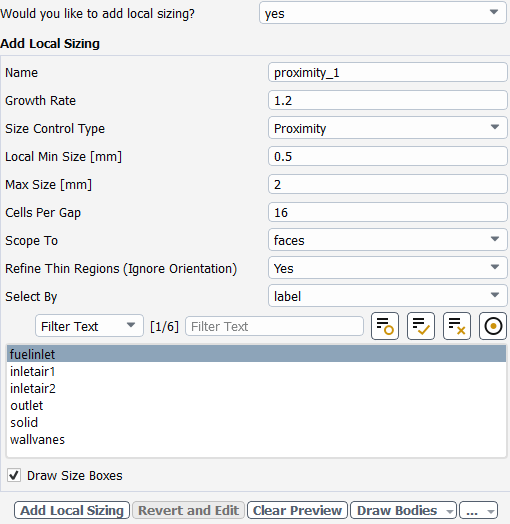
Change the Size Control Type to Proximity.
Adjust the Local Min Size to be
0.5and the Max Size to be2.Change the number of Cells Per Gap to be
16.Select
fuelinletfrom the list of labels and click .
Add proximity sizing to the inlet vanes.
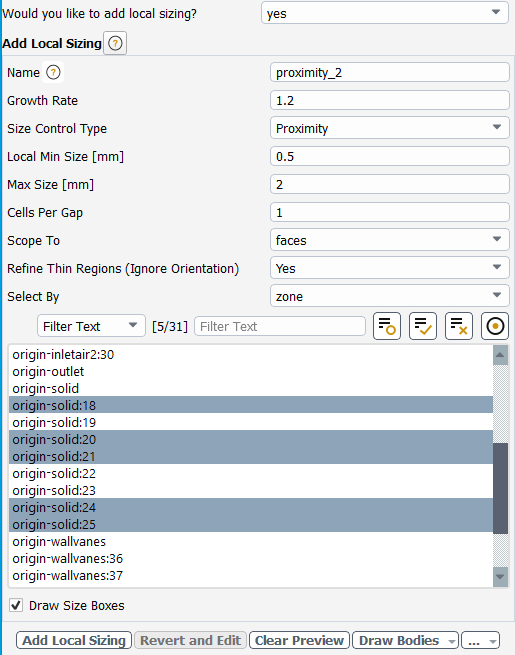
Ensure Proximity is selected and change the Local Min Size to
0.5and the Max Size to2.Change the Select By option to zone.
Select
origin-solid:18,origin-solid:20,origin-solid:21,origin-solid:24andorigin-solid:25from the list of zones.Click .
Add face sizing to the inlet vanes.
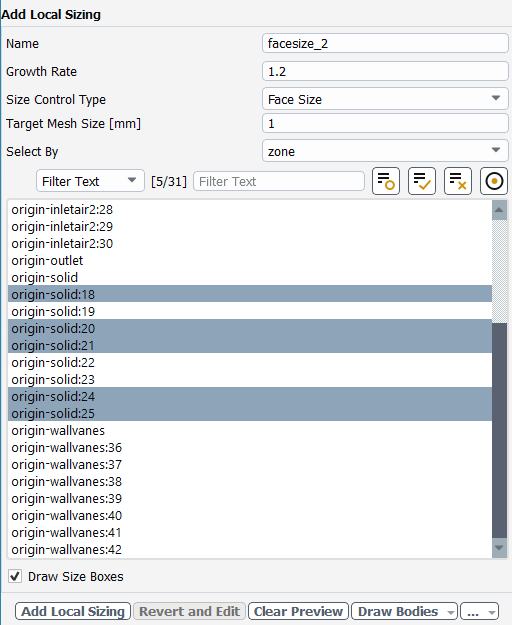
Change the Size Control Type to Face Size and enter
1for the Target Mesh Size.Select
origin-solid:18,origin-solid:20,origin-solid:21,origin-solid:24andorigin-solid:25from the list of zones.Click .
Generate the surface mesh.
Adjust the Minimum Size to be
1and the Maximum Size to be15.Change the Cells Per Gap to be
4and click .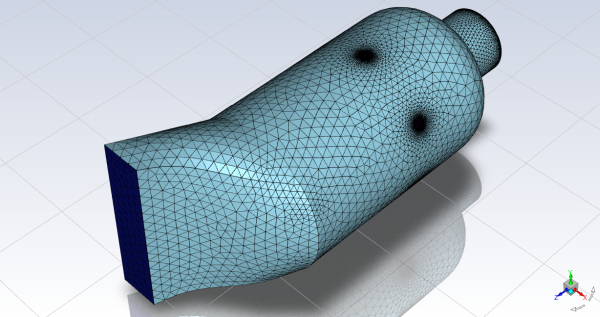
Describe the geometry.
In the Describe Geometry task, select the option "The geometry consists of only fluid regions with no voids".
Check that both remaining options are set to "No".
Click .
Update the boundaries.
Change the wallvanes boundary type to wall.
Click .
Update the regions.
Retain default settings and click .
Add boundary layers.
Retain default settings and click Add Boundary Layers.
Generate the volume mesh.
Change the Max Cell Length to
7.5.Click to generate the mesh.
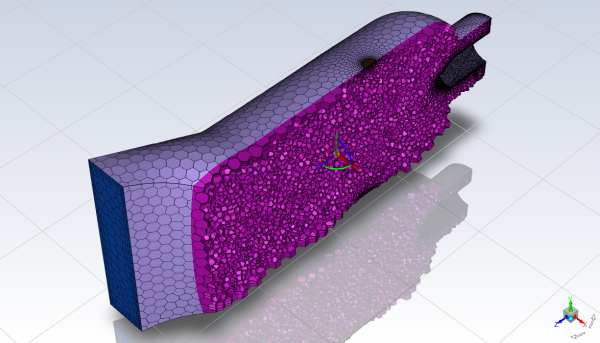
Check the quality of the mesh
Select Check from the Mesh drop-down list on the main taskbar.
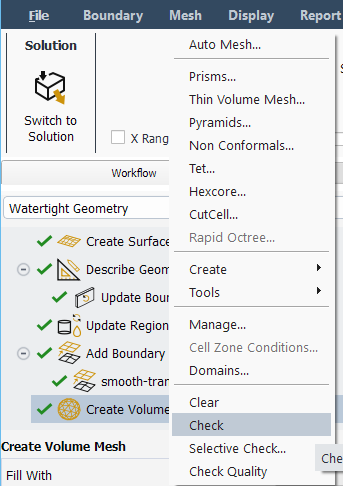
Switch to solution mode by clicking the button on the Fluent ribbon tab.
Retain the default setting of Pressure-Based in the Solver group box, under Type. Retain the default selection of Steady from the Time list.
 Setup
→
Setup
→  General
The fuel (methane) and oxidizer (air) undergo fast combustion (that is, the overall combustion rate is controlled by turbulent mixing). In this first part of the tutorial, the combustion reaction is considered to be driven by turbulent diffusion, and it is modeled using the Eddy Dissipation model, which is suitable for modeling fast combustion.
Enable the k-ω SST turbulence model.
 Physics → Models
→ Viscous...
Physics → Models
→ Viscous...
Retain the default selections in the Viscous Model dialog box.
Click to close the Viscous Model dialog box.
Enable chemical species transport and reaction.
Physics → Models
→ Species...
Select Species Transport in the Model list.
Select methane-air from the Mixture Material drop-down list.
The Mixture Material list contains the set of chemical mixtures that exist in the Ansys Fluent database. When selecting an appropriate mixture for your case, you can review the constituent species and the reactions of the predefined mixture by clicking View... next to the Mixture Material drop-down list. The chemical species and their physical and thermodynamic properties are defined by the selection of the mixture material. After enabling the Species Transport model, you can alter the mixture material selection or modify the mixture material properties using the Create/Edit Materials dialog box.
Select Volumetric in the Reactions group box.
Select Eddy-Dissipation in the Turbulence-Chemistry Interaction group box.
The Eddy-Dissipation model computes the reaction rate under the assumption that chemical reaction is fast compared to transport of reactants in the combusting flow. That is, the reaction is controlled by diffusion.
Click to close the Species Model dialog box.
A Warning message appears in the console notifying you that Ansys Fluent automatically enabled the energy equation required for the Species reaction model.
In this step, you will define the boundary conditions at the inlets and the outlet.
Set the boundary condition for the fuel inlet.
Setup → Boundary
Conditions → Inlet
→ fuelinlet
 Edit...
In the Velocity Inlet dialog box, configure the following settings.
Tab
Setting
Value
Momentum
Velocity Magnitude
40m/sThermal
Temperature
300(default)Species
ch4 (Species Mass Fractions group box)
1Set the boundary condition for the primary air inlet.
Setup → Boundary
Conditions → Inlet
→ inletair1
Edit...
In the Velocity Inlet dialog box, configure the following settings.
Tab
Setting
Value
Momentum
Velocity Magnitude
10m/sThermal
Temperature
300(default)Species
o2 (Species Mass Fractions group box)
0.23[a]Set the boundary condition for the secondary air inlet.
Setup → Boundary
Conditions → Inlet
→ inletair2
Edit...
In the Velocity Inlet dialog box, configure the following settings.
Tab
Setting
Value
Momentum
Velocity Magnitude
6m/sThermal
Temperature
300(default)Species
o2 (Species Mass Fractions group box)
0.23Set the boundary condition for the pressure outlet.
Setup → Boundary
Conditions → Outlet
→ outlet
Edit...
In the Pressure Outlet dialog box, configure the following settings.
For wall-part-fluid, wallvanes and wallvanes-shadow retain the default stationary no slip adiabatic settings.
Specify the discretization schemes.
Solution
→ Solution
→ Methods...
In the Solution Methods task page, configure the following settings.
Ensure that the plotting of residuals is enabled during the calculation.
Solution
→ Reports
→ Residuals...
Create a surface report definition of mass-weighted average of co2 at the outlet.
Solution → Reports
→ Definitions
→ New → Surface
Report → Mass-Weighted
Average...
Configure the following settings.
Group Box
Setting
Value
N/A
Name
co2-outN/A
Field Variable
Species... and Mass fraction of co2
N/A
Surfaces
outlet Create
Report File (Selected) Report Plot (Selected) Print to Console (Selected) Initialize the solution.
Solution
→ Initialization
→ Initialize
Save the case file (
can_combustor_edm.cas.h5). File → Write
→ Case...
Start calculation.
Solution → Run
Calculation → Run
Calculation...
Set the global Time Scale Factor to
5.The Time Scale Factor allows you to further manipulate the computed time step size calculated by Ansys Fluent. Larger time steps can lead to faster convergence. However, if the time step is too large it can lead to solution instability.
Enter
500for Number of Iterations.Click Calculate.
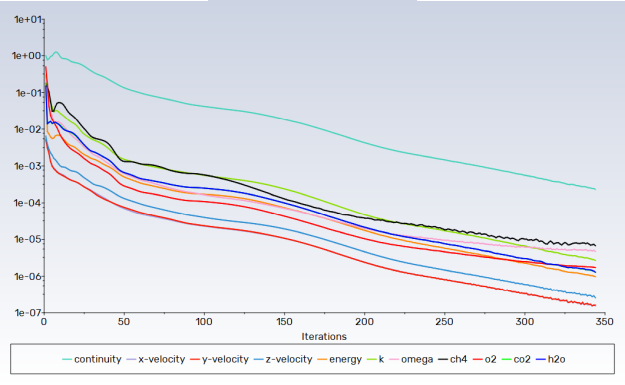
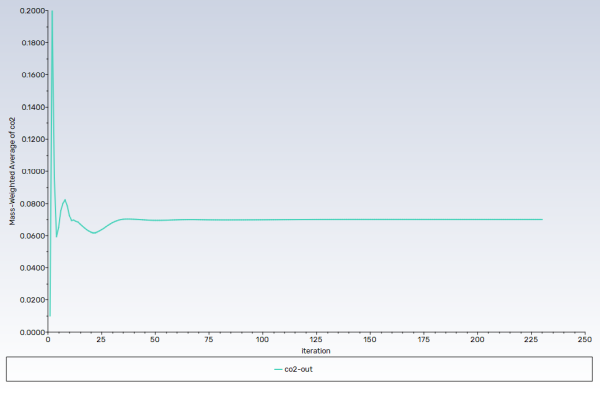
All scaled residuals have met the criteria for a converged solution (Figure 18.2: Scaled Residuals), and the relative amount of CO2 exiting the combustor outlet has become stable (Figure 18.3: Convergence History of Mass-Weighted Average CO2 on the Outlet).
Save the case and data files (
can_combustor_edm.cas.h5andcan_combustor_edm.dat.h5). File → Write
→ Case & Data...
Check the mass flux balance.
Results
→ Reports
→ Fluxes...
Warning: Although the mass flow rate history indicates that the solution is converged, you should also check the net mass fluxes through the domain to ensure that mass is being conserved.
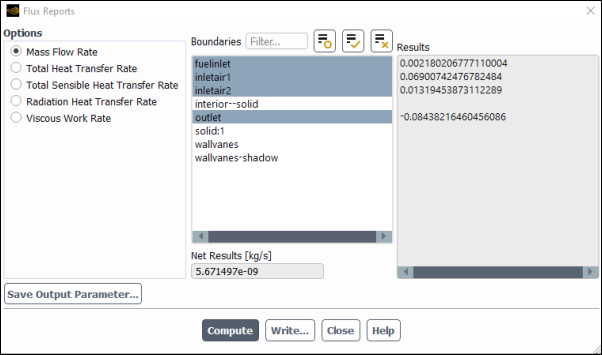
Select fuelinlet, inletair1, inletair2 and outlet from the Boundaries selection list.
Retain the default Mass Flow Rate option.
Click and close the Flux Reports dialog box.
Warning: The net mass imbalance should be a small fraction (for example, 0.5%) of the total flux through the system. If a significant imbalance occurs, you should decrease the residual tolerances by at least an order of magnitude and continue iterating.
Report the total sensible heat flux.
Results
→ Reports
→ Fluxes...

Select Total Sensible Heat Transfer Rate in the Options list.
Select all the boundaries from the Boundaries selection list (you can click the select-all button (
 ).
).Click and close the Flux Reports dialog box.
Note: The energy balance is good because the net result is small compared to the heat of reaction.
Create an XZ plane, which will be used for plotting the results.
Results
→ Surface
→ Create
→ Plane...
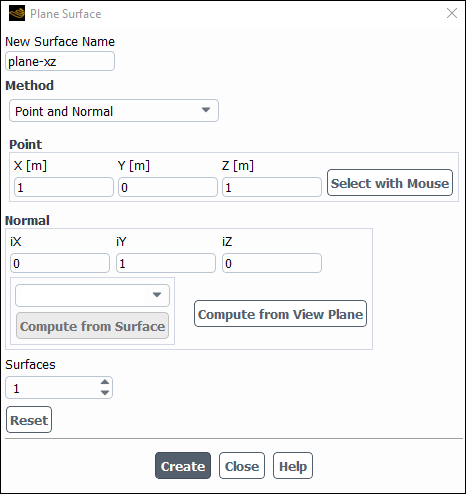
Enter
plane_xzin for New Surface Name.In the Method drop-down list, select Point and Normal.
In the Point group box, enter
1,0,1for X, Y, Z, respectively.In the Normal group box, enter
0,1,0for iX, iY, iZ, respectively.Click Create and close the Plane Surface dialog box.
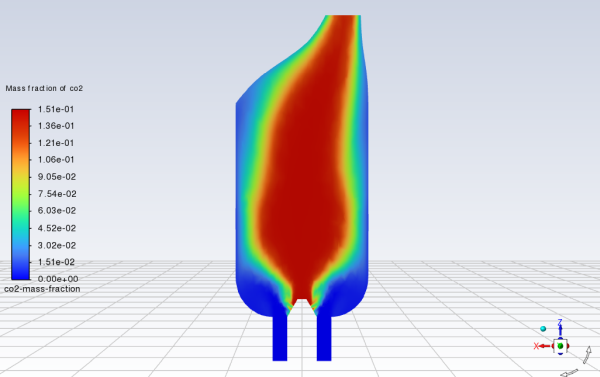
Display filled contours of CO2 mass fraction in the combustion chamber (Figure 18.4: Contours of CO2 Mass Fraction).
Results
→ Graphics
→ Contours
→ New...
Enter
co2-mass-fractionfor Contour Name.Enable Filled in the Options group box.
From the Contours of drop-down lists, select Species... and Mass Fraction of co2.
From the Surfaces selection list, deselect all surfaces and select plane_xz.
In the Coloring group box, select Smooth.
Click , close the Contours dialog box, and rotate the view as shown in Figure 18.4: Contours of CO2 Mass Fraction.
The contour map of the CO2 concentration shows that the flow is mixing and reacting properly in the combustor.
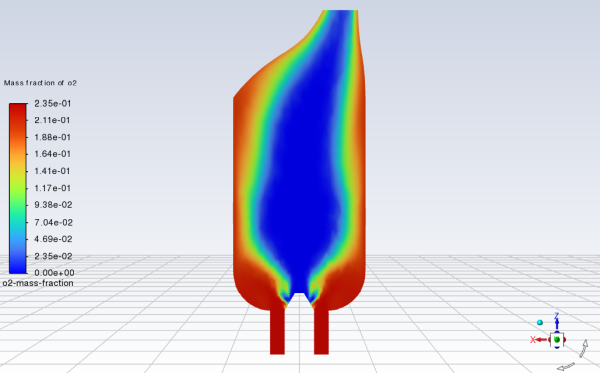
Display filled contours of oxygen mass fraction on the surface plane_xz (Figure 18.5: Contours of O2 Mass Fraction).
Results
→ Graphics
→ Contours
→ New...
Enter
o2-mass-fractionfor Contour Name.Enable Filled in the Options group box.
From the Contours of drop-down lists, select Species... and Mass Fraction of o2.
From the Surfaces selection list, deselect all surfaces and select plane_xz.
In the Coloring group box, select Smooth.
Click and close the Contours dialog box.
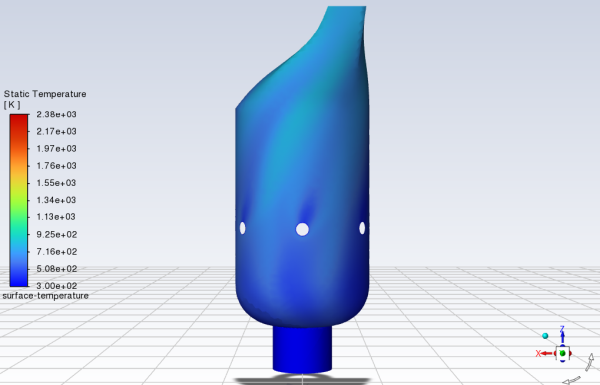
Display filled contours of temperature on the aluminum combustor walls (Figure 18.6: Contours of Static Temperature on the Combustor Walls).
Results
→ Graphics
→ Contours
→ New...
Enter
surface-temperaturefor Contour Name.Enable Filled in the Options group box.
From the Contours of drop-down lists, select Temperature... and Static Temperature.
Click and select Iso-Clip.
Name the surface
clip-y-coordinateand select Mesh... and Y-Coordinate from the Clip to Values of drop-down lists.Select the surface
solid:1.Click and enter
0for the Min (m).Click and close the dialog box.
From the Surfaces selection list, deselect all surfaces and select clip-y-coordinate and wallvanes.
In the Coloring group box, select Smooth.
Click and close the Contours dialog box.
Rotate the contour plot to examine the temperature field of the combusting flow on the canister walls from different angles.
Save the case and data files (
can_combustor_edm.cas.h5andcan_combustor_edm.dat.h5). File → Write
→ Case & Data...
In the first part of the tutorial, the combustion reaction was modeled using the Eddy Dissipation model. In this part of the tutorial, you will use the Steady Diffusion Flamelet model to simulate a turbulent non-premixed reacting flow. The Steady Diffusion Flamelet model can model local chemical non-equilibrium due to turbulent strain.
In the Steady Diffusion Flamelet model, reactions take place in a thin laminar locally one-dimensional zone, called 'flamelet'. The turbulent flame is represented by an ensemble of such flamelets. Detailed chemical kinetics is used to describe the combustion reaction. The chemistry is assumed to respond rapidly to the turbulent strain, and as the strain relaxes to zero, the chemistry tends to equilibrium. Despite the tendency toward equilibrium, a flamelet solution can often yield more accurate results than an Eddy Dissipation or one- or two-step Finite Rate solution. This is because all the chemistry details are included, making it possible to capture some of the faster intermediate reactions. To model turbulent mixing, a probability density function (PDF) table is used as a lookup table at run time.
To watch a video that demonstrates some steps shown below, go to
Specify settings for non-premixed combustion.
Physics → Models
→ Species...
In the Model group box, select Non-Premixed Combustion.
In the State Relation group box, select Steady Diffusion Flamelet.
Retain the selection of Create Flamelet in the Options group box.
If you are generating a flamelet file yourself, you need to read in the chemical kinetics mechanism and thermodynamic data, which must be in CHEMKIN format.
Click Import CHEMKIN Mechanism...
In the CHEMKIN Mechanism Import dialog box, in the Kinetics Input File text entry field, enter the following:
path\KINetics\data\grimech30_50spec_mech.inpwhere
pathis the Ansys Fluent installation directory (for example,C:\Program Files\ANSYS Inc\v242\fluent\fluent24.2.0).Click .
Once the reacting data file has been imported, the tab for specifying the fuel and oxidizer compositions, flamelet and PDF table become accessible.
In the Boundary tab, specify the fuel (methane) and oxidizer (air) stream compositions in mass fractions.
In the Specify Species in group box, make sure that Mass Fraction is selected.
Configure the following settings:
Group
Species
Mass Fraction
Fuel
ch4
1.0Oxid
o2
0.233(default)n2
0.767(default)Tip: Scroll down to see all the species.
Note: All boundary species with a mass or mole fraction of zero will be ignored.
In the Temperature group box, retain the default values of 300 K for Fuel and Oxid.
In the Control tab, retain the default settings.
In the Flamelet tab, retain the default settings and click .
Once the diffusion flamelets are generated, a Question dialog box opens, asking whether you want to save flamelets to a file. Click .
In the Table tab, retain the default settings for the table parameters and click Calculate PDF Table to compute a non-adiabatic probability density function (PDF) table.
Click
In the PDF Table dialog box, retain the selection of Mean Temperature from the Plot Variable drop-down list and all the other default parameters and click .
In the graphical display of the 3D look-up table, the Z axis represents the mean temperature of the reacting fluid, and the X and Y axes represent the mean mixture fraction and the scaled variance, respectively.
The maximum and minimum values for mean temperature and the corresponding mean mixture fraction and scale variance are also reported in the console.
The 3D look-up tables are reviewed on a slice-by-slice basis. By default, the slice selected corresponds to the adiabatic enthalpy values. You can also select other slices of constant enthalpy for display.
Save the PDF output file (
can_combustor_flamelet.pdf.gz). File → Write
→ PDF...Enter
can_combustor_flamelet.pdf.gzfor PDF File name.Click to write the file.
By default, the file will be saved as formatted (ASCII, or text). To save a binary (unformatted) file, enable the Write Binary Files option in the Select File dialog box.
Click to close the PDF Table dialog box.
Click to close the Species Model dialog box.
Specify the boundary condition for the fuel inlet.
Setup → Boundary
Conditions → Inlet
→ fuelinlet
Edit...
In the Velocity Inlet dialog box, under the Species tab, enter
1for Mean Mixture Fraction.The value of 1 indicates that only pure methane will be entering the fuelinlet boundary.
Click Apply and close the Velocity Inlet dialog box.
Edit the output filename for mass-weighted average of co2 at the outlet.
Solution →
Monitors → Report
Files
→ co2-out-rfile Edit...Enter
co2-out-fl-rfile.outfor File Name.Click to close the Edit Report File dialog box.
Save the case file (
can_combustor_flamelet.cas.h5). File → Write
→ Case...
Reinitialize the solution.
Solution
→ Initialization
→ Initialize
In the Run Calculation task page, retain the settings of 5 for Time Scale Factor and 500 for Number of Iterations and click Calculate.
Solution → Run
Calculation → Run
Calculation...
Save the case and data files (
can_combustor_flamelet.cas.h5andcan_combustor_flamelet.dat.h5). File → Write
→ Case & Data...
Check the mass flux balance and the total sensible heat flux. Here, it is important for the total sensible net heat flux to be at least less than
1%of the reaction source.Note that in this case, the residuals may not converge. It is important to utilize both the flux calculations along with the monitor plot to determine whether the solution has converged.
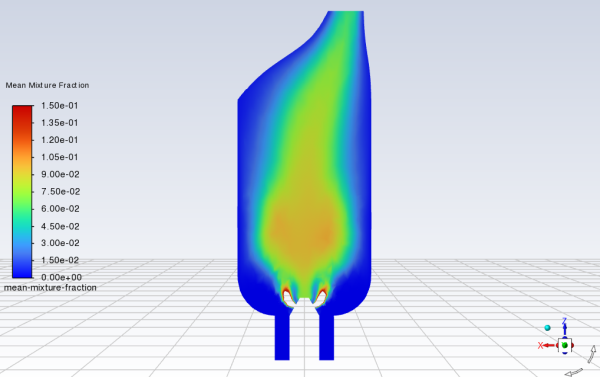
Display filled contours of mean mixture fraction on the surface plane_xz (Figure 18.7: Contours of Mean Mixture Fraction).
Results
→ Graphics
→ Contours
→ New...
Enter
mean-mixture-fractionfor Contour Name.From the Contours of drop-down lists, select Pdf... and Mean Mixture Fraction.
From the Surfaces selection list, deselect all surfaces and select plane_xz.
Enable Filled in the Options group box.
Clear the Auto Range and Clip to Range options.
Enter
0.15for Max.In the Coloring group box, select Smooth.
Click .
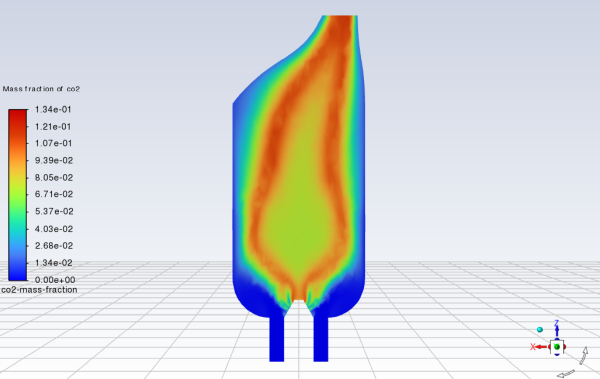
Display filled contours of CO2 mass fraction in the combustion chamber (Figure 18.8: Contours of CO2 Mass Fraction).
Results
→ Graphics
→ Contours
→ co2-mass-fraction
DisplayThe steady diffusion flamelet simulation yields a significantly different CO2 mass fraction distribution as compared to the eddy dissipation model calculation. The lower CO2 concentration at the base of the flamelet flame is caused by low local temperature in the area, which results in slower combustion. In the eddy dissipation model, chemical kinetics is ignored, and the reaction is controlled by turbulent mixing of the materials. In this case, the CO2 concentration is greater near the base of the flame because the rate of mixing is high in the area (see Figure 18.4: Contours of CO2 Mass Fraction).
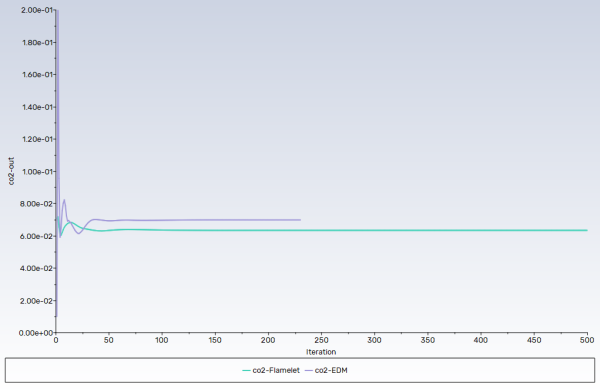
Display the outlet CO2 concentration profiles for both solutions on a single plot.
Results → Plots
→ Data Sources...In the Plot Data Sources dialog box, click the button to open the Select File dialog box.
In the Select File dialog box that opens, click once on co2-out-fl-rfile.out and co2-out-rfile.out.
Each of these files will be listed with their folder path in the bottom list to indicate that they have been selected.
Tip: If you select a file by mistake, simply click the file in the bottom list and then click .
Click to save the files and close the Select File dialog box.
In the Plot group box, enter
co2-outfor Title.From the Curve Information selection list, select co2-out-rfile.out | Iteration | co2-out
Enter
co2-EDMin the lower-right text-entry box under the Legend Names selection list.Click the button.
The item in the Legend Entries list for co2-out-rfile.out | Iteration | co2-out will be changed to co2-EDM. This legend entry will be displayed in the upper-left corner of the XY plot generated in a later step.
In a similar manner, change the legend entry for the co2-out-fl-rfile.out | Iteration | co2-out curve to be
co2-Flamelet.Click the button to open the Axes dialog box.
From the Axis list, select Y.
Enter
2for Precision.Click and close the Axes dialog box.
Click the button to open the Curves dialog box, where you will define a different curve symbol for the CO2 concentration data.
Retain
0for the Curve #.Select ---- from the Pattern drop-down list.
From the Symbol drop-down list, select the "blank" choice, which is the first item in the Symbol list.
Click .
Set Curve # to
1by clicking the up-arrow button.Modify the settings for Pattern and Symbol in a manner similar to that for the previous curve.
Click and close the Curves dialog box.
Click and close the Plot Data Sources dialog box.
Despite the model differences, both models predicted similar mass-weighted average mass fractions of CO2 exiting the combustor during the steady-state. However, the steady diffusion flamelet model predicts less CO2 exiting the combustor and, due to its more realistic description of combustion kinetics, is considered to be more accurate.
Save the case file (
can_combustor_flamelet.cas.h5). File → Write
→ Case...
You can perform further postprocessing of the solution results as shown in the following video: