


Additional configuration for isometric crosshairs
By default, crosshairs in MI Viewer are orthogonal. However, for some pictures, such ternary phase diagrams, isometric crosshairs are preferable.
Example shows finding the phase at 30% Cu, 20% Au and 50% Ag:
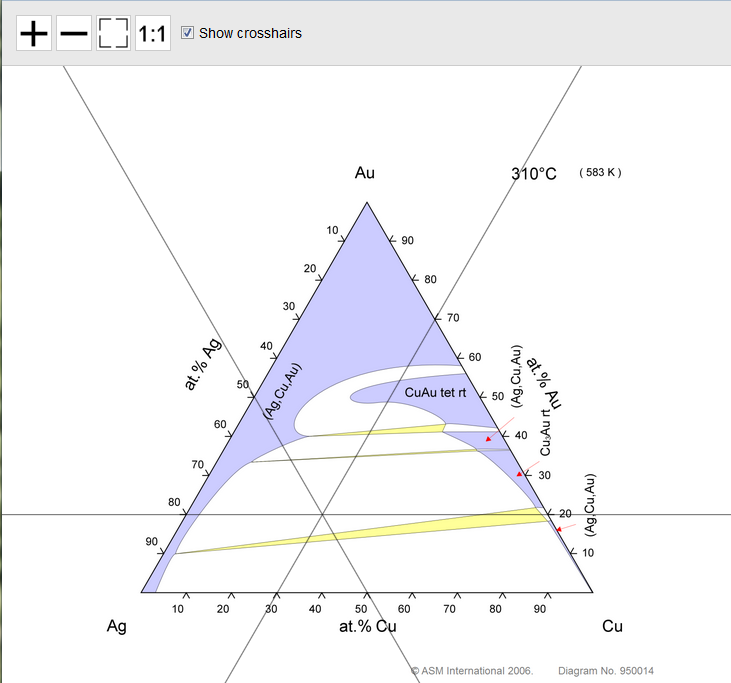
Pictures for which isometric crosshairs are required may be identified using a regular expression ('regex') that matches specific words in the picture Attribute name.
Regular expressions are a very flexible and powerful way of expressing a search pattern, and can be used to describe both simple and very complicated patterns. A comprehensive tutorial on regex syntax is beyond the scope of this documentation, but there are numerous resources online: the reference to the regex engine used in MI Viewer can be found in Microsoft's .NET Framework documentation (external link), and you may also find Regular Expression Language - Quick Reference (external link) to be a useful resource.
Regular expression usage notes
- The regular expression is case insensitive, so
Phase Diagramis the same asphase diagramin a regex. - Unless specified otherwise, a regex will match a string if the search pattern is
contained anywhere within the string. For example, the regex
diagramwill match the stringsDiagramsandPhase diagram. Special characters must be escaped. The following 12 characters have special meanings in regular expressions and must be escaped (preceded with a ‘\’ character) in a regex:
- ^ - caret
- + - plus sign
- [ - opening square bracket
- $ - dollar sign
- ? - question mark
- { - opening curly brace
- * - asterisk
- ( - opening parenthesis
- \ - backslash
- , - comma
- ) - closing parethesis
- | - pipe
For example, a regex to find the string
image(22)in a string has to be written asimage\(22\- The caret
^represents the start of the string, for example, a regex of^diagramswill matchdiagramsbut notPhase diagrams. - The dollar sign
$represents the end of the string. - The vertical bar or pipe symbol
|separates different search patterns that may be matched. For example, the regexSnap|Presswill match bothSnap fitandPress fit.
Example: identifying ternary phase diagrams using a regex
This example shows how phase diagrams can be identified by matching a string or strings in the picture Attribute name using simple regular expressions.
If you have only a few Attributes that need to use isometric crosshairs, write a regex
that matches exactly those Attribute names by using the vertical bar or pipe symbol
|; for example to match only Ternary Liquidus Projection Phase
Diagram and Ternary Solidus Projection Phase Diagram, use the
following regex:
^Ternary Liquidus Projection Phase Diagram$|^ Ternary Solidus Projection Phase
Diagram$
(Note the use of the ^ and $ symbol to specify start
and end of the string. This means that even if an Attribute called Another
Ternary Liquidus Projection Phase Diagram was added, it would not match.
The examples below show how different regex can be use to identify images that should
have isometric crosshairs. Attributes marked with  match
the regex and a will have isometric crosshairs, and those marked with a
match
the regex and a will have isometric crosshairs, and those marked with a  do not match the regex and so will have standard orthogonal
crosshairs.
do not match the regex and so will have standard orthogonal
crosshairs.
| Regular expression | Matched image Attribute name |
|---|---|
|
phase diagram (the search is case insensitive) |
Binary Phase Diagram Ternary Isothermal Section Phase Diagram Ternary Liquidus Projection Phase Diagram Ternary Solidus Projection Phase Diagram Ternary Vertical Section Phase Diagram |
|
Ter or Ternary |
Binary Phase Diagram Ternary Isothermal Section Phase Diagram Ternary Liquidus Projection Phase Diagram Ternary Solidus Projection Phase Diagram Ternary Vertical Section Phase Diagram |
| Isothermal|Liquidus|Solidus |
Binary Phase Diagram Ternary Isothermal Section Phase Diagram Ternary Liquidus Projection Phase Diagram Ternary Solidus Projection Phase Diagram Ternary Vertical Section Phase Diagram |